A tour
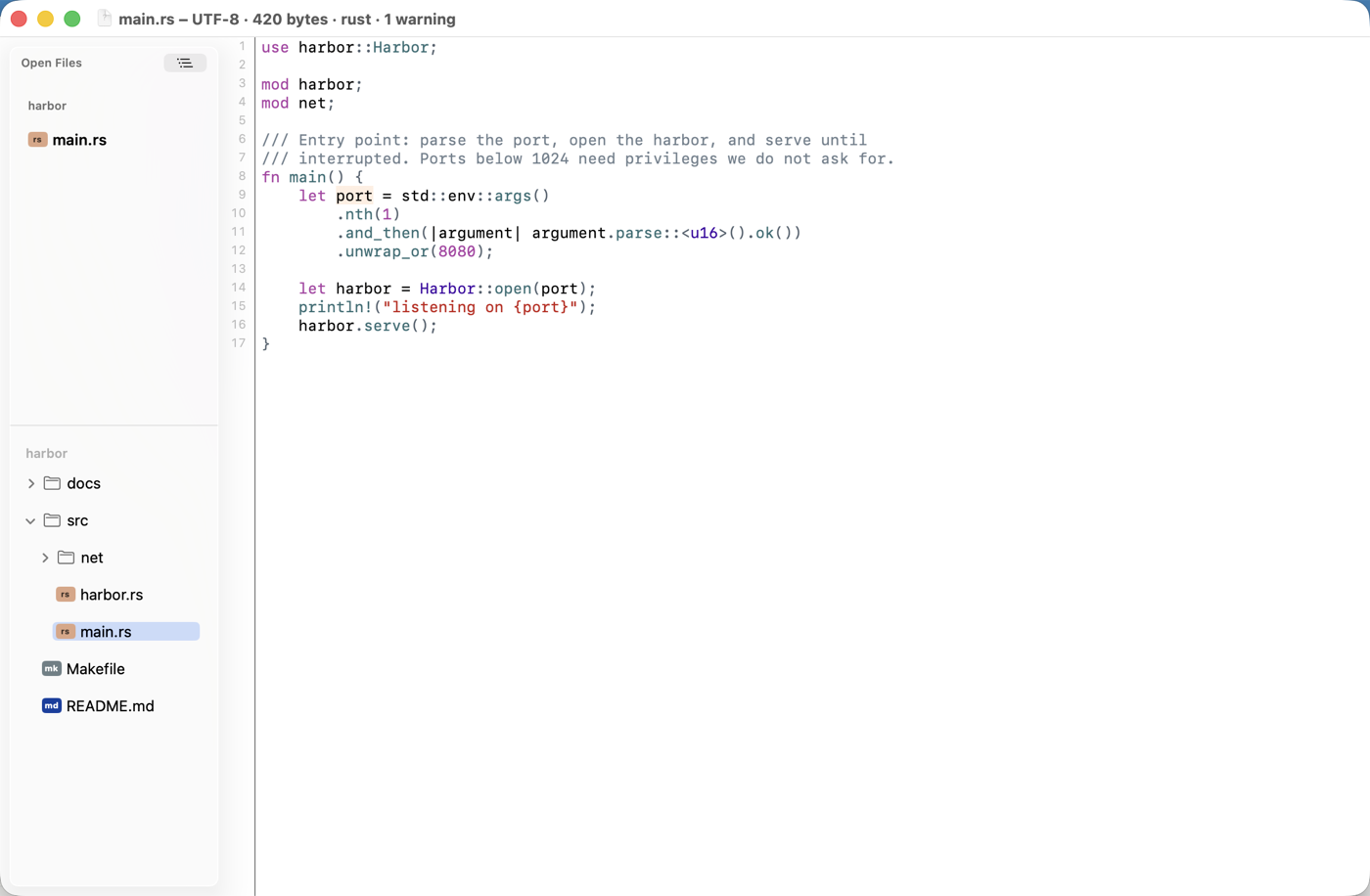
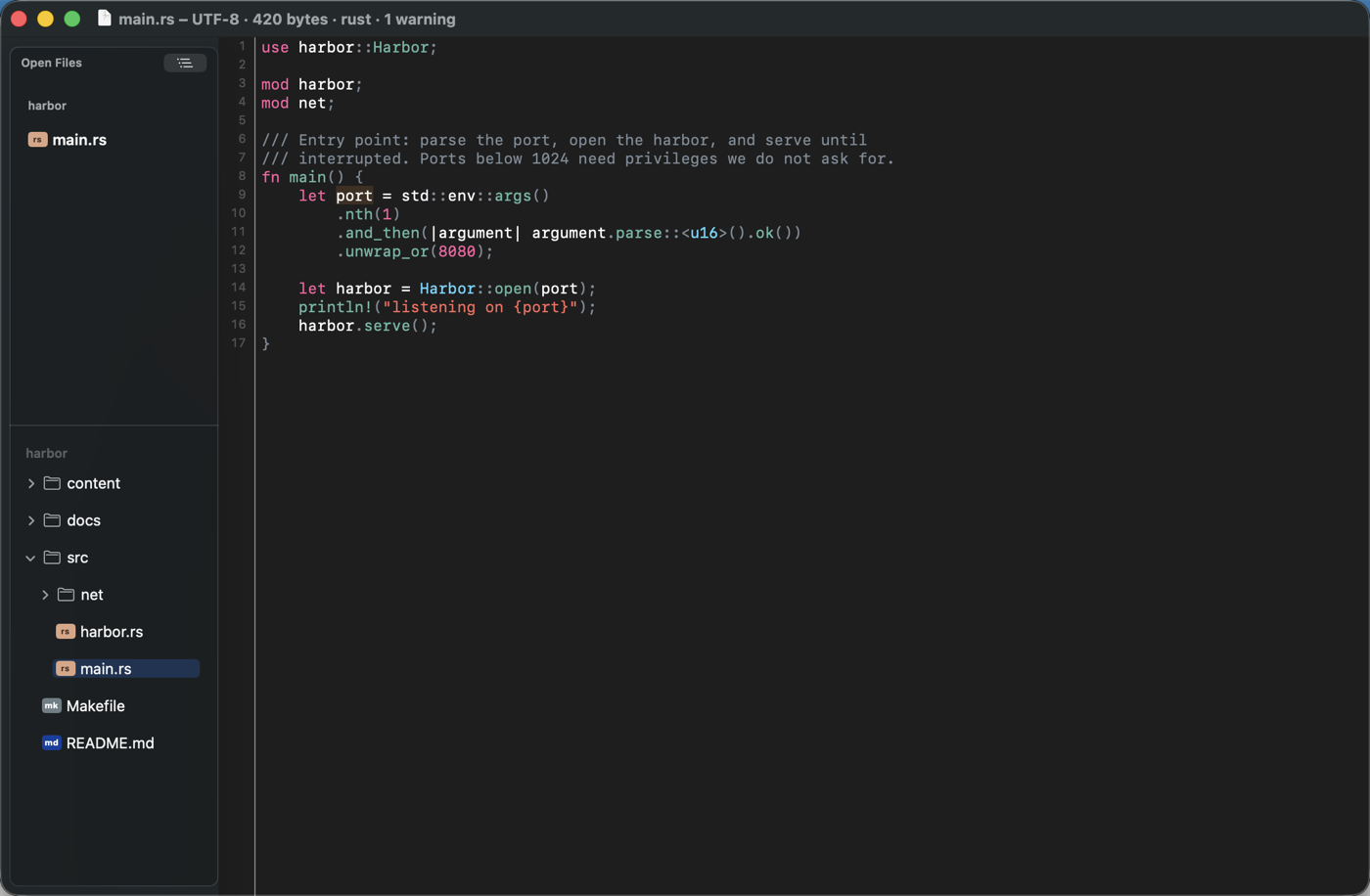
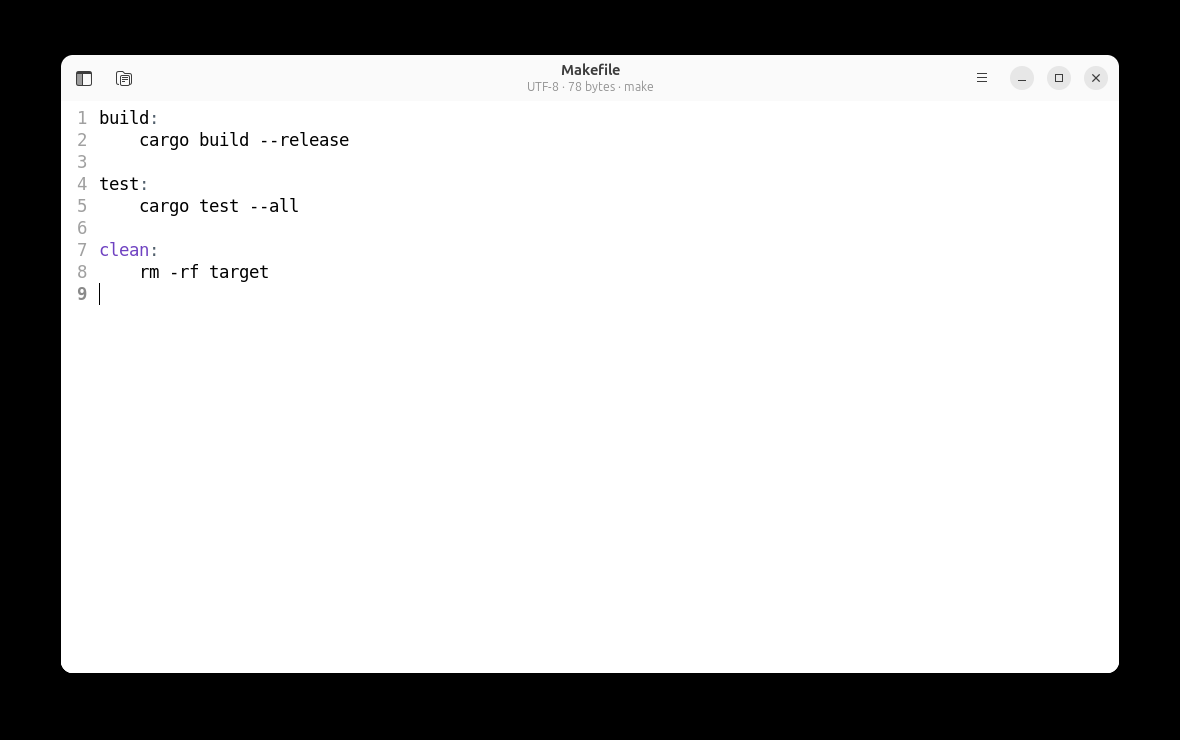
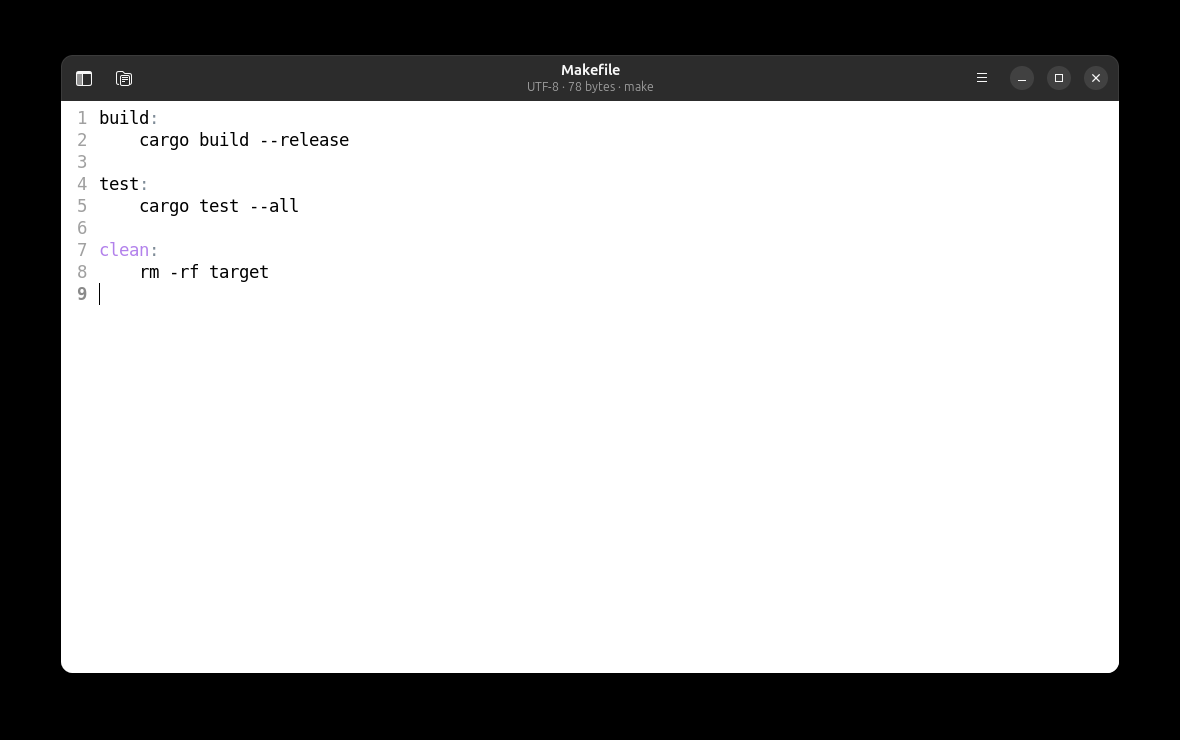
Every screen Textchum has, in the order you would meet them, on both shells: the macOS app on the left and the GTK one on the right. The screenshots come from a small fictional project — Harbor, a port broker that exists only so these pictures have something honest to show — and each follows your own light or dark setting.
The two shells are the same editor over the same core, so the pictures mostly differ in what the platform contributes: window furniture, where a panel is drawn, and which font the system hands over.
The window
One document per window, tabs by default, and a navigator drawer with two halves: the open buffers grouped by project on top, that project's file tree below.
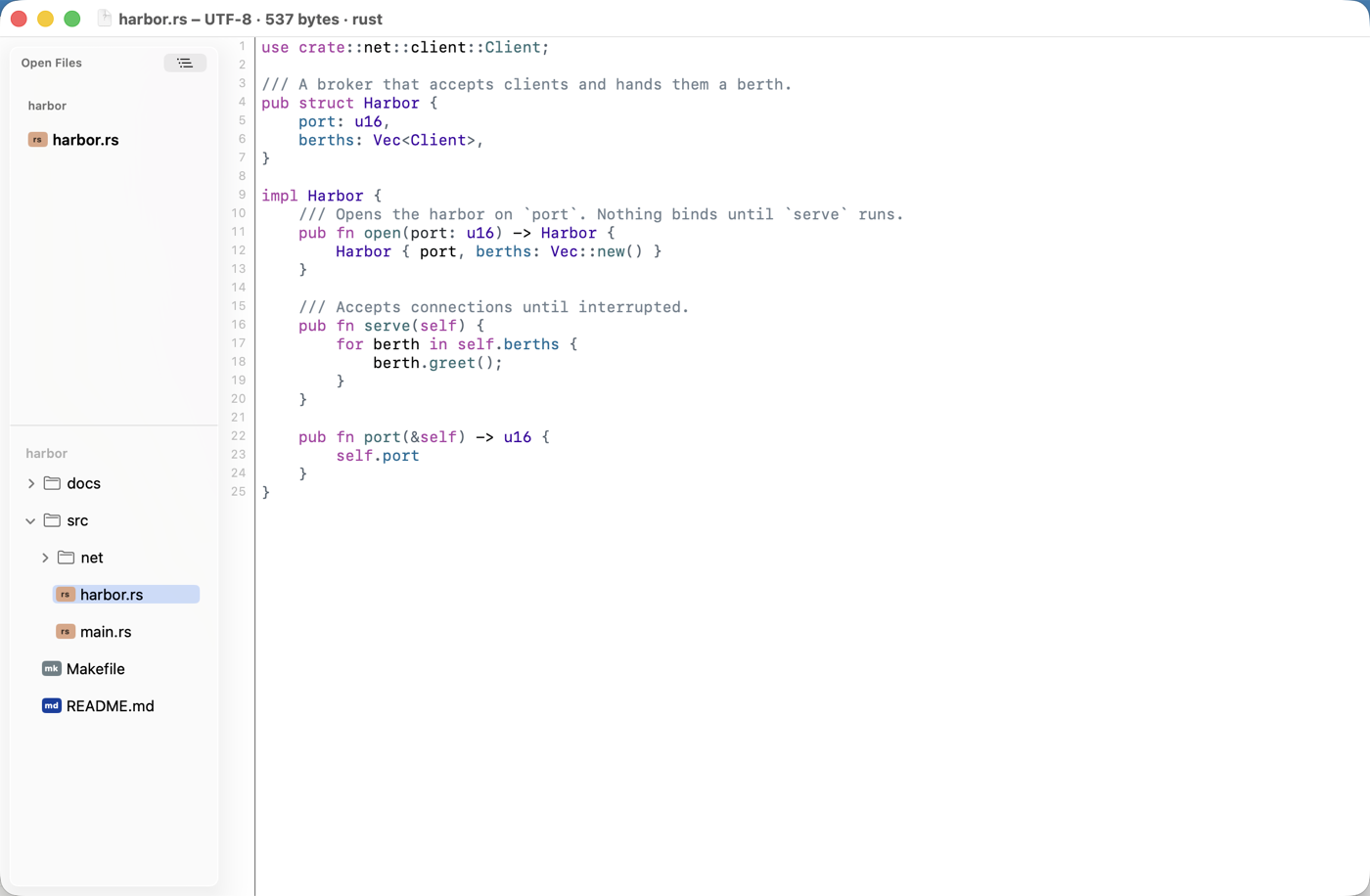
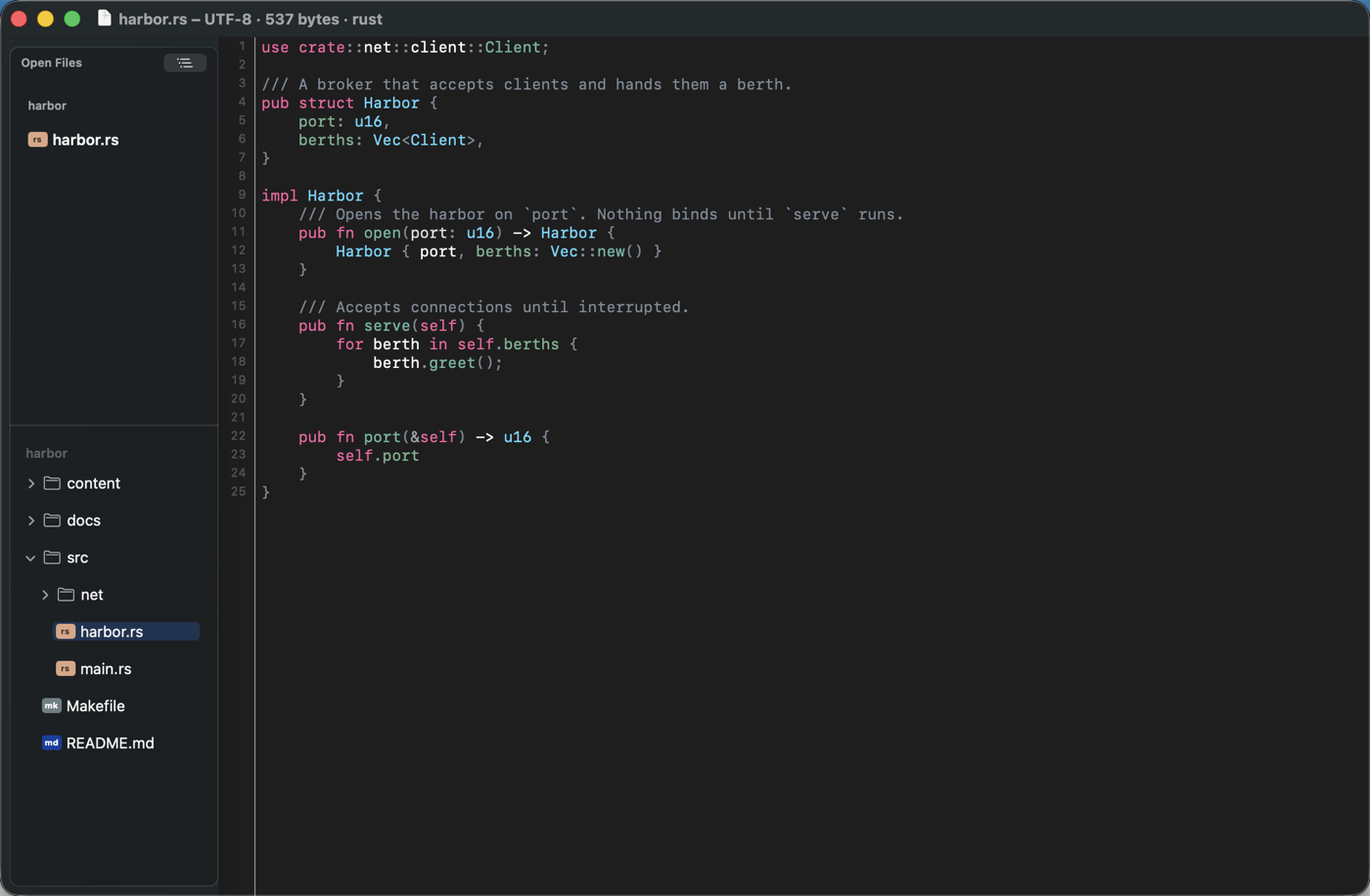
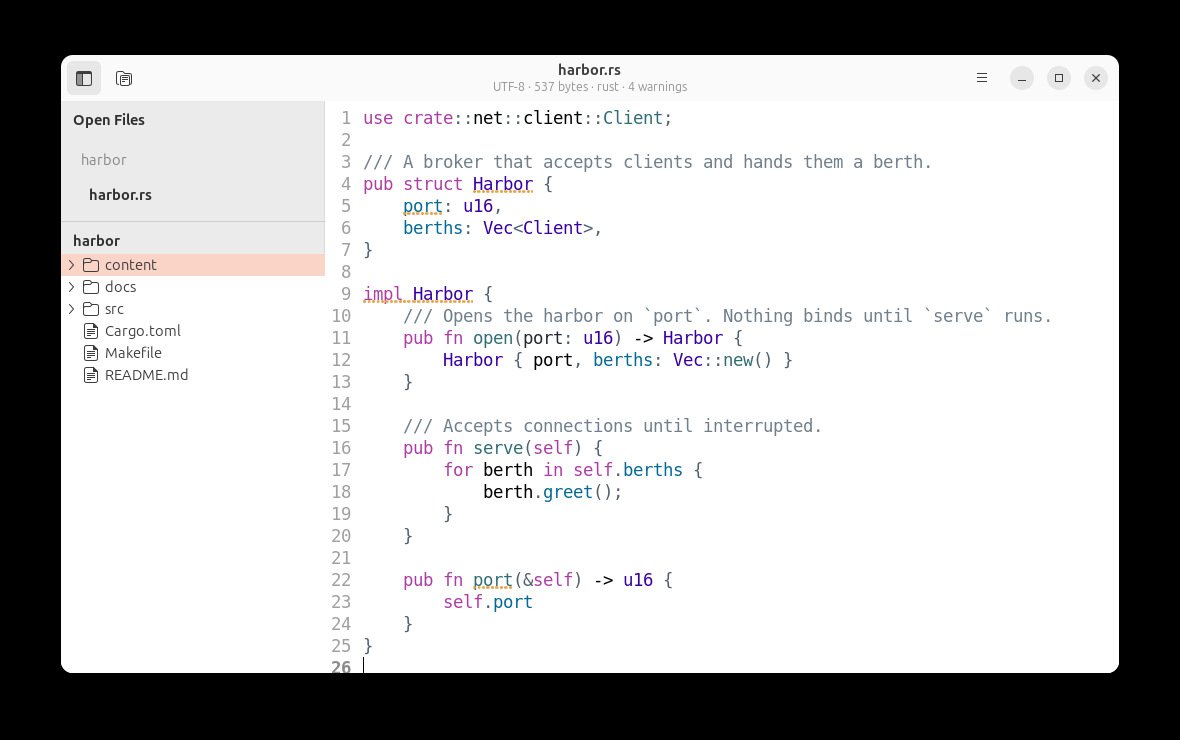
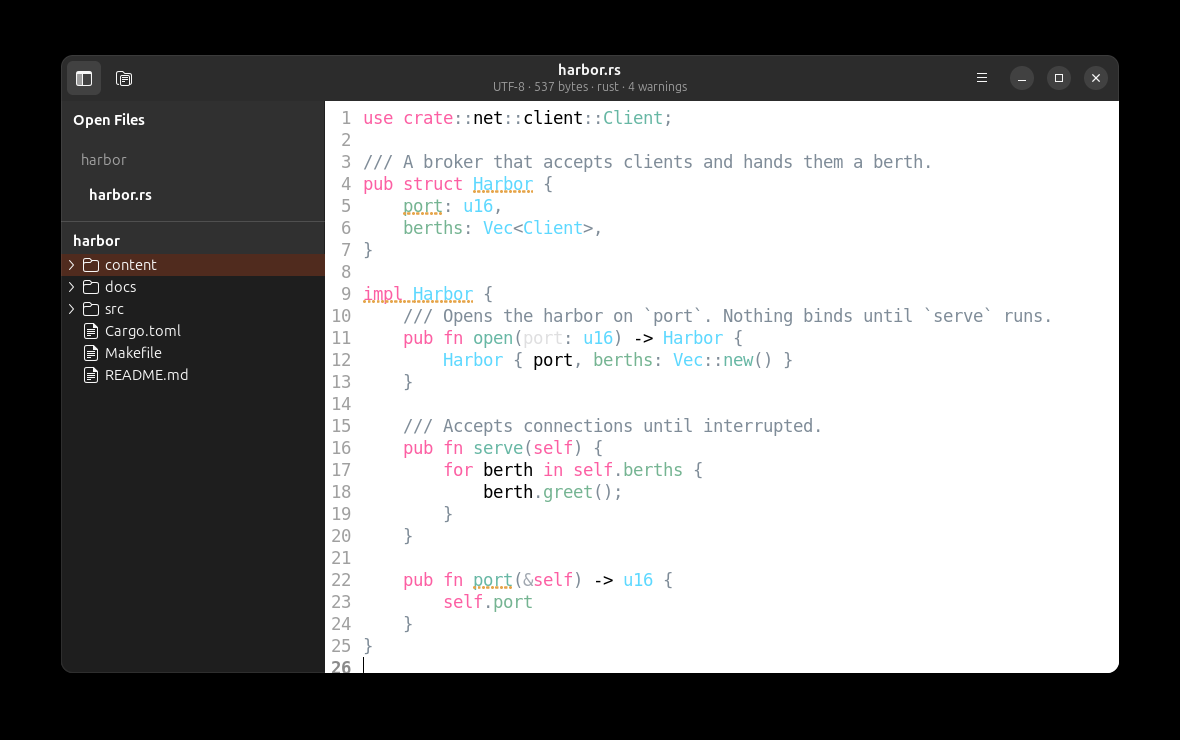
The title bar carries the facts about the document — encoding, size, language, and the problem count once a language server has an opinion. The tree follows along: switching tabs expands the path to the current file and highlights it, and a file saved, made or removed in a folder it shows — by the editor, a refactoring or a command in a terminal — appears or goes on its own.
Right-clicking in the text opens the editor's own menu: Jump to Definition, Find References, Rename Symbol, the diagnostics of the line, Blame Line, Format Document and File Properties, beside cut, copy, paste and the spelling suggestions. Those commands act on the character that was clicked rather than on the caret, which the click leaves where it was. What the document has no use for is not there — no server running means no Find References, no findings means no diagnostics rows.
Folding
Fold (⌘[, Ctrl+[ on Linux) closes the block that opens on the caret's line; Fold All (⌥⌘[, Ctrl+Alt+[) closes every block that is not inside one already closed, and Unfold All (⌘], Ctrl+]) opens them again. A closed block shows its opening line with an ellipsis after it.
The blocks come from the same tree the colouring uses, and the folds belong to the document: closing a function in one view closes it in every view of that file.
Columns
A window is a row of columns. A column shows one file at a time and holds one or more views of it, stacked.
New Column (⌘\, Ctrl+\ on Linux) puts a column beside this one,
showing the same file until it is given another; Close Column
(⇧⌘\, Ctrl+Shift+\) takes one away. Second View (⌥⌘\,
Ctrl+Alt+\) stacks another view of the column's file under the first,
and Close View (⇧⌥⌘\, Ctrl+Alt+Shift+\) removes it. Next Pane
(⌥⌘, Ctrl+Alt+) moves the keyboard through them.
Each view scrolls on its own, which is the point: reading the top of a file while editing the bottom of it. A column owns the file it shows, so changing its tab moves every view in it to the new file.
Both sides are one document. There is one history and one save, so an edit on either side is the same edit, and neither view can be a stale copy of the other. Both toolkits are built for this — a text buffer that several views share — and what does not come free is the colouring, since on macOS that lives on the layout rather than the text; each view gets painted.
Language servers
Diagnostics arrive as tinted marks in the text and a count in the title bar. Nothing about the editor waits on the server: it attaches when it can, and says so when it cannot.
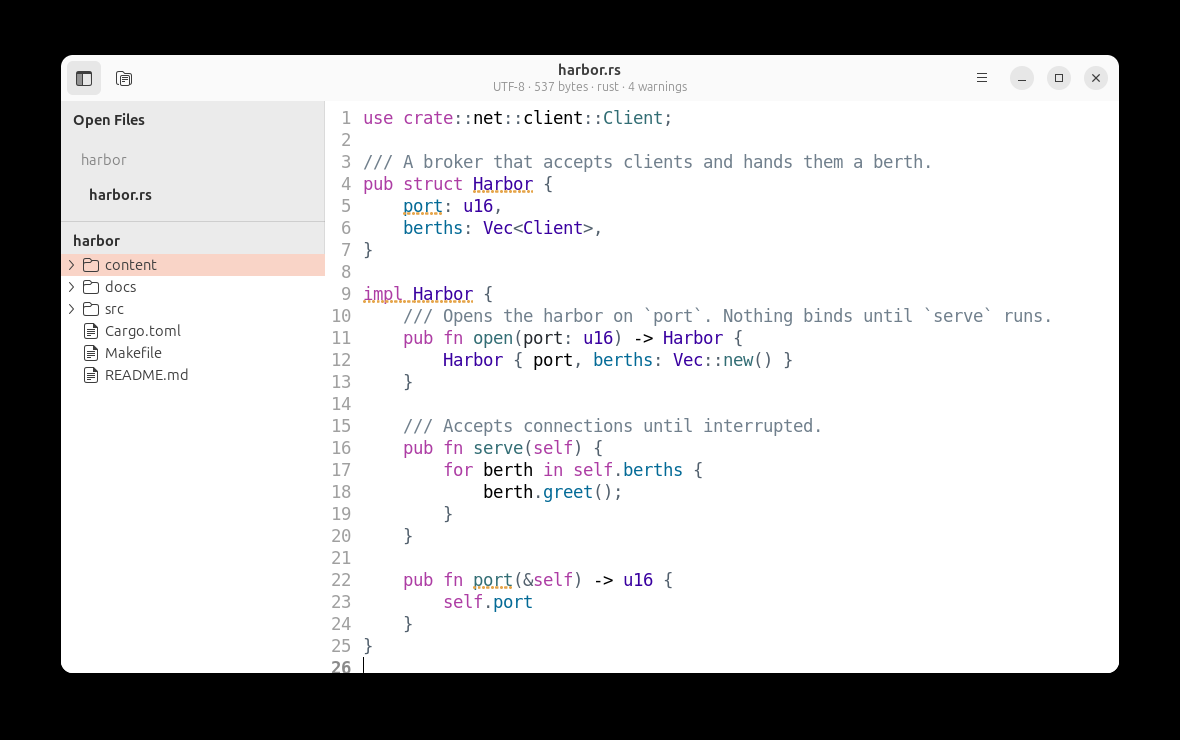
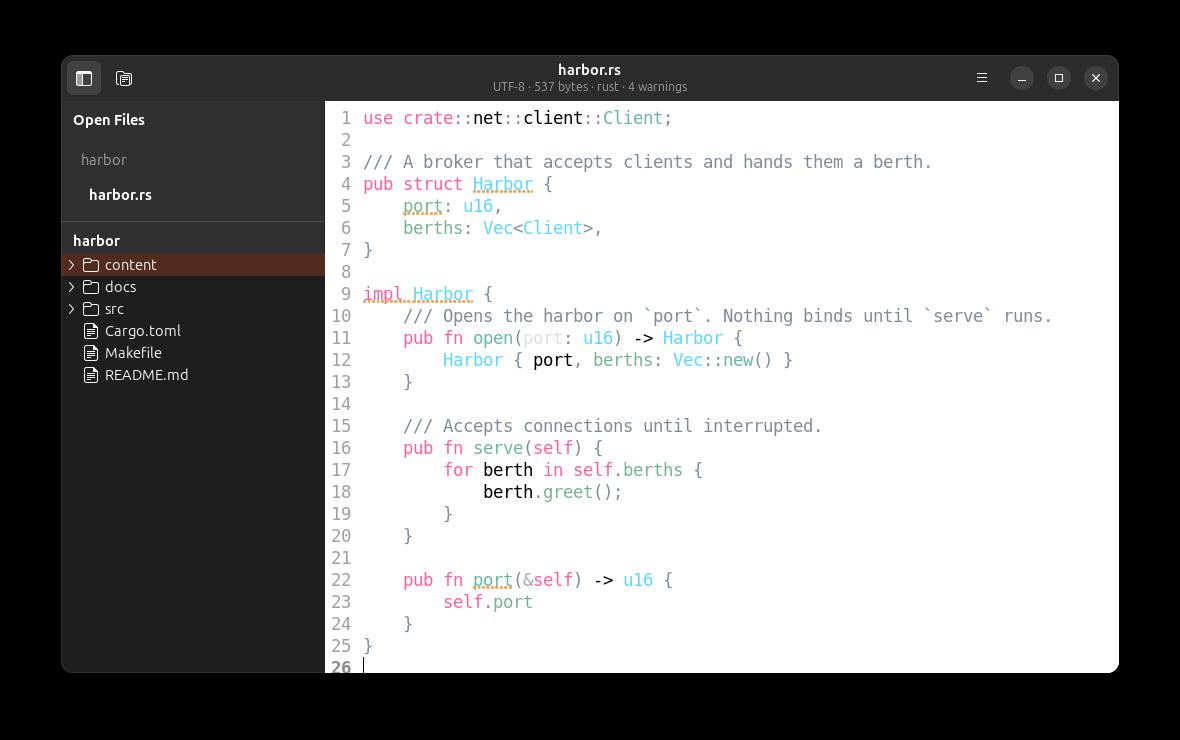
The gutter says the same: a line with a finding has its number in the severity's colour — red, orange, blue — with a disc beside it for an error or a warning and a ring for information and hints. The code in a server's documentation — a signature, a definition — is coloured the way the editor colours that language, and the editor's context menu shows the same keys the main menu does for every command.
Resting the pointer on a symbol shows the server's documentation, with the Markdown it sends rendered — code blocks monospaced, emphasis styled. ⌃⌘H asks for the symbol under the caret instead, which works with mouse hover switched off.
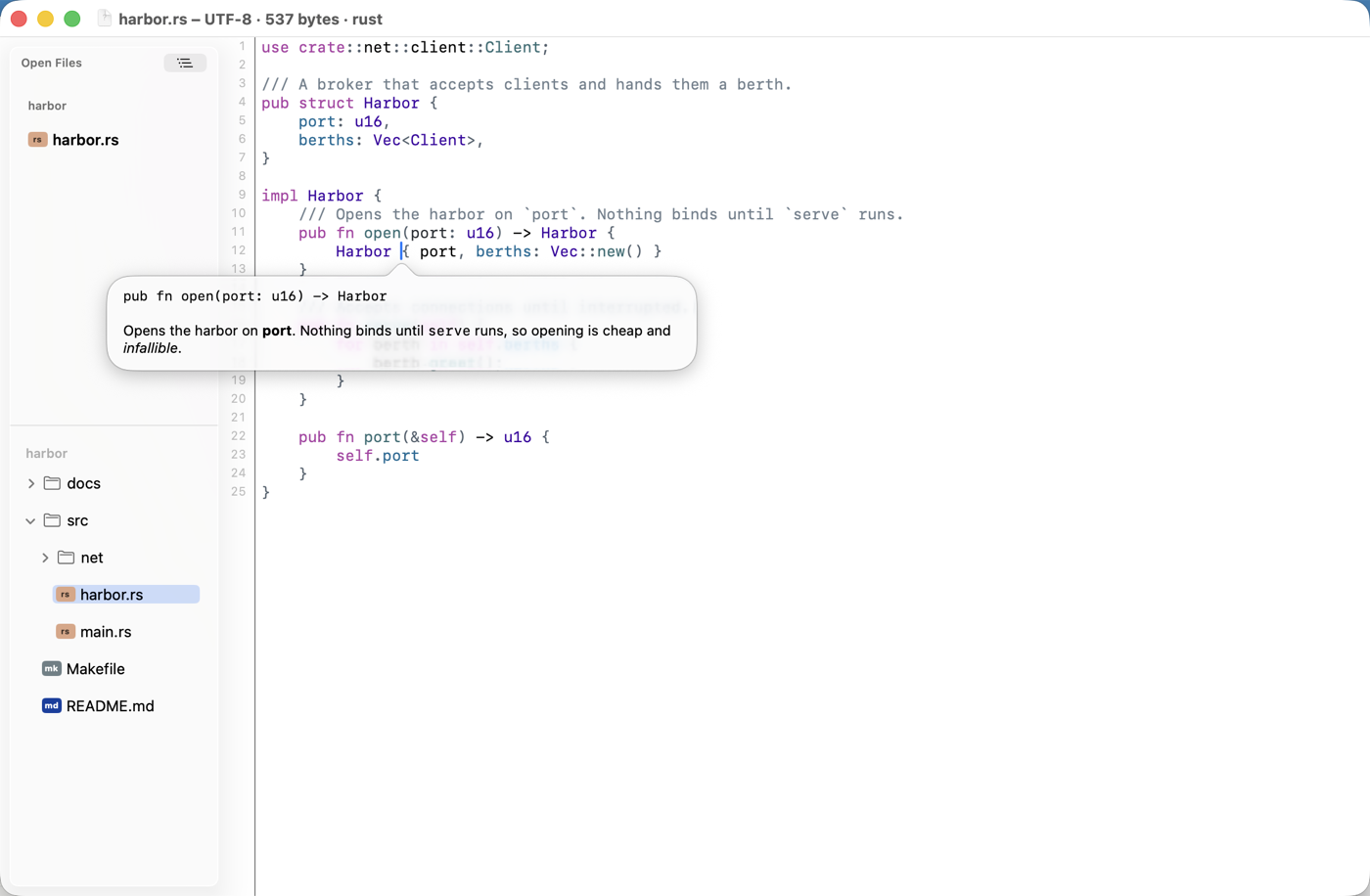
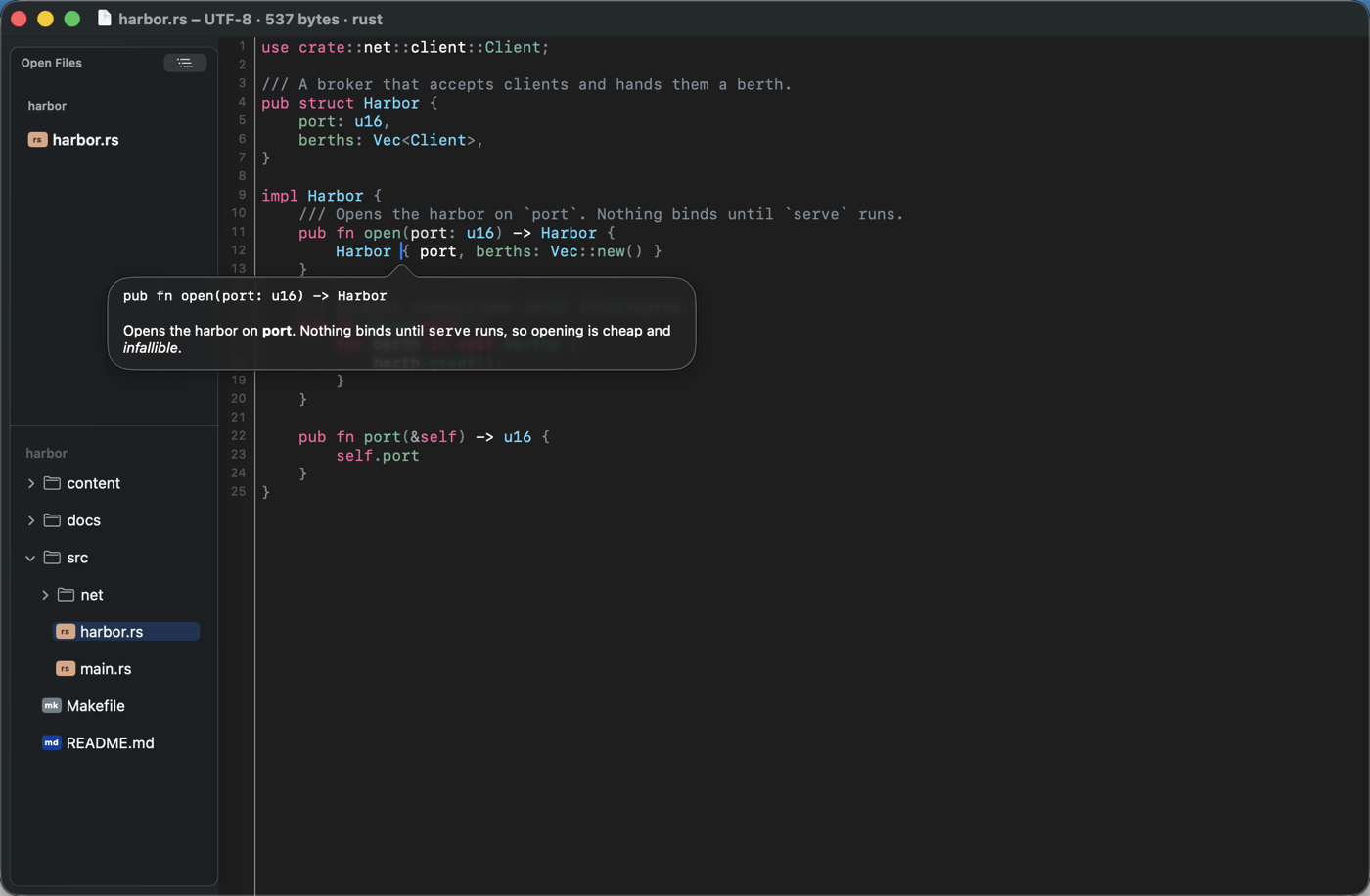
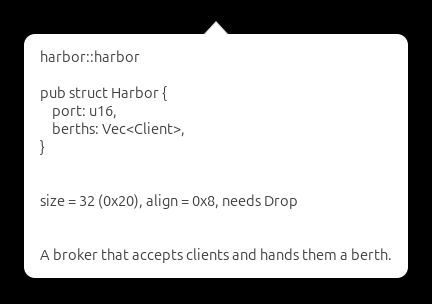
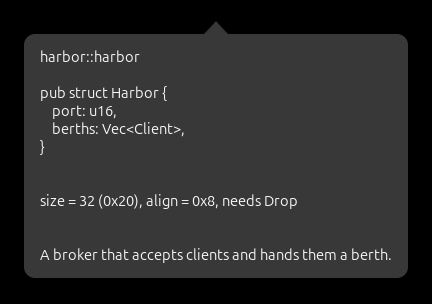
The same documentation can live in a panel instead of a bubble. View ▸ Info Panel (⌥⌘I) docks one under the editor, the way a second view stacks in the column; while it is up the bubble stays away, and the panel shows the documentation for the symbol under the pointer, and for the symbol at the caret as the caret moves. Its second face lists the document's diagnostics — line, kind, message — and a click goes to the line. The panel follows the focused file across tabs and columns.
Go ▸ Jump History… lists the trail Go Back would walk, most recent first, with the forward trail beneath when there is one, in the same list Find References uses; choosing a place goes there, as a jump of its own. Both lists show each line in its language's colours.
A folder opens as a project: File ▸ Open takes a directory, and so
does chum path/to/folder. A path that does not exist yet —
chum notes/new.go — opens a new document named after it, treated as
the language its name says, and Save writes it there without asking. When a tab of that project is open
somewhere, that tab comes to the front; otherwise a new window opens
with the project in its tree and no file yet, and it stays open when
its last tab closes. The status bar says the project's git branch,
read when the file is shown and again when git rewrites HEAD — the
editor watches that file rather than asking on a timer. After it come
the breadcrumbs: the named constructs the caret is in, outermost
first — the impl and the function, the class and the method — read
from the syntax tree, so they need no language server. Each is a menu
of what is beside it, the one it names marked; choosing one goes
there, as a jump Go Back returns from. Text no grammar reads has none.
Its right end
is the notification area: the last thing the editor had to say —
a language server it could not find, and what would install it; a
grammar it could not load; a save that went ahead without its
preprocessors — as much of it as fits, the whole of it as a tooltip.
Nothing there interrupts: what used to be a dialog to dismiss is a line
here. A click lists the session's notices, newest first with the time
each was said, selectable, since what was said is often a command to
run. Not there yet: the list does not outlive the session, and nothing
clears it. Go ▸
Worktrees… lists the repository's working trees: choose one to
switch this window to it — its files close and the ones the other tree
also has reopen there, and the language servers start in the new root
— or to open it as a project of its own. With modified files in the
current tree, or unsaved ones in the window, only opening is offered;
a tree that is open already just comes to the front. A file git hands
the editor — a commit message, a rebase todo — starts at the top every
time.
Find and Replace (⌥⌘F) docks a bar above the text with the
pattern, the replacement and three switches: regular expression,
match case, whole word. The expressions are Vim's — \( \) groups,
\|, \+, \?, \{n,m}, \< \>, \v and \V, \c — and the
replacement takes \1…\9, & or \0 for the match, \n, and
\u \l \U \L \E for case. ⏎ in the pattern goes to the next
match, ⇧⏎ to the previous, ⏎ in the replacement replaces the current
one and moves on; All replaces every match as one undo step. ⎋, in
the bar or in the text, puts the bar and its marks away and leaves the
keyboard in the text.
Go to Line (⌘L, Ctrl+L on Linux) takes a number, or the whole
src/main.rs:412:8 pasted straight out of a build log — the file name
and the trailing noise are ignored, the line lands a third of the way
down the view, and Go Back
returns to where reading was interrupted.
A change bar runs down the left of the gutter, saying which lines differ from the file as it stands in git: a green stripe for a line that is new, blue for one that reads differently, and a red wedge on the boundary where lines were deleted — deleted lines occupy no height, so a stripe would have nothing to cover. It follows the buffer rather than the file on disk, so it is right before you save, and it is recomputed once typing settles. A file with no committed version, or one outside a repository, gets no marks rather than every line claimed as new.
The bar compares against the last commit unless told otherwise. Deep in
a feature branch that answer goes quiet — everything committed on the
branch counts as unchanged — so editor.git_marks: "branch" compares
against the commit the branch grew from instead, and the bar shows
everything the branch touches. When git does not name a default branch,
editor.merge_base_branches lists the names to try, most likely first;
both settings can be overridden per project. Go → Changed in Branch
(⌃⌘T, Ctrl+Alt+G on Linux) lists the branch's files — the pull
request's files, read from git alone — behind the same fuzzy filter as
Open Quickly.
Blame Line (⌃⌘B, Ctrl+Alt+B on Linux) asks git who last touched the line under the caret: the commit, the author and when they wrote it, the subject and the message body — where the reasoning usually is — and the file's name at the time if it has been renamed since. The commit is one button away from the clipboard, which is most of what the answer is for. A line typed since the last commit says so rather than borrowing somebody else's.
It asks with the buffer's text, not the file on disk, so an unsaved edit above the caret cannot quietly shift the answer onto the neighbouring line.
In a line's leading whitespace, two keys mean something more than usual. Backspace deletes back to the previous tab stop rather than one space at a time, and Tab lines the line up with the nearest non-blank line above it — pressing it again, once already level, goes one level deeper. Anywhere else in the line both keys are themselves: it is the position that decides, not a mode, which is what keeps them from surprising anyone. A tab-indented line is left to its tab character, which is already one press per level.
With text selected, typing an opening bracket or quote — (, [, {,
', ", ` — wraps the selection in the pair instead of replacing
it. What was wrapped stays selected, so pressing another one wraps that
in turn: [, ( and { over hello give [({hello})]. Typing
anything else replaces the selection as it always did.
With nothing selected, Close brackets and quotes as they are typed
(Settings ▸ General, off by default) brings the closing half along —
( gives () with the caret between — and the ) typed afterwards
steps over the one already there rather than adding a second;
Backspace between an empty pair takes both. Brackets pair everywhere;
quotes follow the language: ' is an apostrophe in prose and a
lifetime in Rust, so it is left alone there, and a backtick pairs only
where it means code. No pair opens into a word, and no quote opens
right after one. A language the rule does not know, or one where it
gets a quote wrong for you, takes its own table in the file:
editor.pairs in configuration.
The thin bar under the editor answers what a look at the text cannot: where the caret is, whether the file indents with tabs or spaces and by how much, what language it is treated as, and its encoding. The indentation and the language are clickable and open File Properties, where those choices are made.
Scrolled deep into a long body, the first line of each enclosing
construct stays pinned at the top of the view — the class line and
the def line while a Python method scrolls — and clicking a pin goes
to it. The pins cost rows, so editor.context_lines: false (or the
switch in Settings) turns them off.
The caret's line carries a faint tint, so the caret can be found in a
long file at a glance. Right-clicking in the text — or File → Copy
Path — offers the caret's line in the shapes that get pasted: Path
and Line (path:line, which a terminal opens straight to) and
Forge URL for Line, the file's forge URL with the line fragment
spelled the way that forge does.
Word movement (⌥→/⌥←, Ctrl+arrows on Linux, and their selecting and
deleting forms) stops at every change of character class — identifier,
symbol, blank — and at a line break, so a run like )} is one stop
and the caret never skips across lines. A quote belongs to the word
beside it, so "hello" is one stop, and ., , and ; are passed
over like blanks — they separate things rather than being things — so
a.b is two stops with the dot skipped. A closing bracket typed first
on its line takes the indentation of the line that opened it.
Completions appear as you type after identifier characters and .;
↑/↓ choose, ⏎ or ⇥ accept, ⎋ dismisses. A snippet arrives with its
first placeholder selected, so typing replaces it; ⇥ moves to the next
placeholder and ⇧⇥ back, and one written twice mirrors as you type.
The last ⇥ leaves the caret where the snippet asked for it and hands
the keys back.
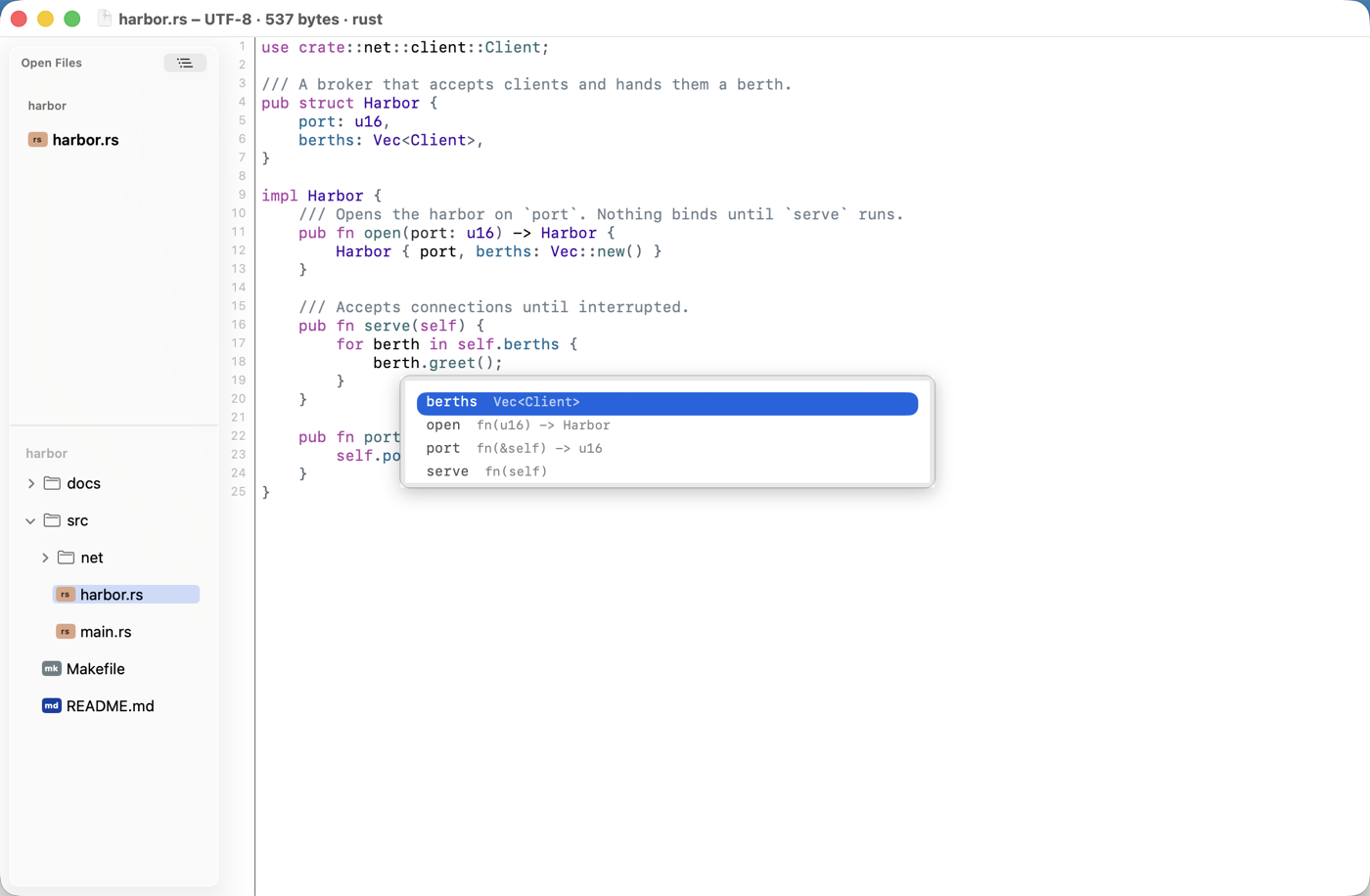
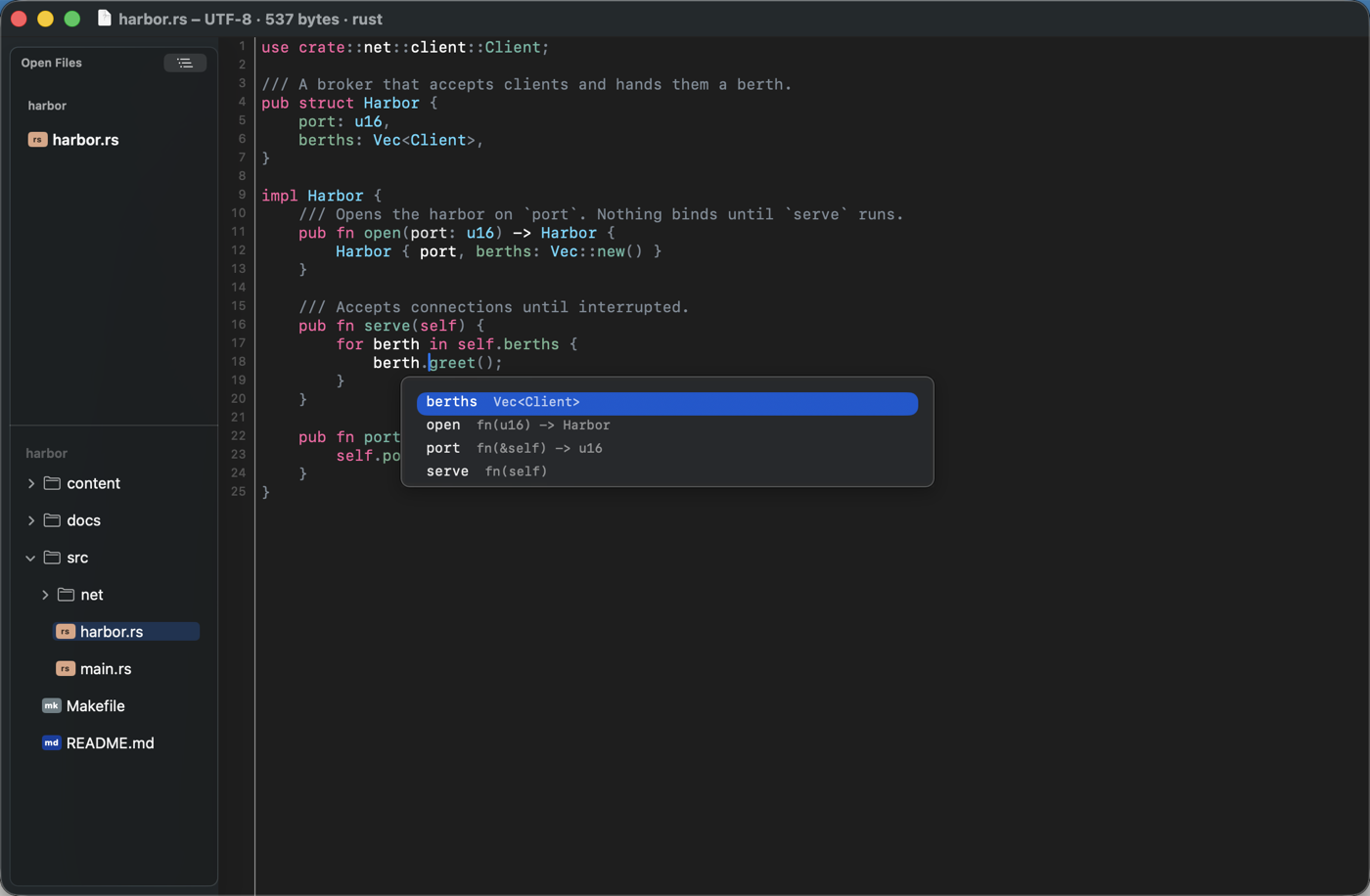
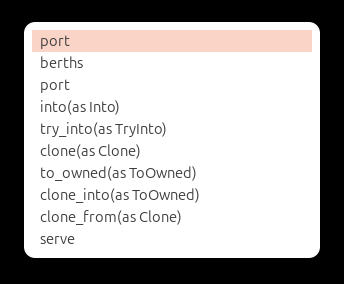
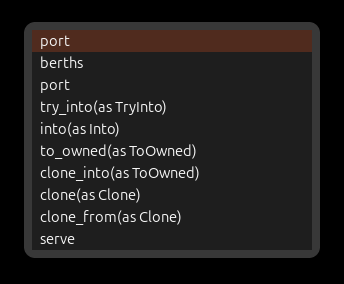
⇧⌘O lists the file's symbols, filterable from the keyboard.
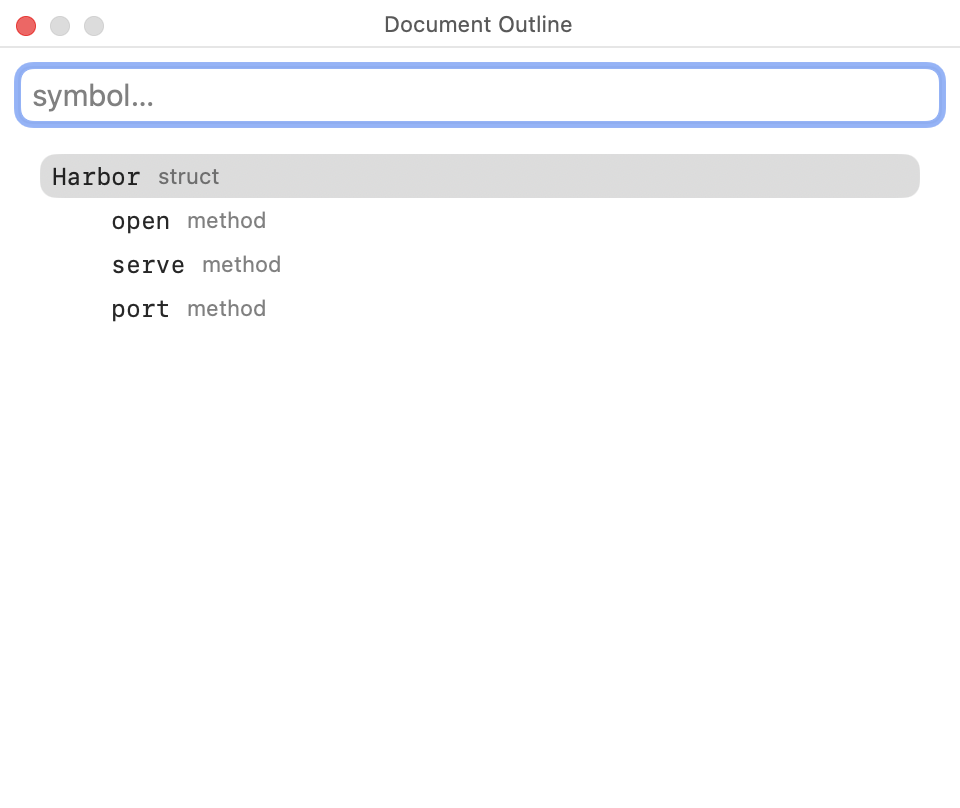
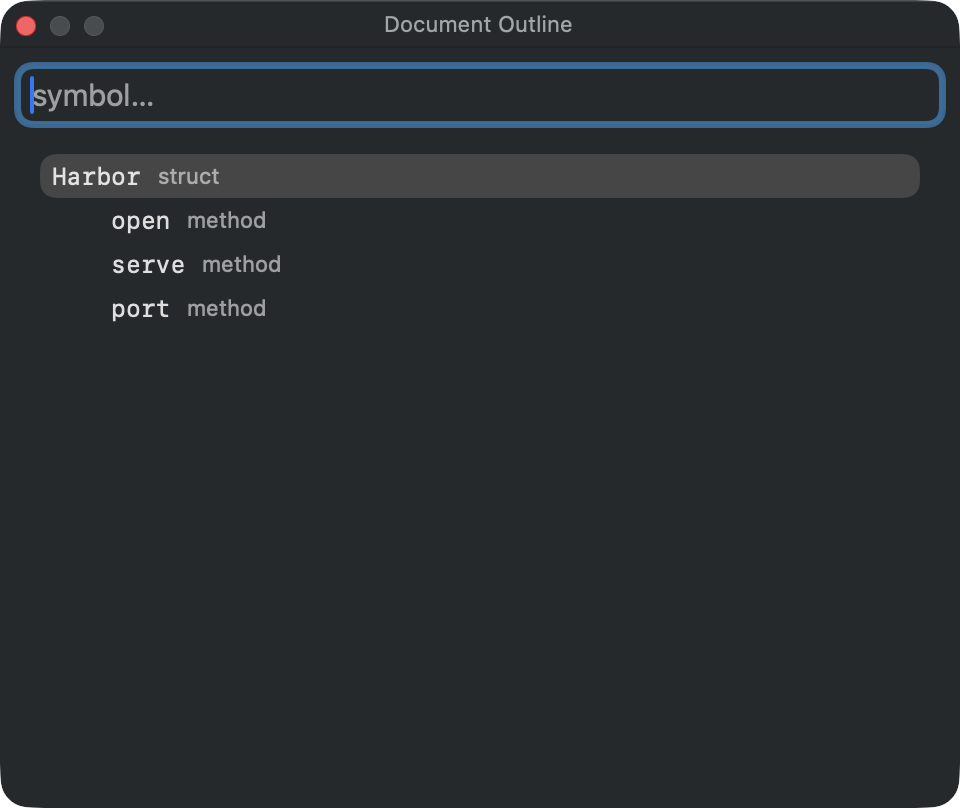
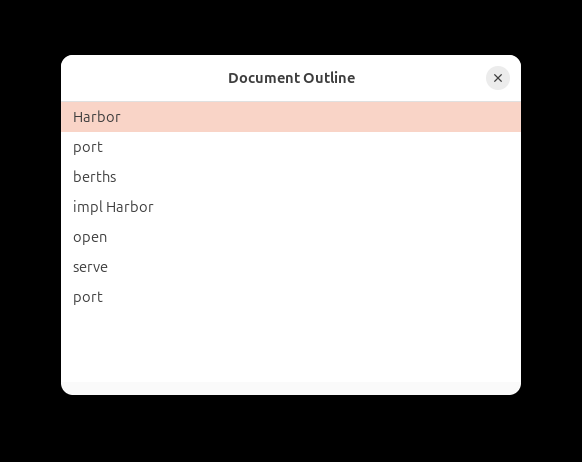
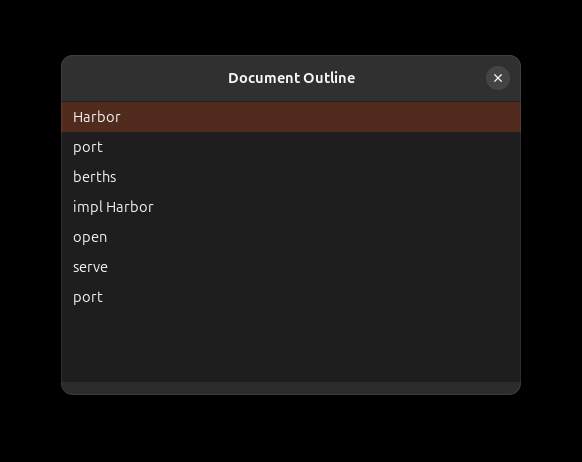
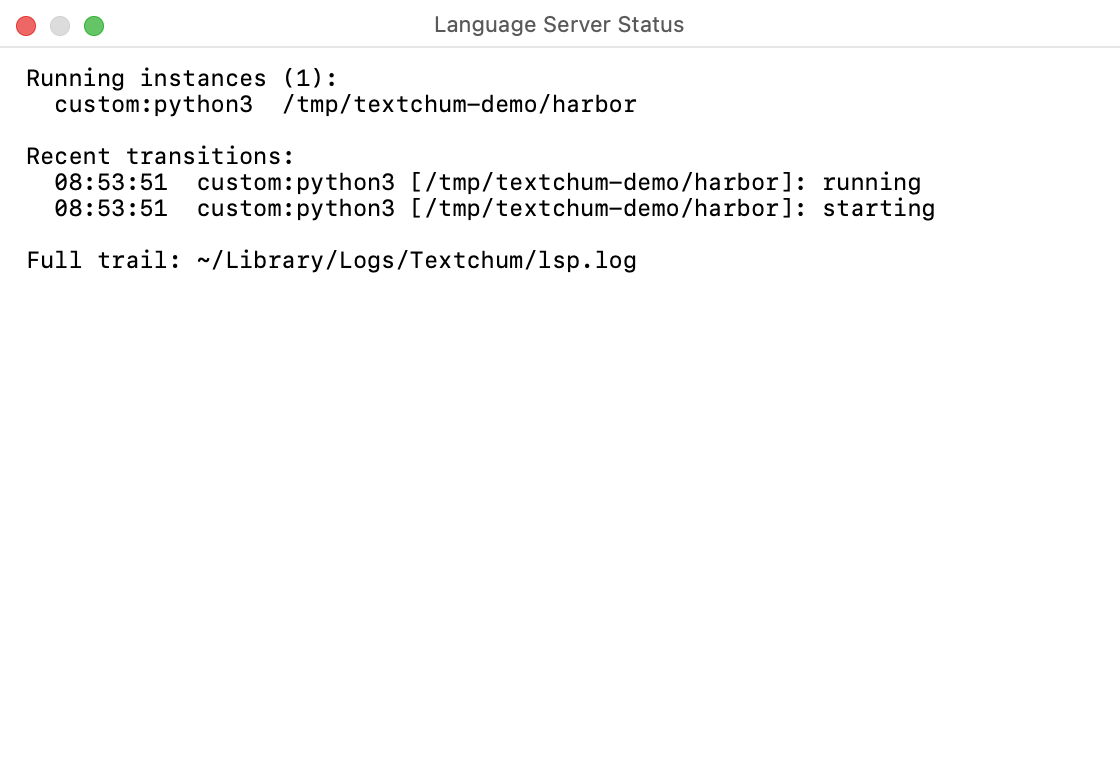
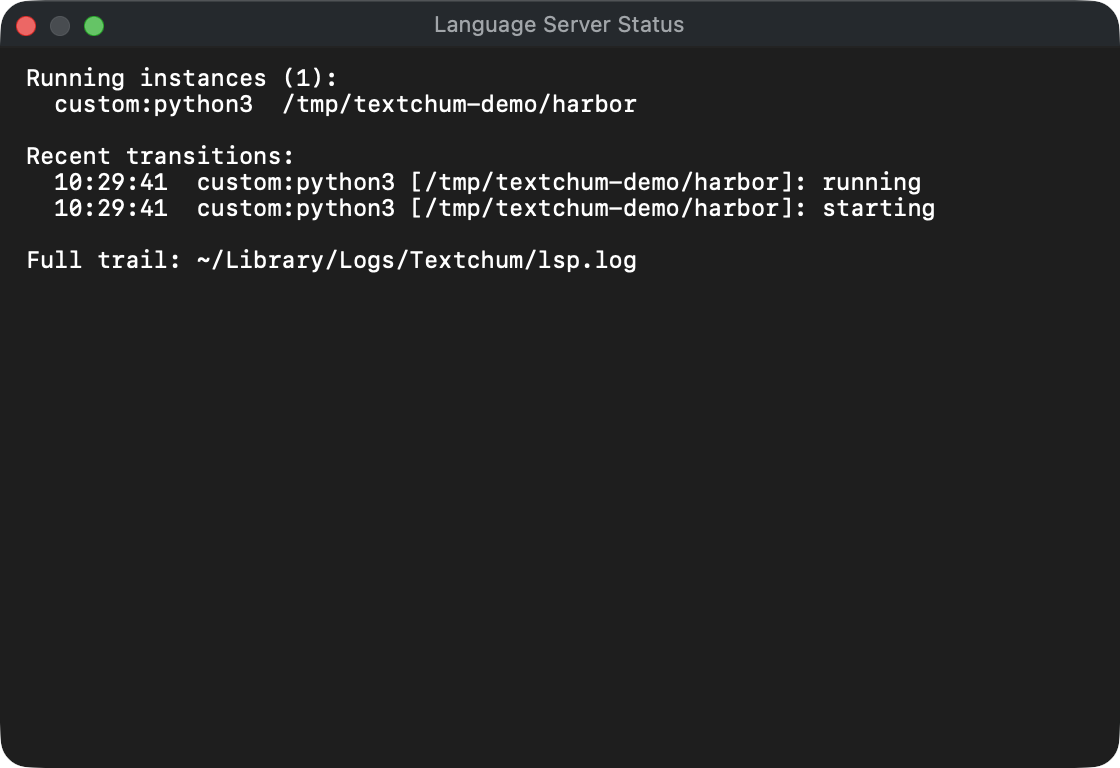
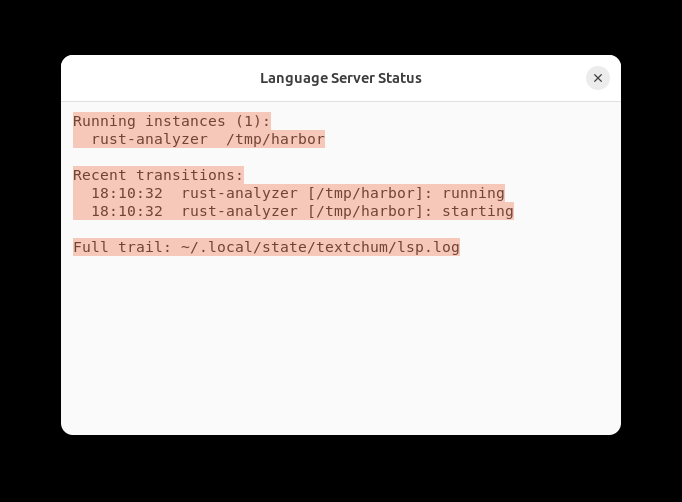
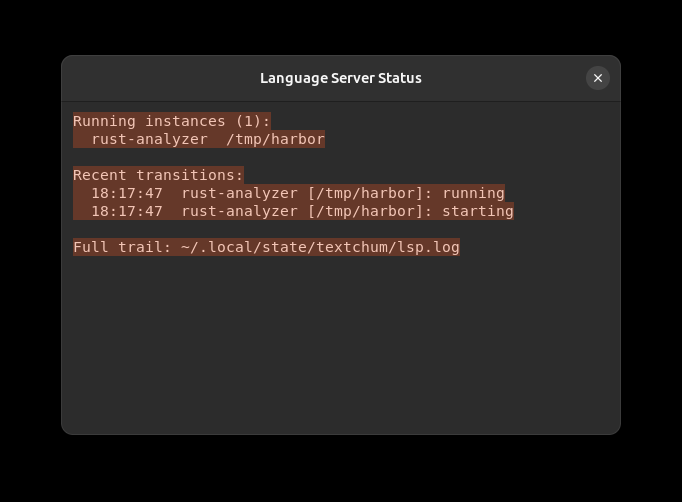
View ▸ Language Server Status answers "is my server alive?" — what runs where, and the session's recent transitions, refreshed live.
Finding things
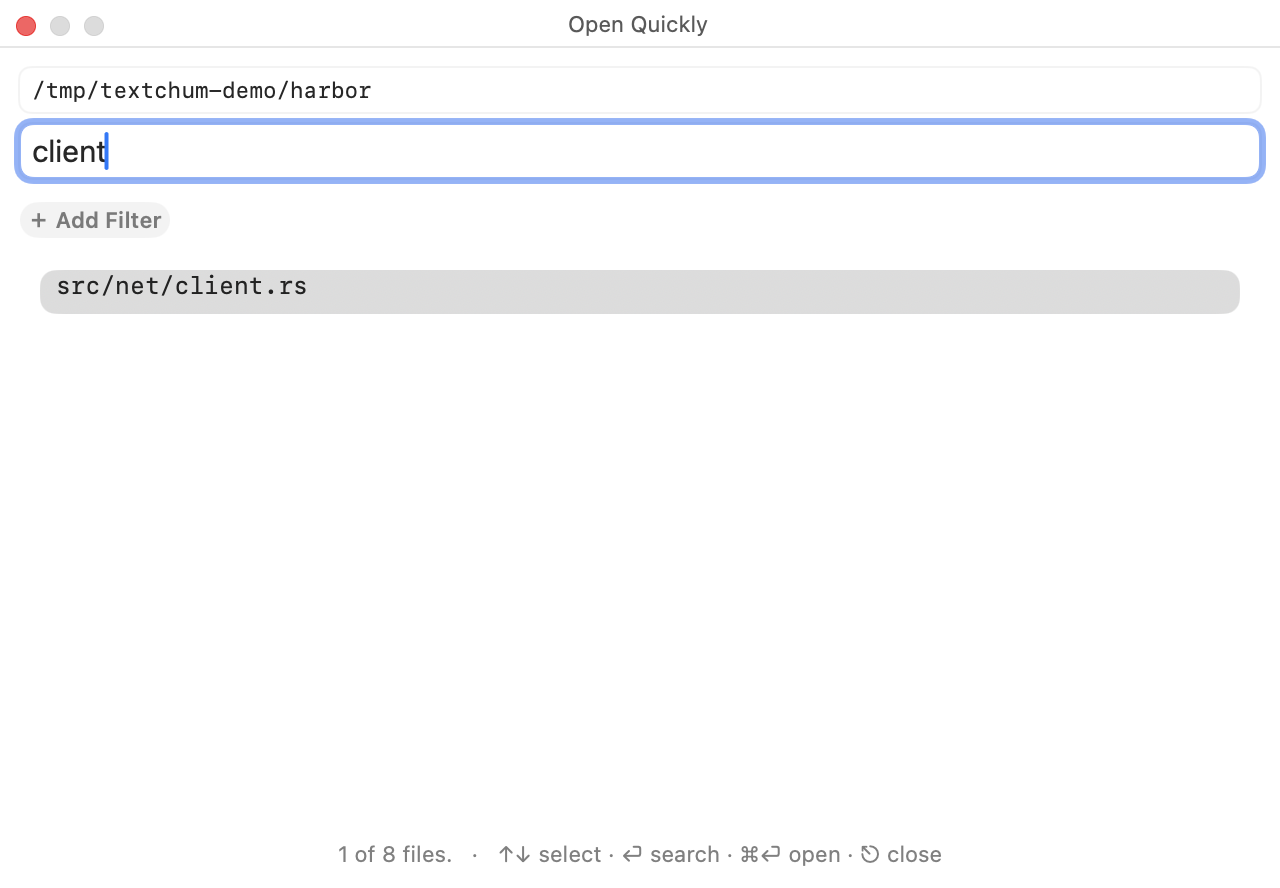
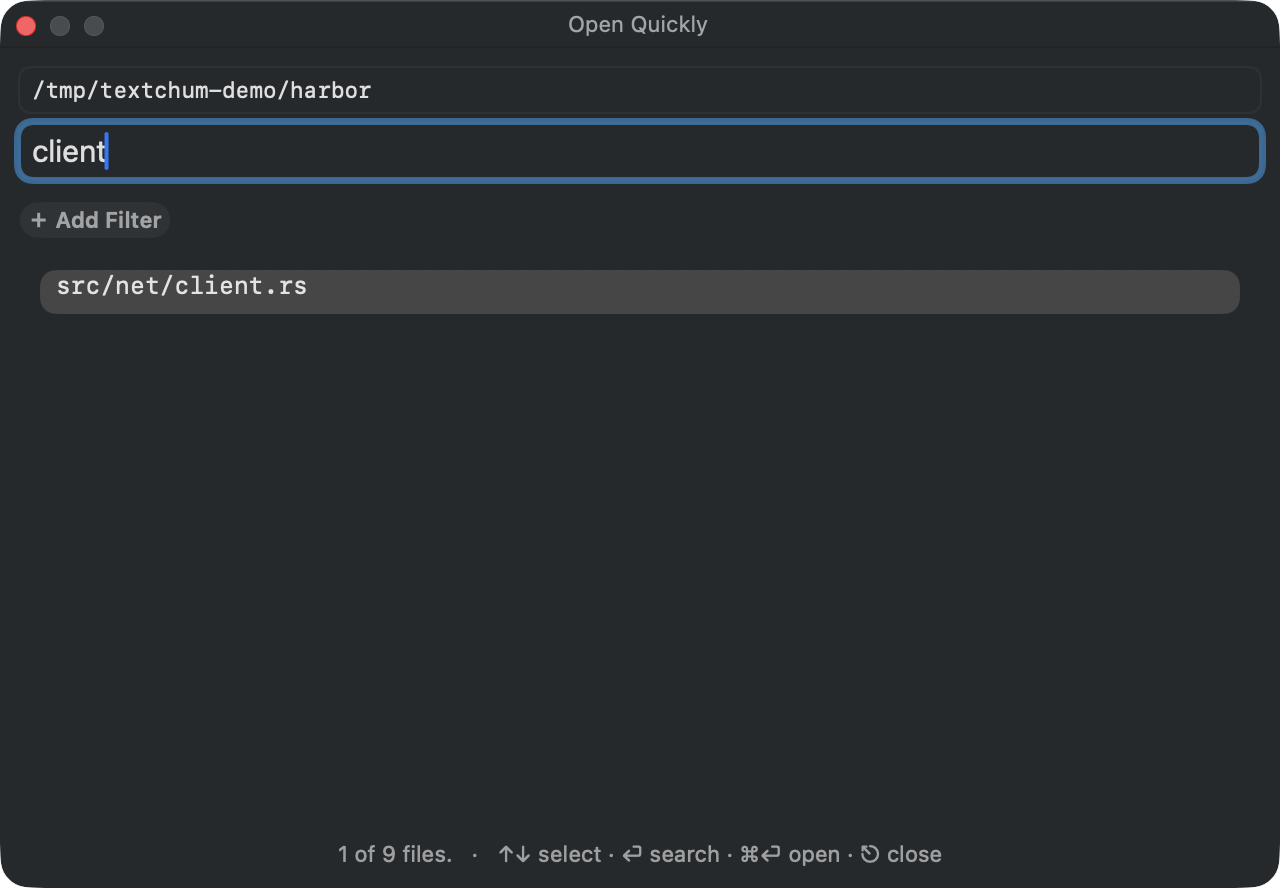
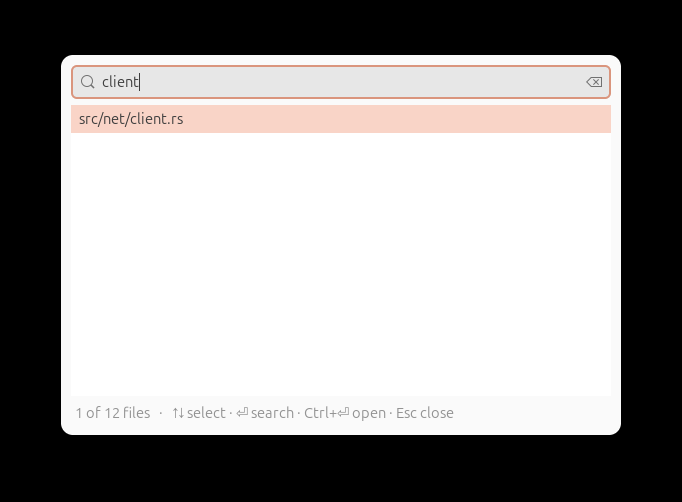
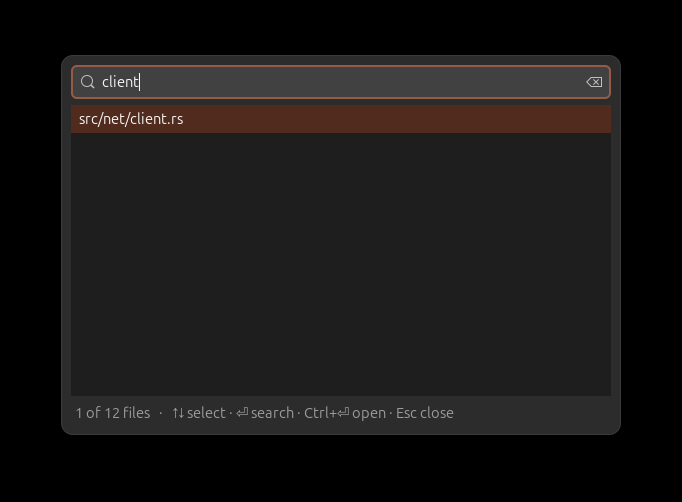
⌘T opens files by fuzzy name within the project. The scope is walked once and matched in memory, so typing stays instant; the status strip says how many of how many files matched, and which keys do what — ⏎ opens the selected row once the rows answer the query, and searches while one is still owed; ⌘⏎ opens regardless — so refining a query never opens a file by accident.
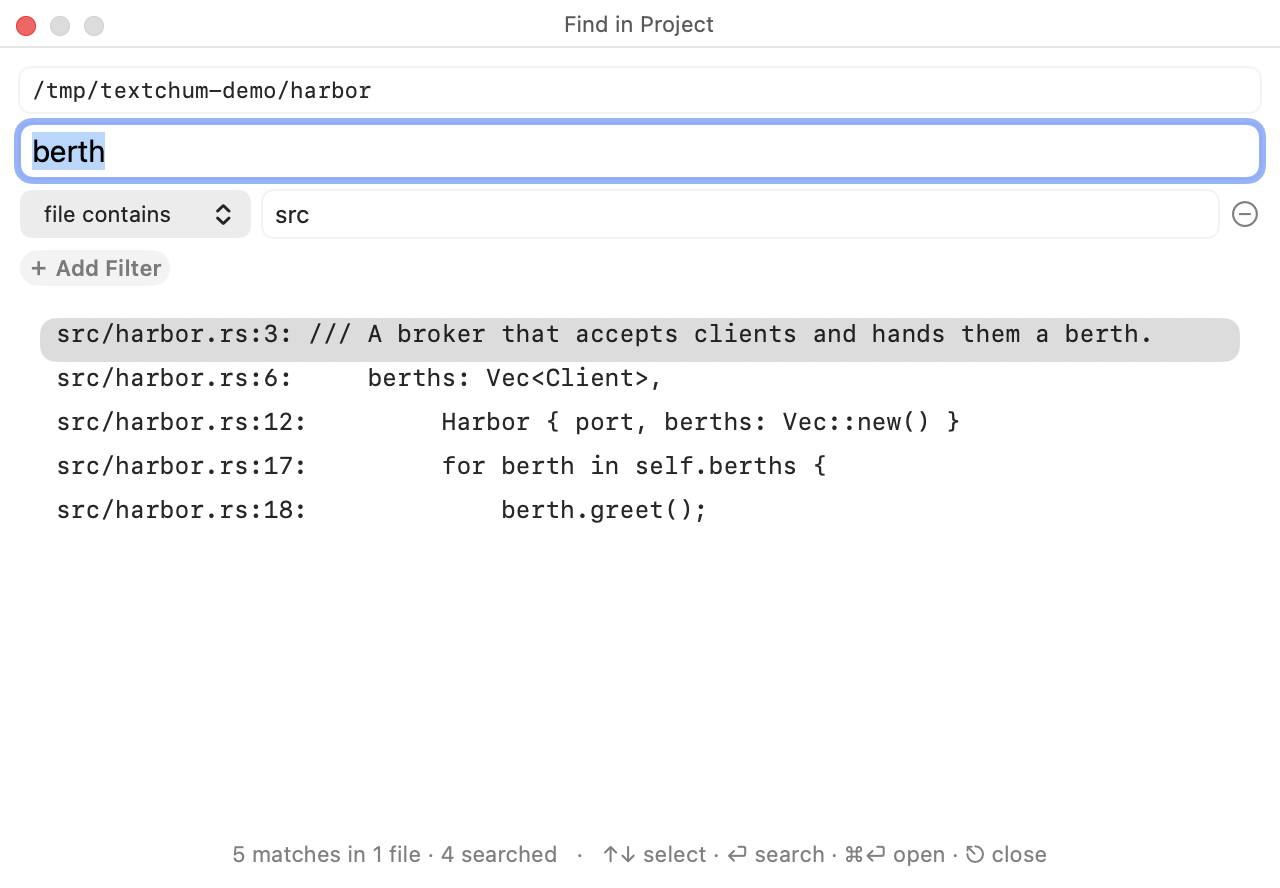
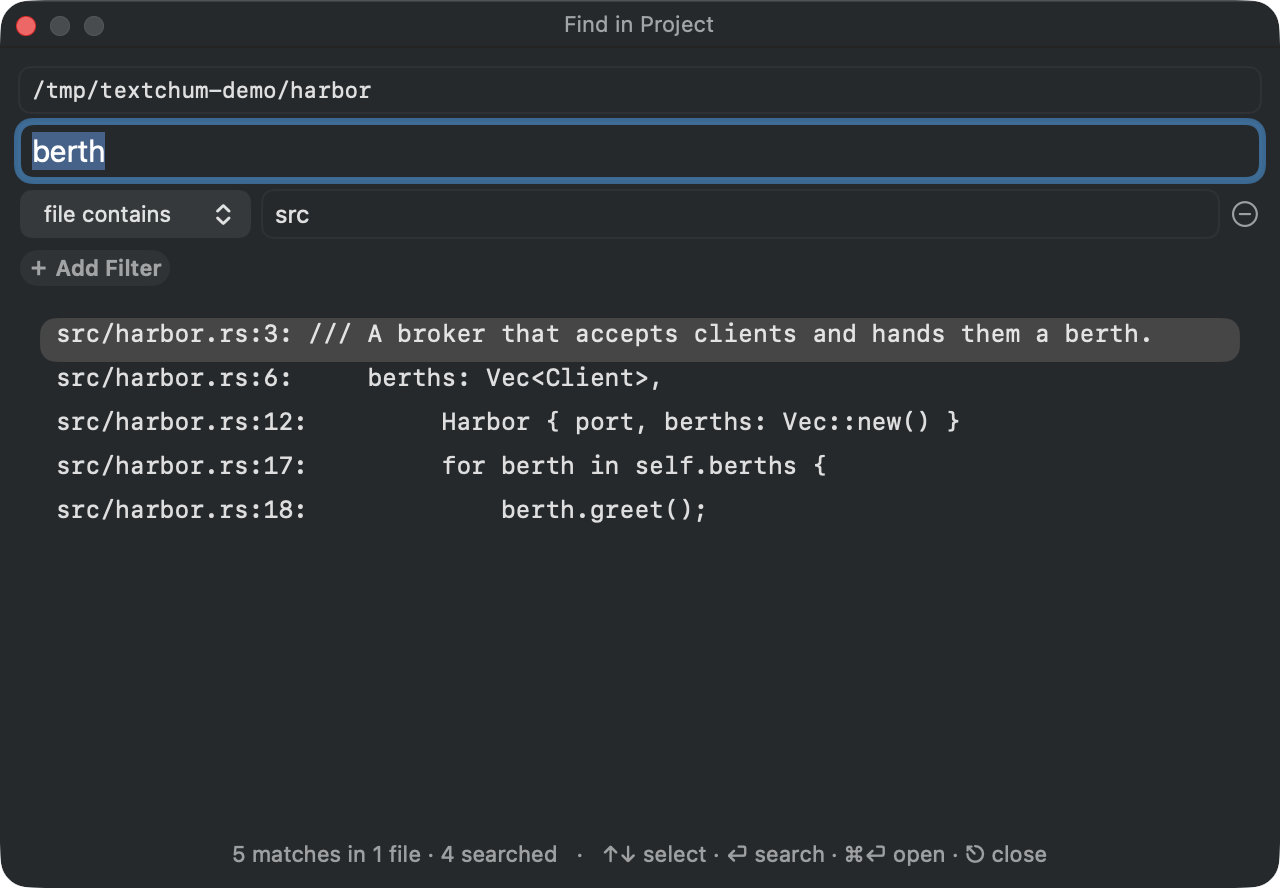
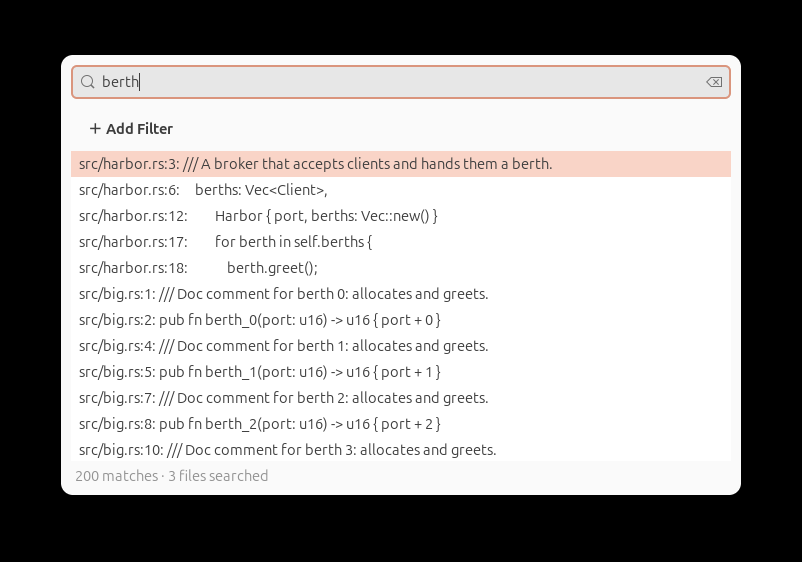
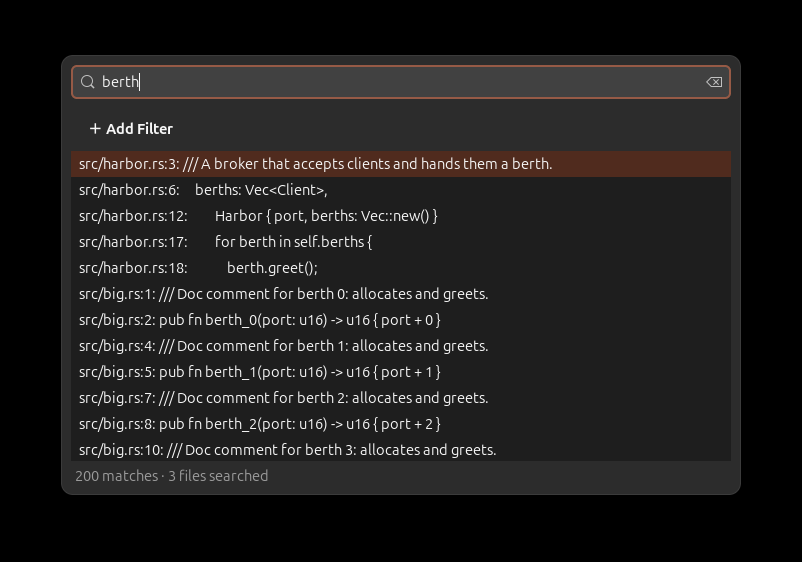
⇧⌘F searches contents for the text as typed — or for a regular
expression, with the .* toggle beside the query — with stacked
filters that refine the results by line text or file path. The status
line always says what the search did — matches, files searched, or why
nothing was read.
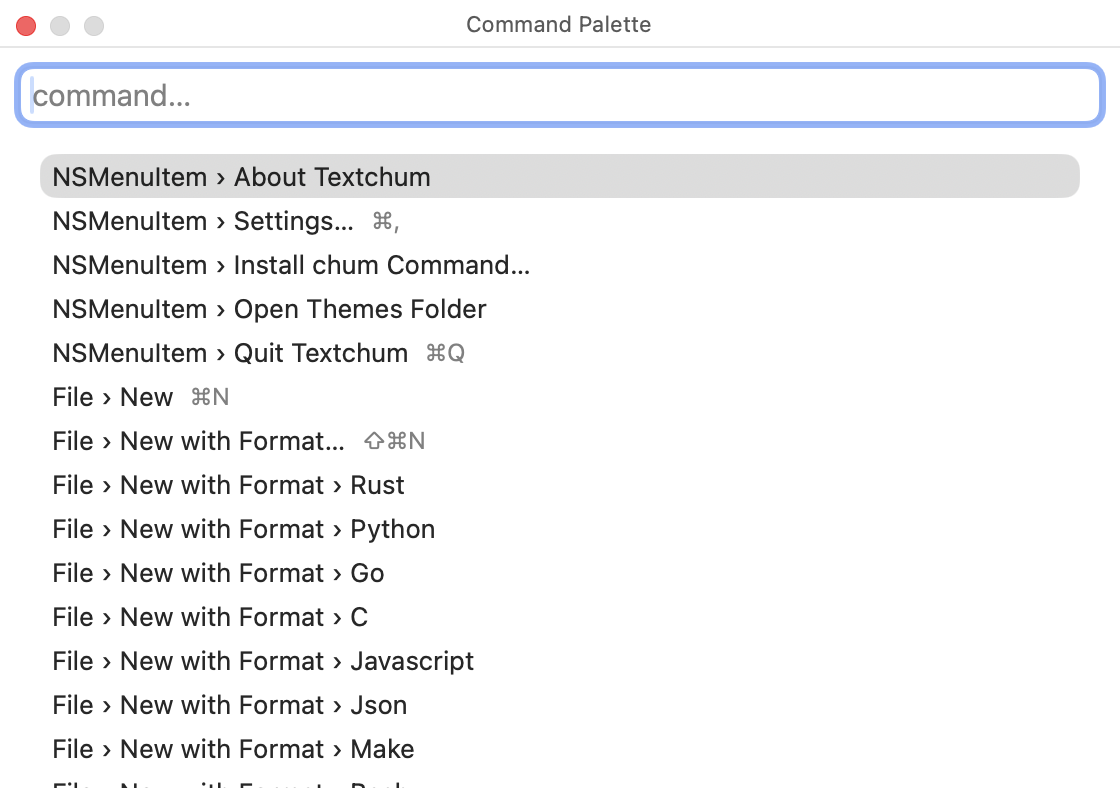
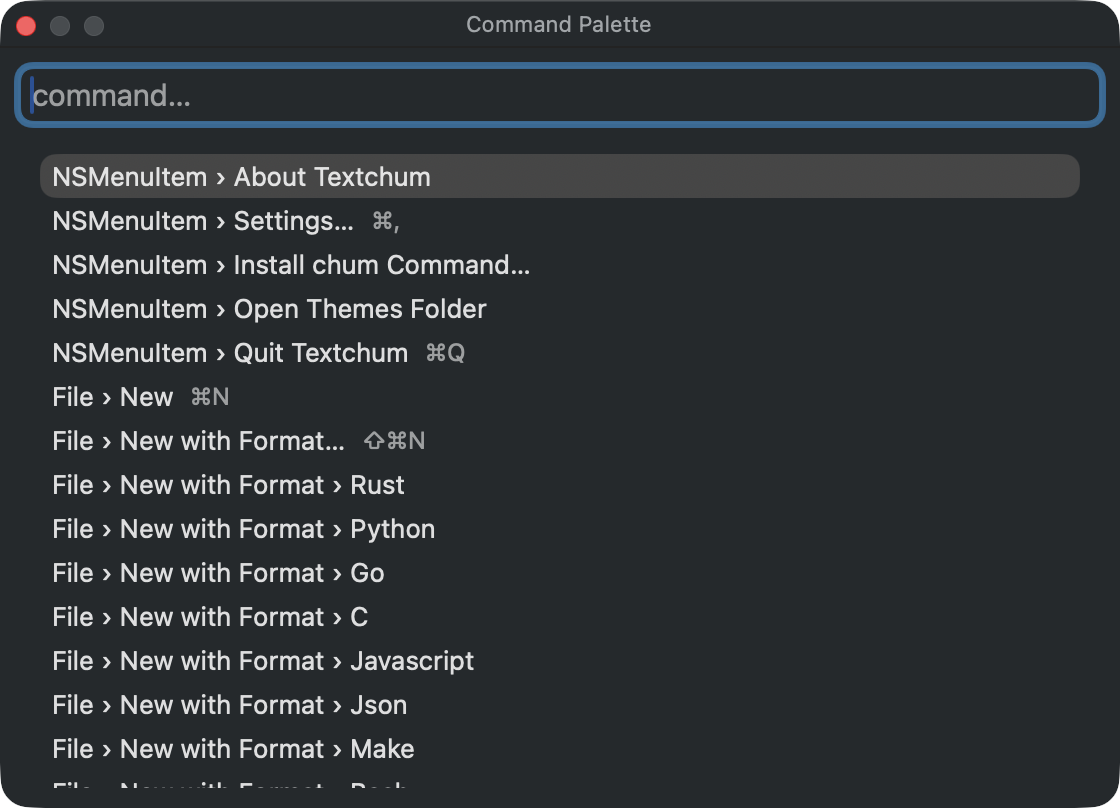
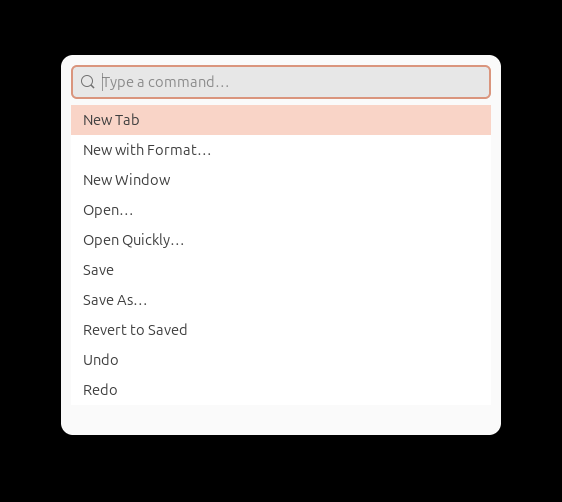
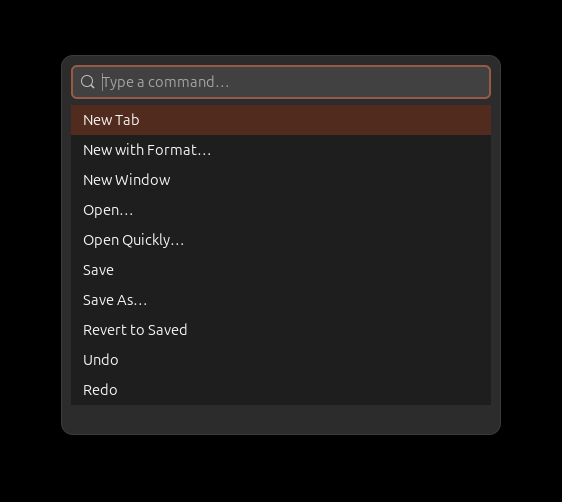
⇧⌘P is the command palette: every menu action, fuzzy-searchable, with its shortcut alongside.
Running commands
Run → Run Command… (⌃⌥R, Shift+F10 on Linux) runs a command line
through the shell in the project of the file in front — cargo test,
go build ./..., pytest -x — and shows its output in a panel under
the editor as it comes. The line offered is the last one run in that
project; Run Again (⌘R, Ctrl+F5 on Linux) runs the panel's command
once more, and Stop (⌘F2, Ctrl+F2 on Linux) stops it and whatever
it started. The output keeps its colours — a tool writing into a panel
is asked for them, as it would be in a terminal — and a progress line
redrawn in place stays one line.
Places the output names — src/main.rs:12:5, a Python traceback's
File "app.py", line 3, ui.ts(4,7) — are underlined and open with a
click; Next Output Place (F4) and Previous Output Place (⇧F4)
walk them like findings. A command that has said nothing for a while
while still running may be waiting for input: the panel says so, and a
line typed in its field goes to the command's input.
What can be run in the file is marked in the gutter with a green
triangle: in Rust, a #[test], a #[bench] and the main of a binary
or an example; in Go, a TestX, a BenchmarkX and the main of a
main package; in Python, a pytest test function or method and a
module's if __name__ == "__main__":. A click on the mark runs just
that one — cargo test -- tests::adds --exact, go test -v -run
'^TestAdds$' ., python3 -m pytest -v tests/test_app.py::test_adds — in
the panel, from the package's folder. Run → Run at Caret (⌃⇧R,
Ctrl+Shift+F10 on Linux) runs the innermost one around the caret.
Where the light bulb of a fix stands on the same line, the bulb is
drawn and the click offers the fix.
When the output reports tests — cargo's test x ... ok, go test -v,
pytest — the panel lists them beside it by suite, each marked passed,
failed, skipped or still running, with the counts in its header. A test
chosen in the list shows the output line that reported it, where its
failure follows; Return or a double-click runs that test alone, and
the field above the list filters it by name as you type. Rerun
Failed in the panel, or Run → Rerun Failed
Tests, runs only the ones that failed again, from the same folder:
the command is the one that ran them, its own filters replaced by the
failed names. Run Again also runs in the folder the run started
in, so a test run from its mark runs again in its package.
Not there yet: the panel is not a terminal. A program that draws the
whole screen — an editor, top, a REPL that edits its own line — does
not belong in it. Marks are found for Rust, Go and Python only, and a
test written under another runner's conventions is not marked. Tests
are read from cargo, go test and pytest output only; without -v,
go test and pytest name only what failed, so only that is listed. A
command line with a pipe or && is not narrowed for Rerun Failed, and
a test in the list does not open its source yet — the failure's own
place in the output does.
Debugging
A click in the gutter's marks column, on a line with no other mark,
puts a breakpoint there — a red disc — and a second click takes it away;
Run → Toggle Breakpoint (⌘F8, Ctrl+F8 on Linux) does the same on
the caret's line. Breakpoints move with the text edited above them.
Run → Debug at Caret (⌃⇧D, Shift+F9 on Linux), or a ⌥-click
(Alt-click on Linux) on a run mark, runs the test or the main under a
debugger: debugpy for Python, Delve for Go, lldb-dap for Rust — after
cargo has built the test or the program, its messages in the debug
console.
The debug panel opens under the editor. When the program stops at a
breakpoint, its line is tinted and the file opens there; the panel
lists the stack of the thread that stopped, the variables of the frame
chosen in it — a structured value opens to show what it holds — and the
program's output, with a field that evaluates an expression in that
frame. Continue (F9, F5 on Linux), Step Over (F8, F6 on Linux),
Step Into (F7), Step Out (⇧F8, Shift+F7 on Linux) and Stop
Debugging (⇧⌘F2, Ctrl+Shift+F2 on Linux) are in the Run menu and on
the panel. An adapter that is not installed is named, with the command
that installs it; a program that does not start says what usually holds
it up — on macOS, the permission a debugger needs to take control of a
program, which developer mode (DevToolsSecurity -enable) grants.
Not there yet: debugging starts only from a test or a main the run
marks find, in Rust, Go and Python; the adapter for a language cannot be
chosen; there is no attaching to a running program, no conditional
breakpoint and no watch list; and breakpoints are not kept across
restarts.
Markdown and prose
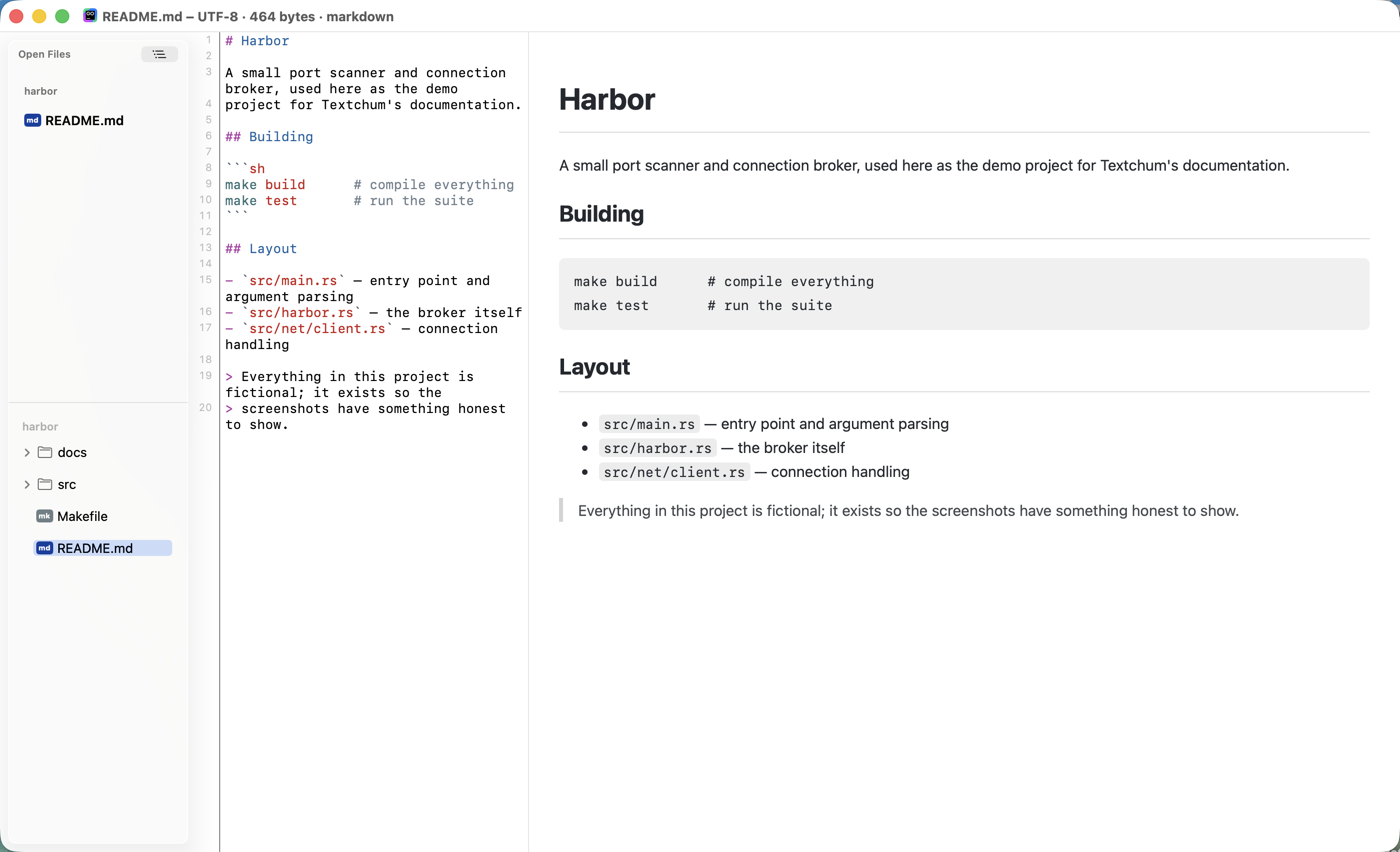
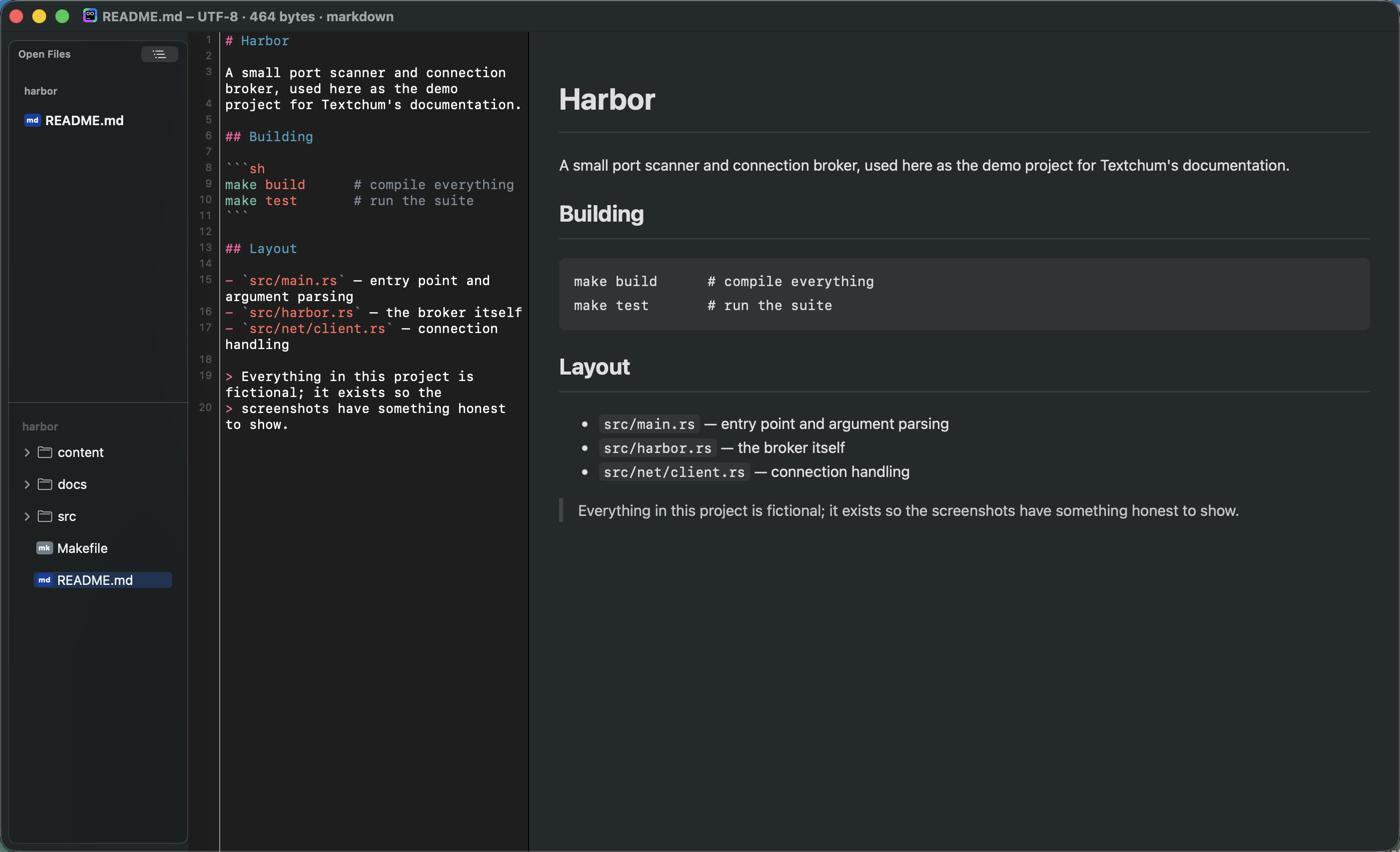
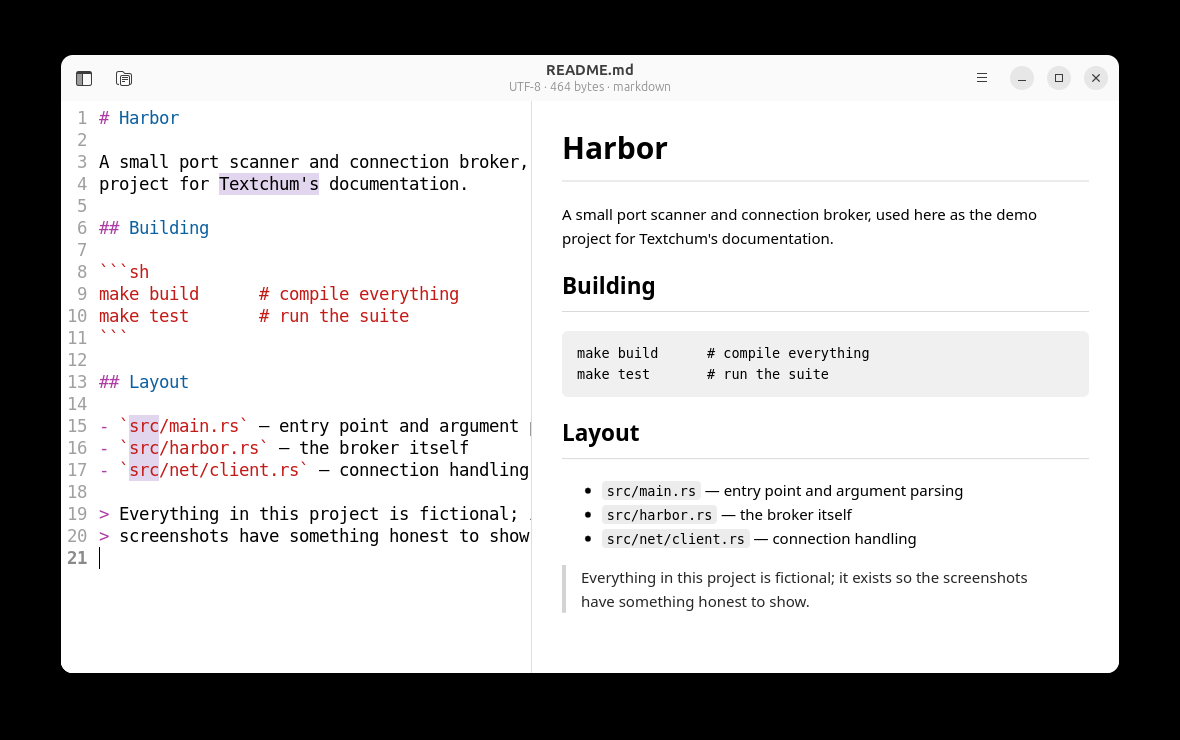
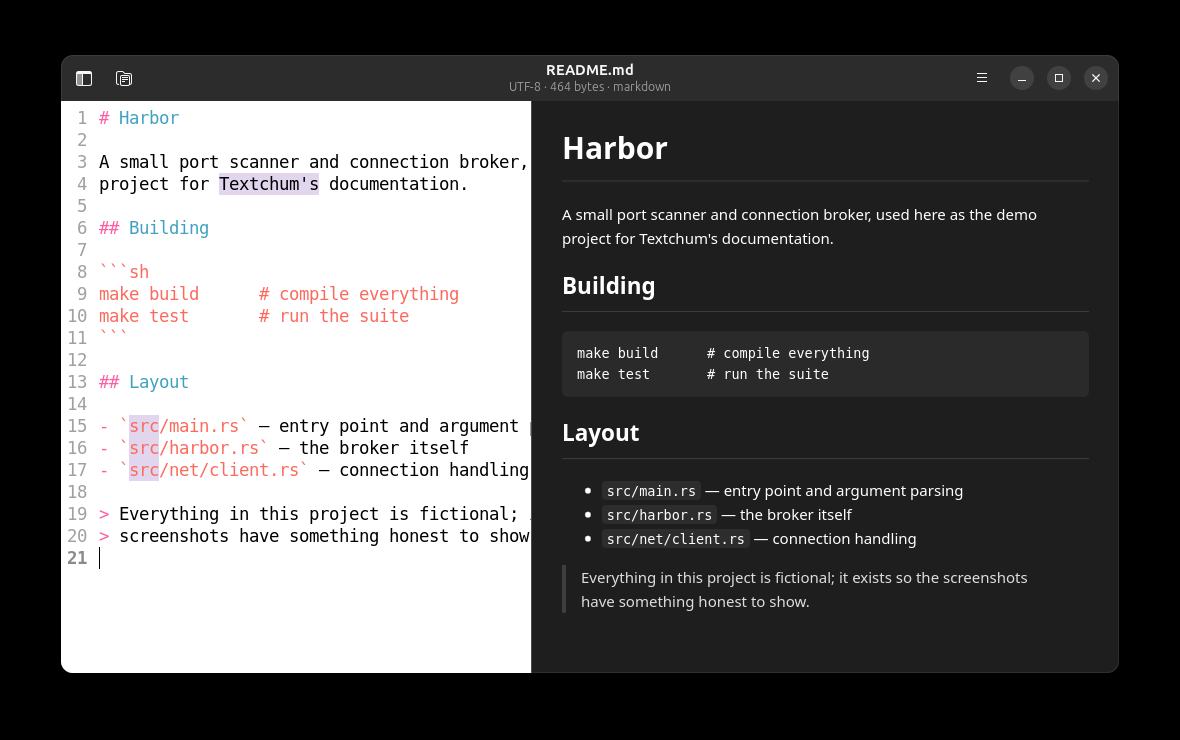
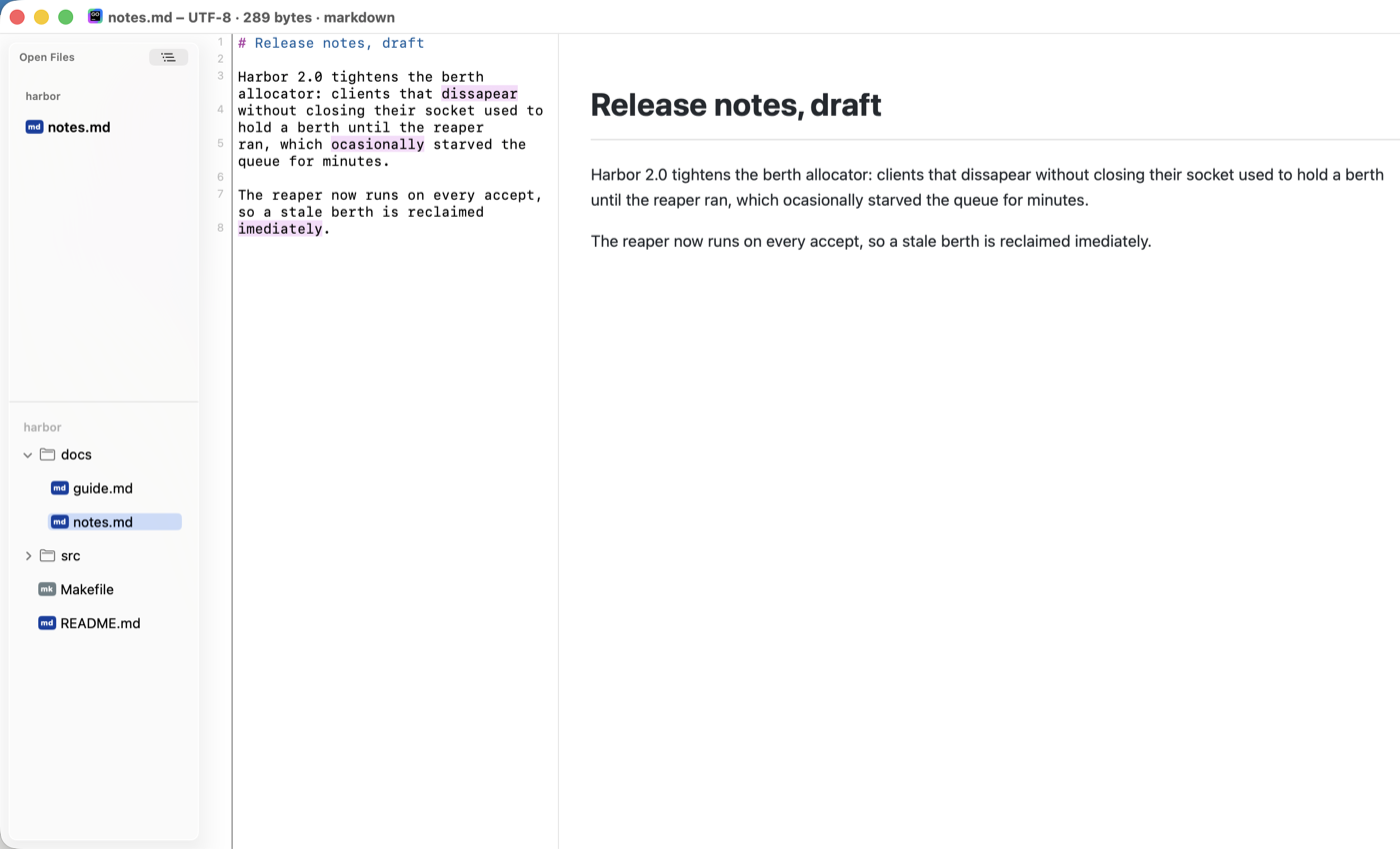
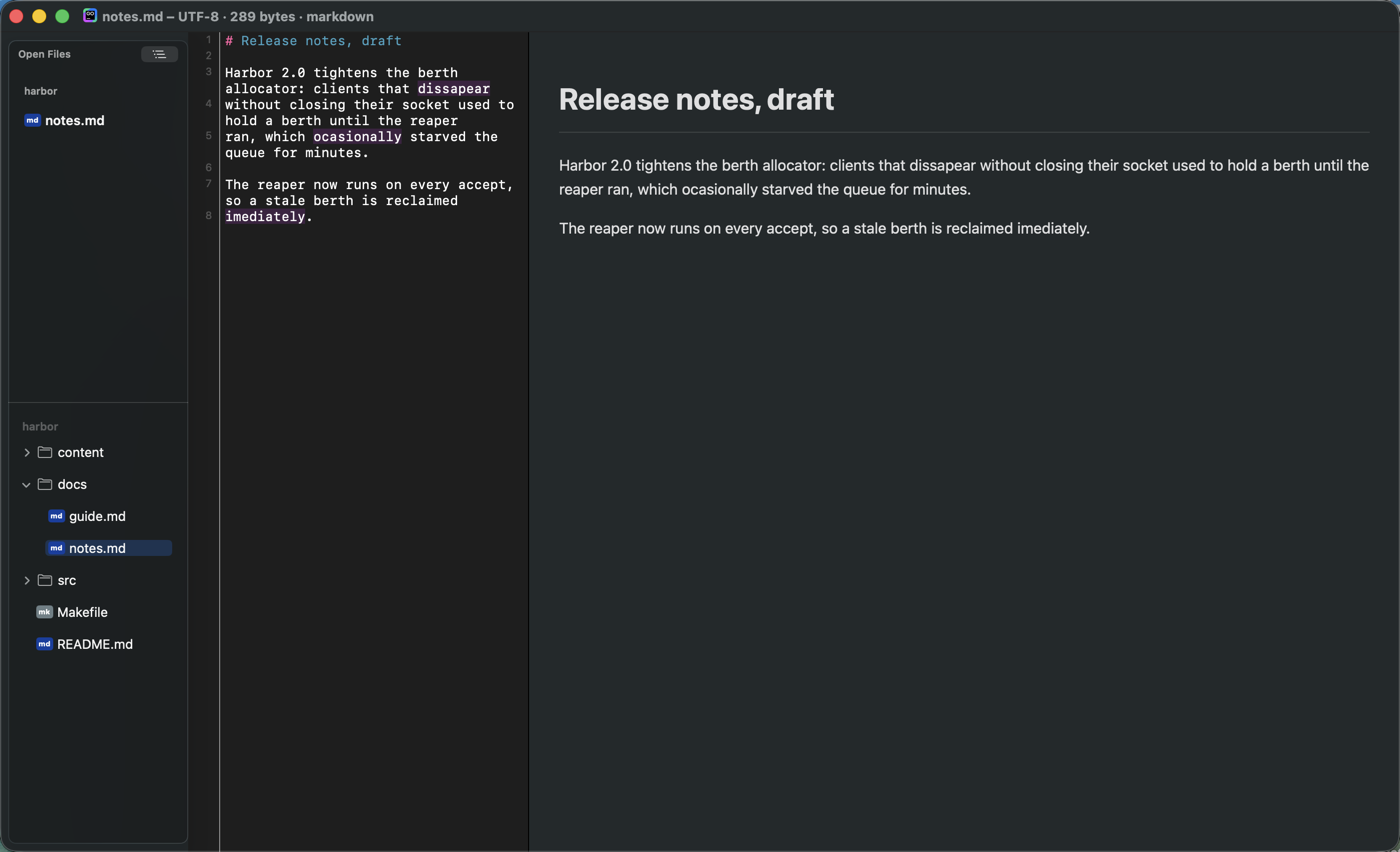
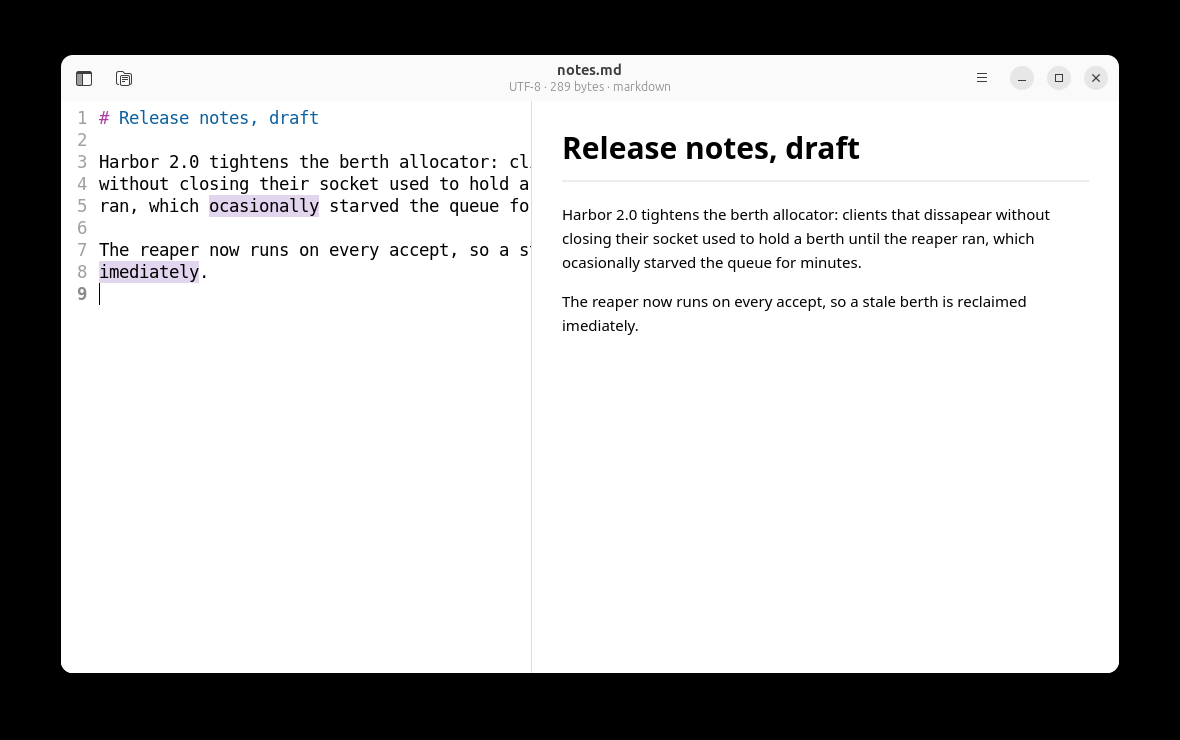
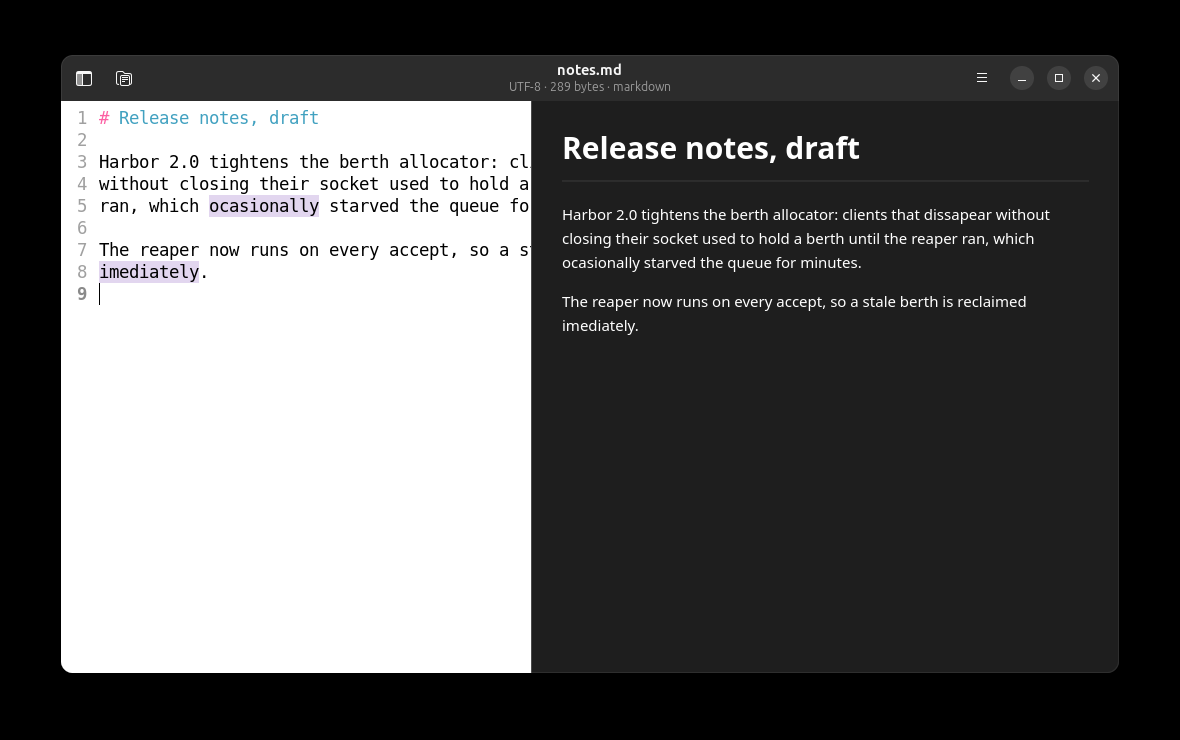
Markdown documents open with a live preview beside the text, and the prose spell checker — off until you pick a dictionary — marks misspellings in purple, distinct from diagnostics. In code it looks only at comments; identifiers are never flagged.
Settings
Settings are a plain JSON file that the window edits; the file is the escape hatch, and it is watched, so an edit in another editor applies at once.
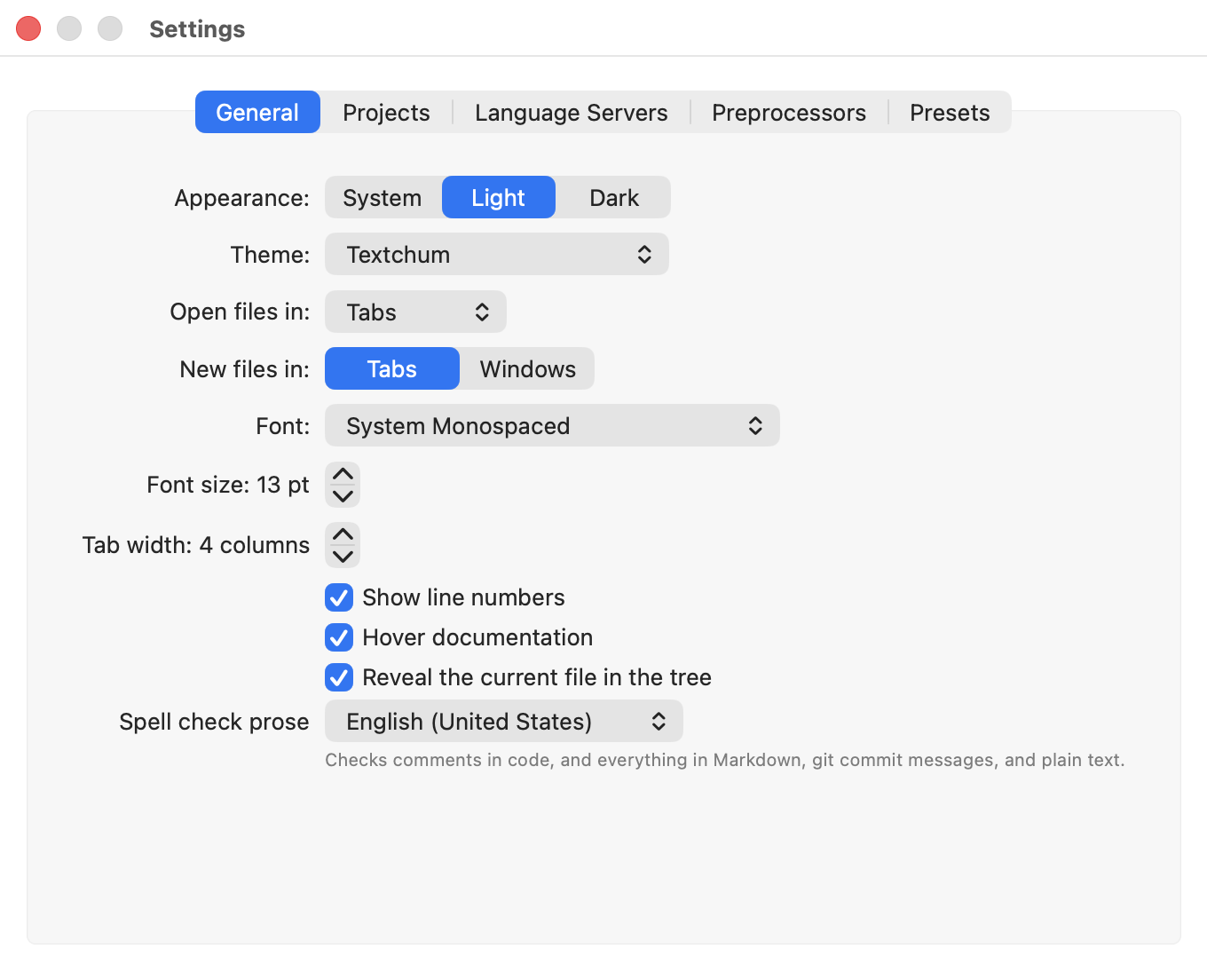
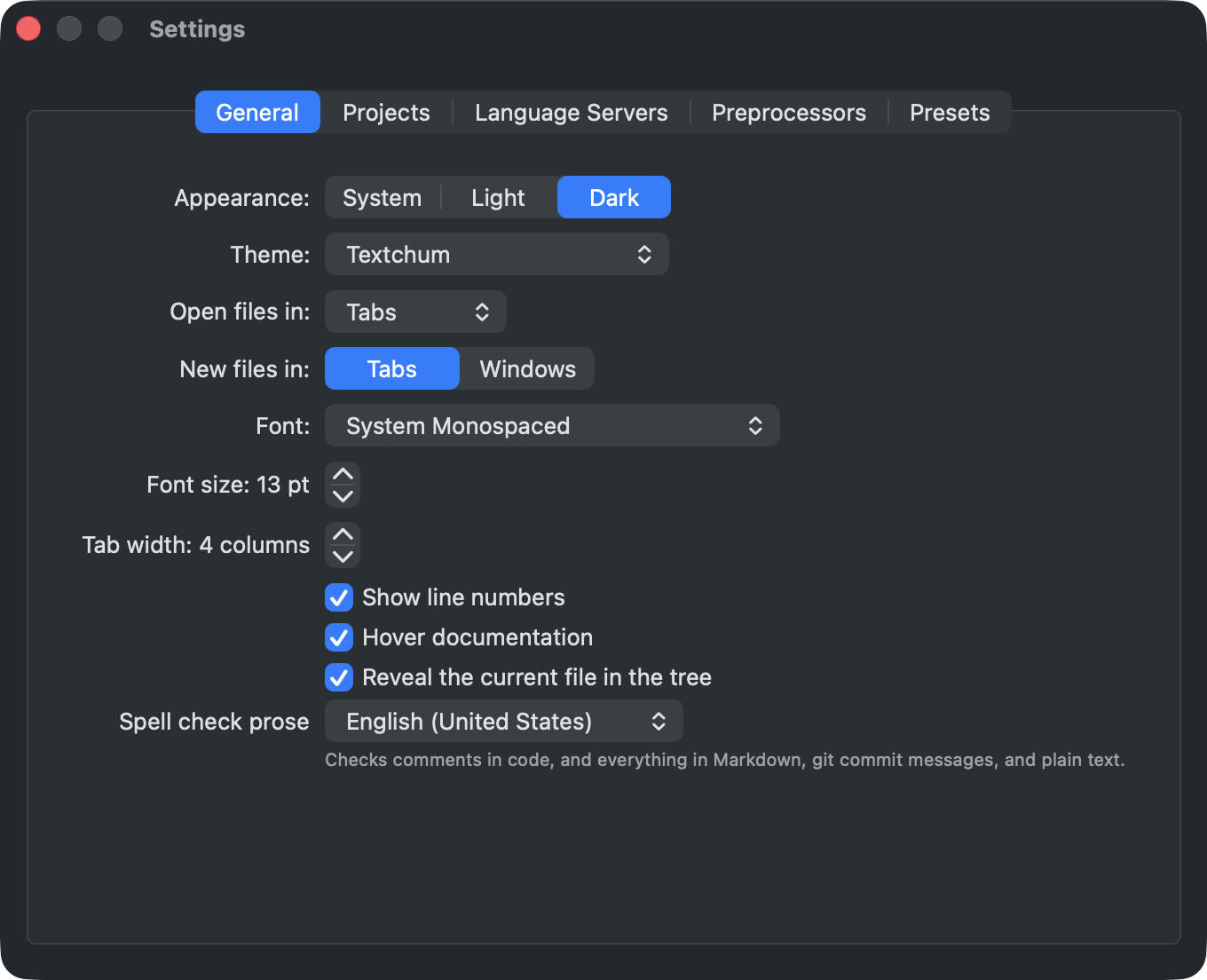
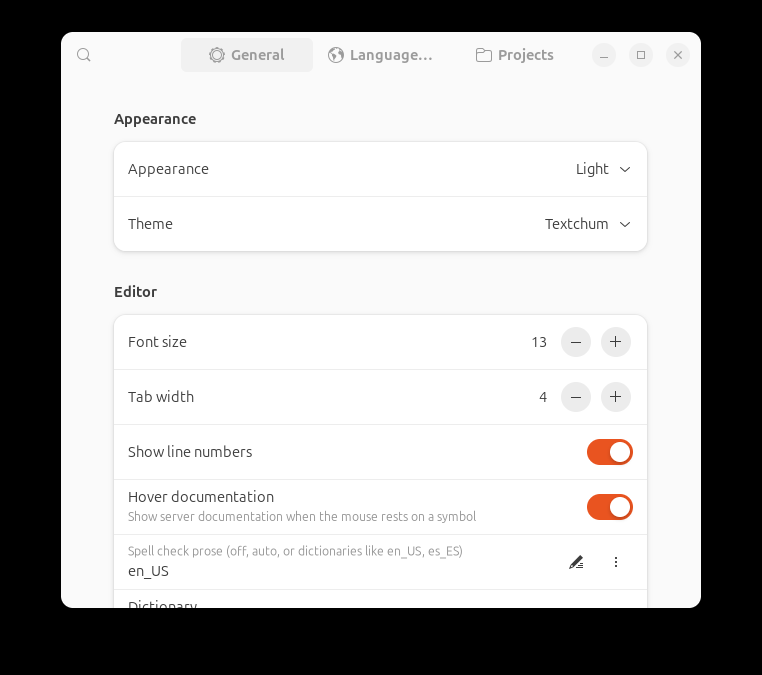
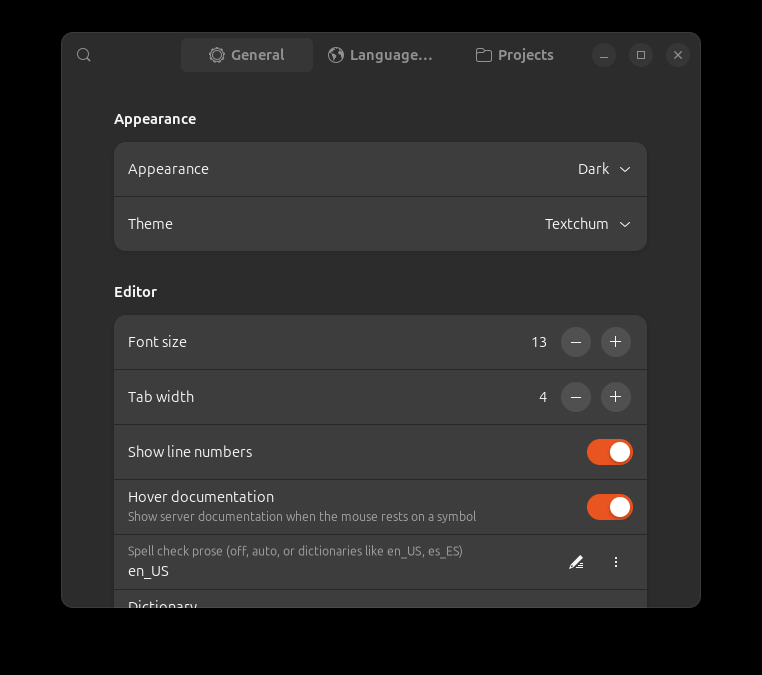
Projects decides how project roots are found, what the tree hides, and which editor settings a root overrides.
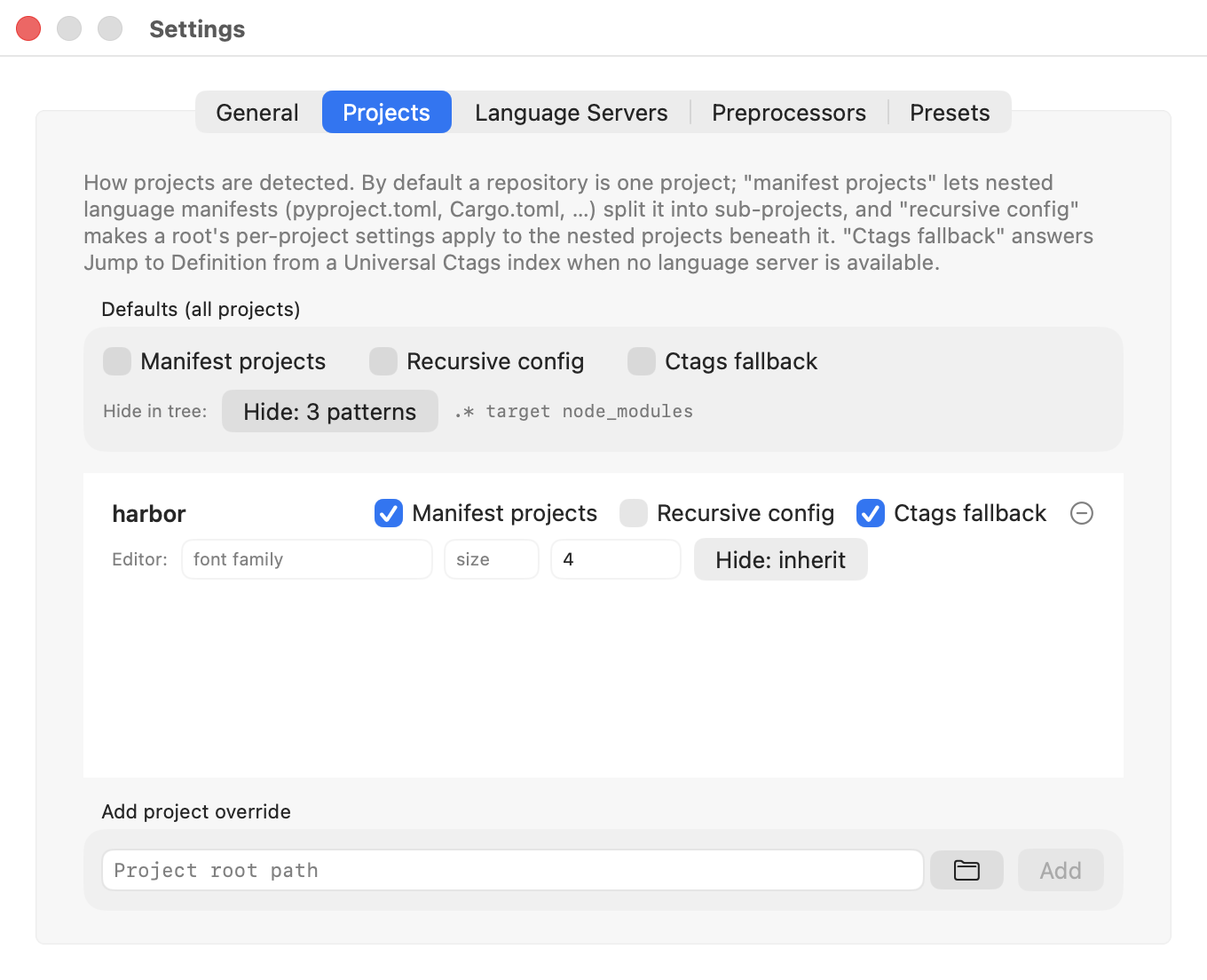
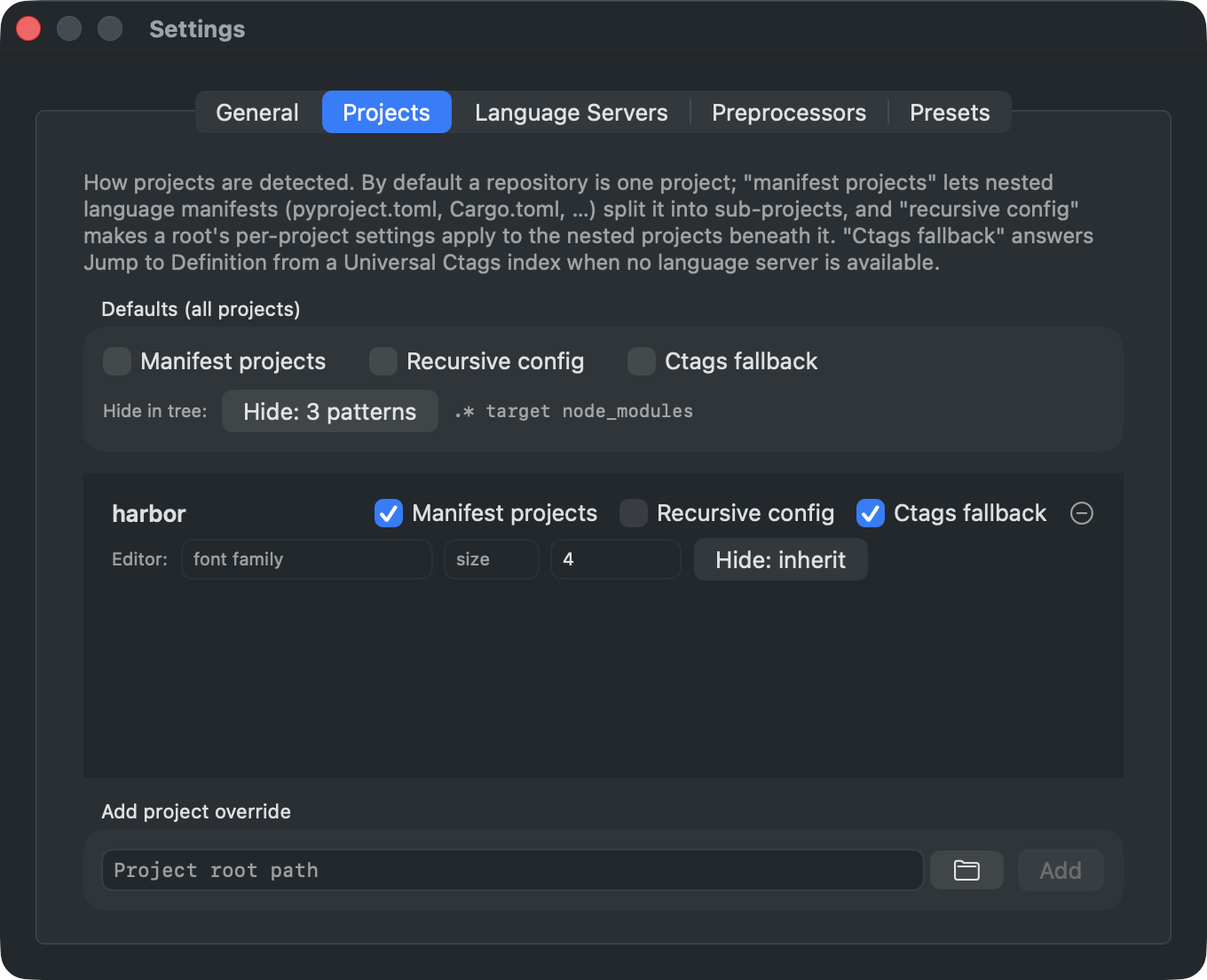
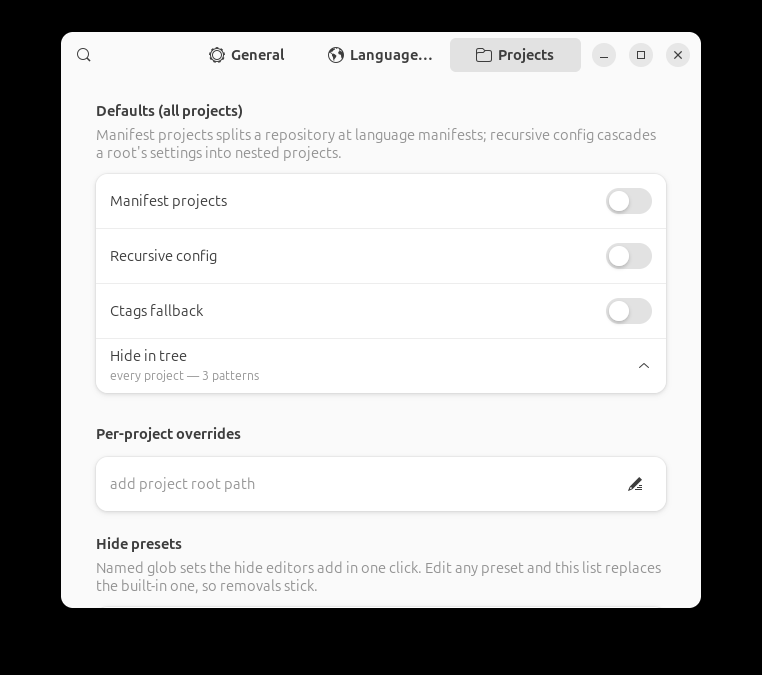
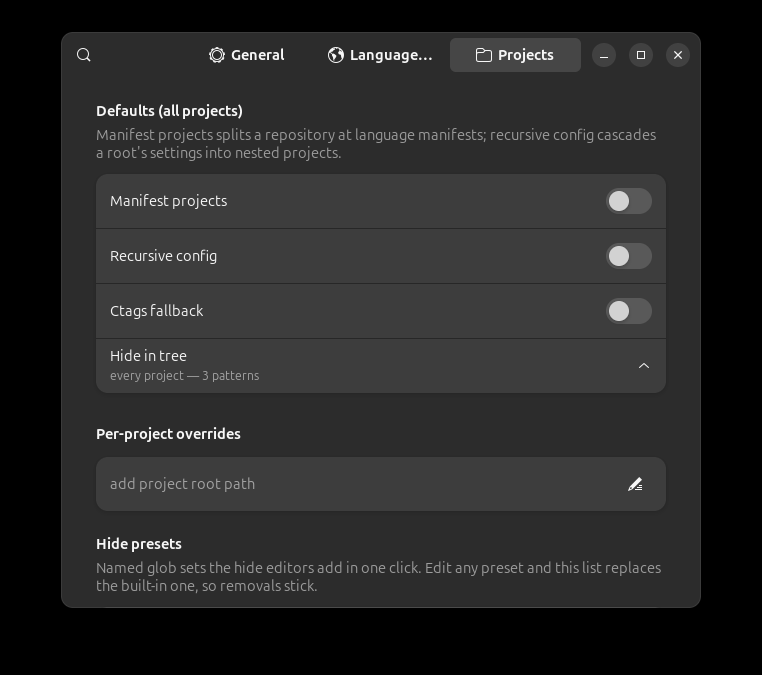
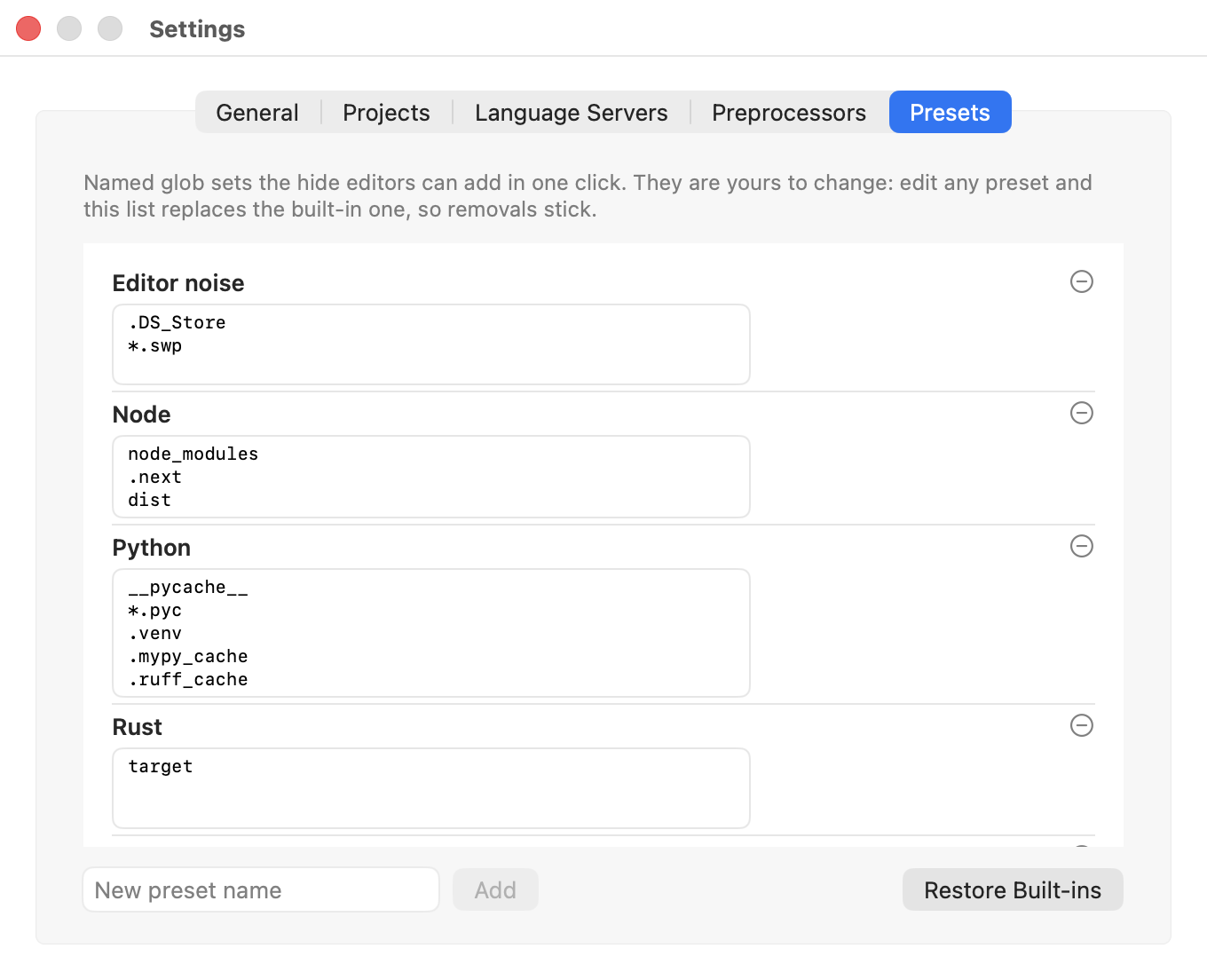
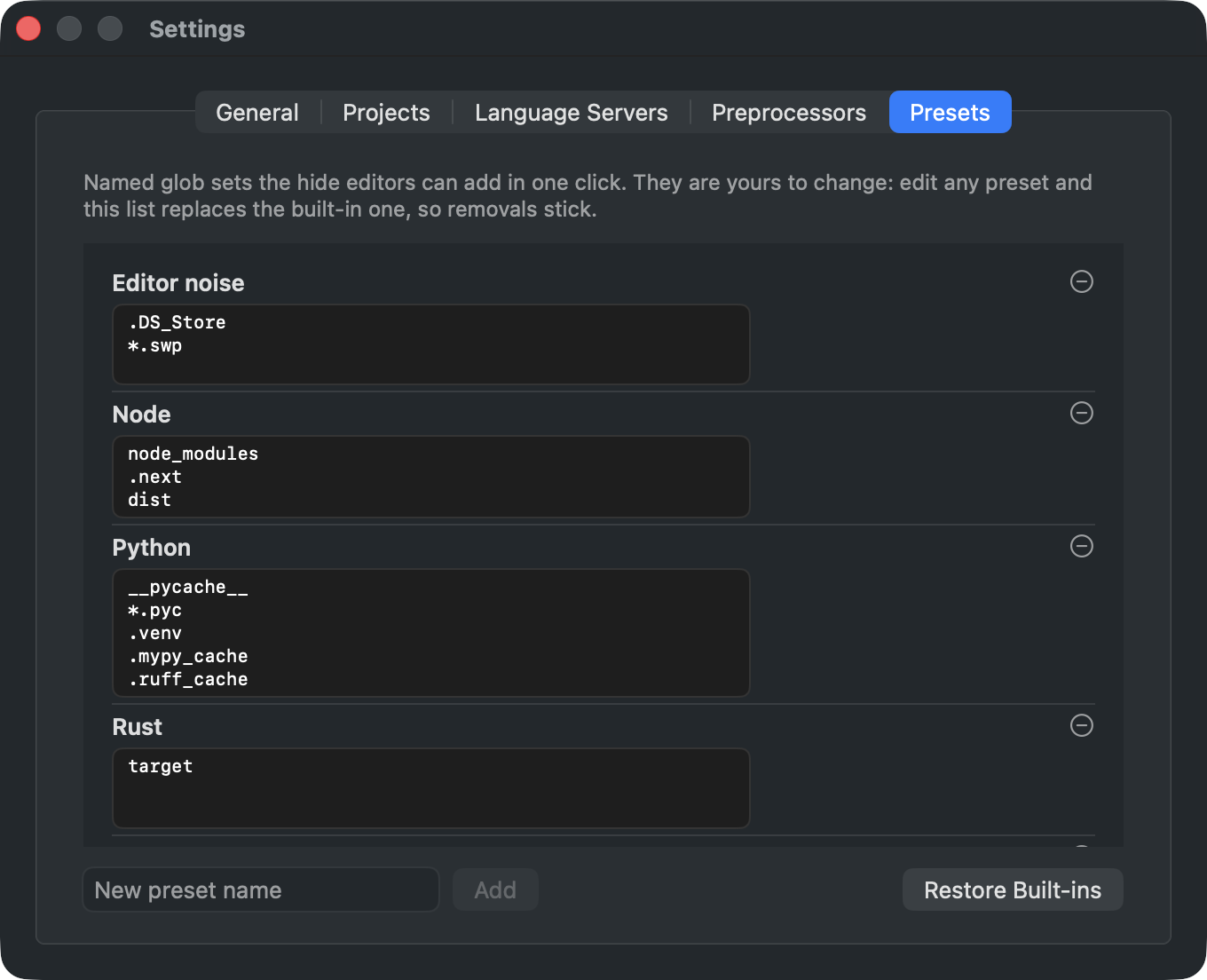
Hidden names are glob patterns, edited one per line, with a menu that adds a named preset in one click.
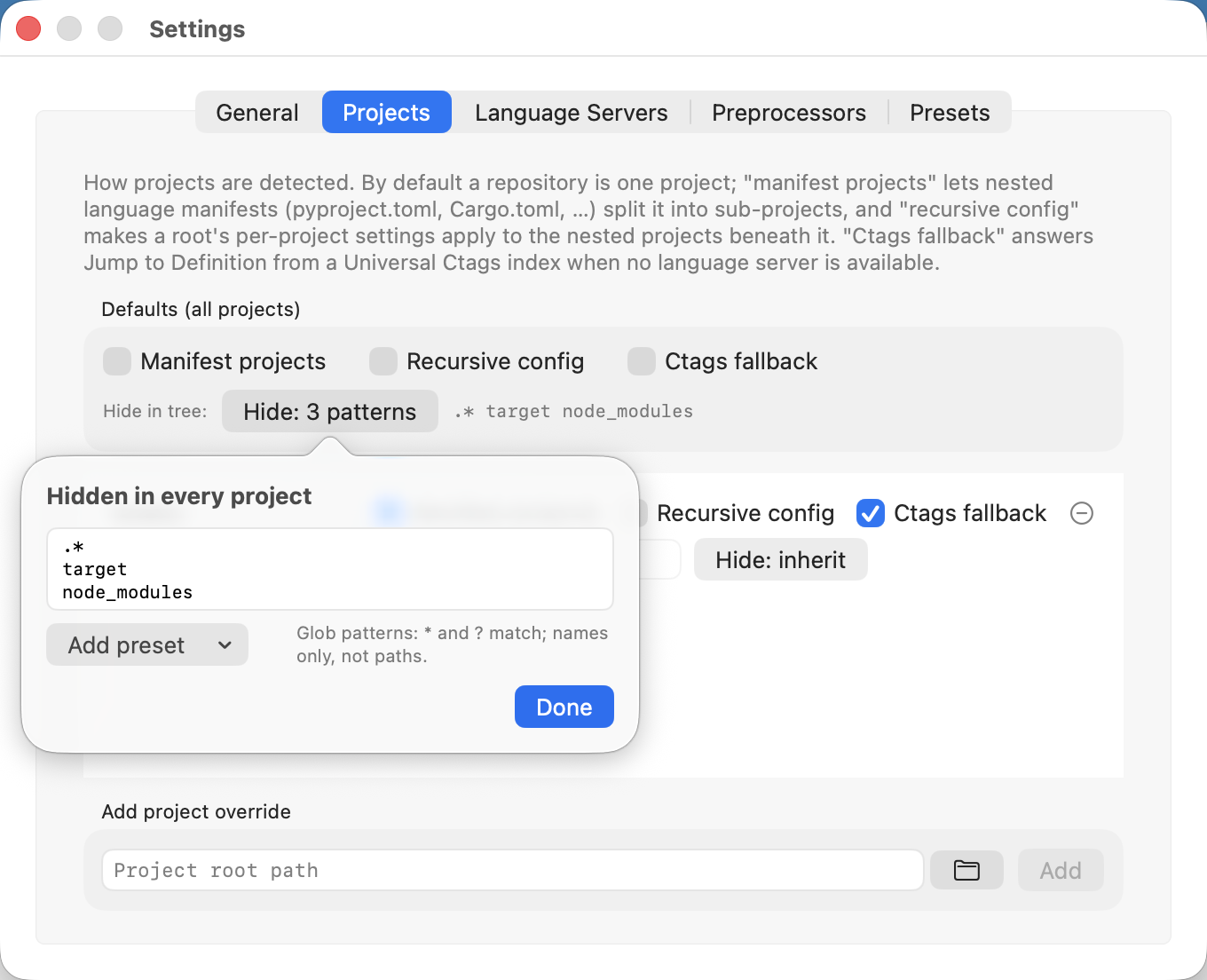
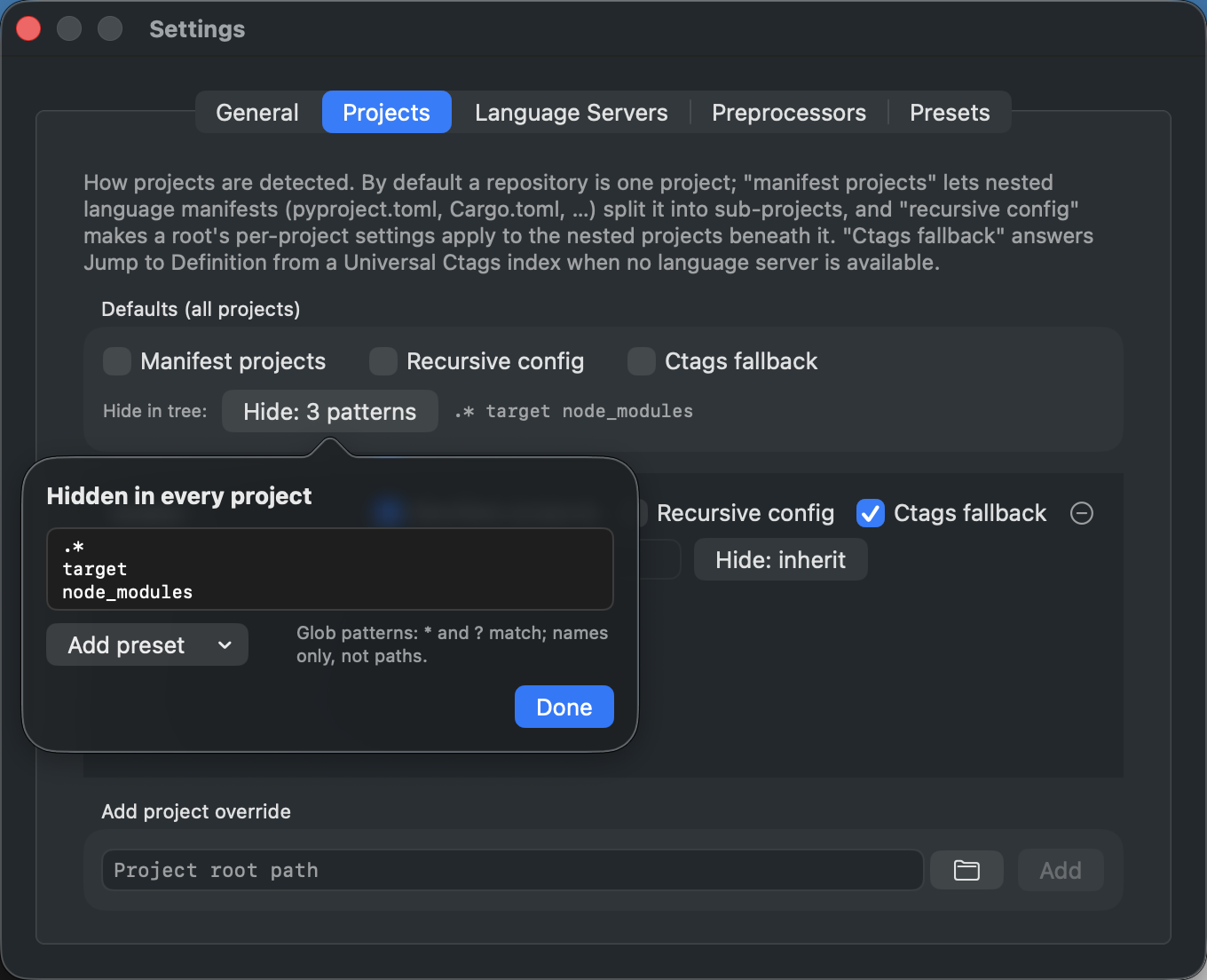
Presets edits those named sets the same way. They start as built-ins; edit any of them and your list takes over, so a preset you delete stays deleted until you restore the built-ins. This screen and the next have no picture from the GTK shell because they are not screens there: presets sit inside Projects, and preprocessors inside Language Servers.
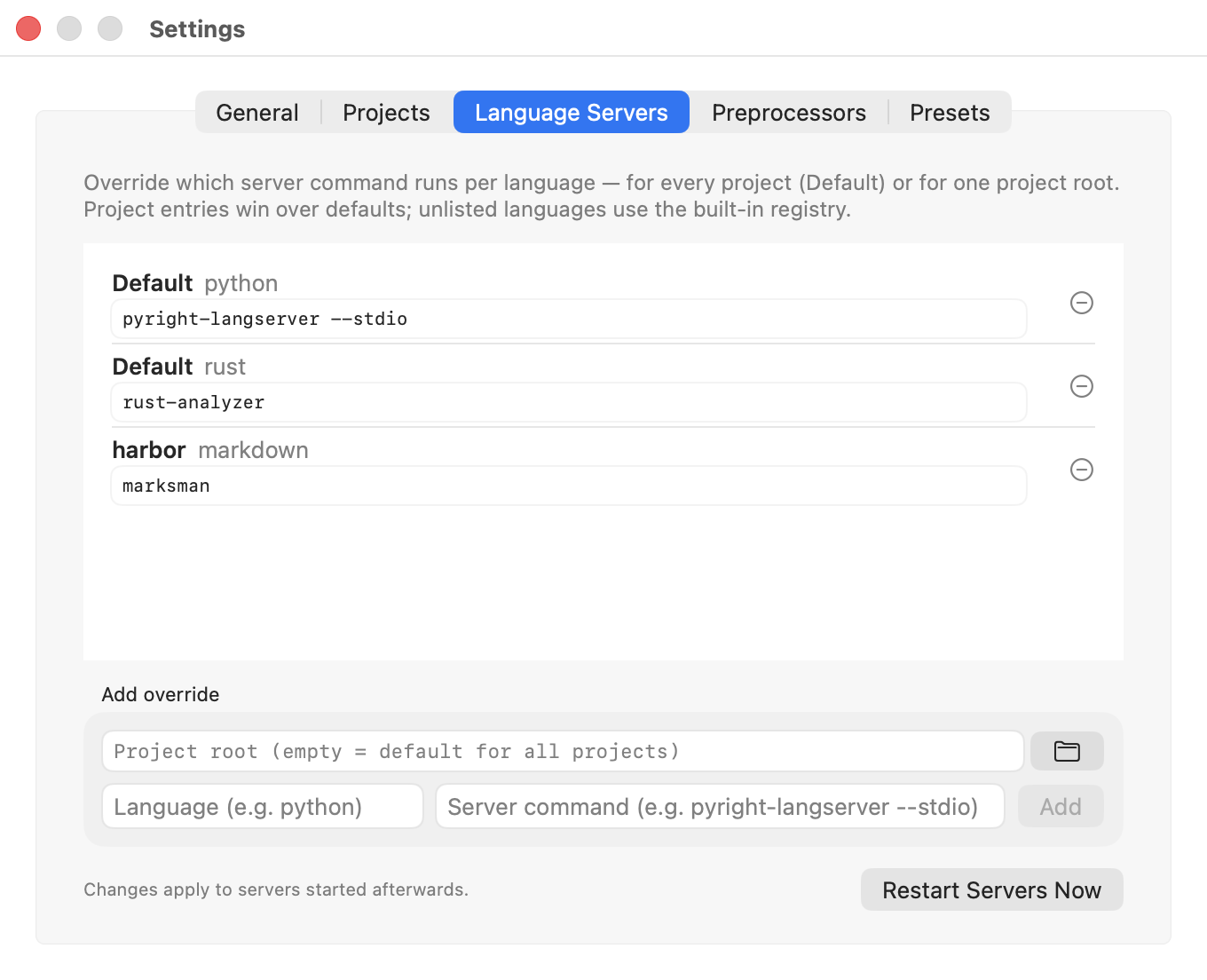
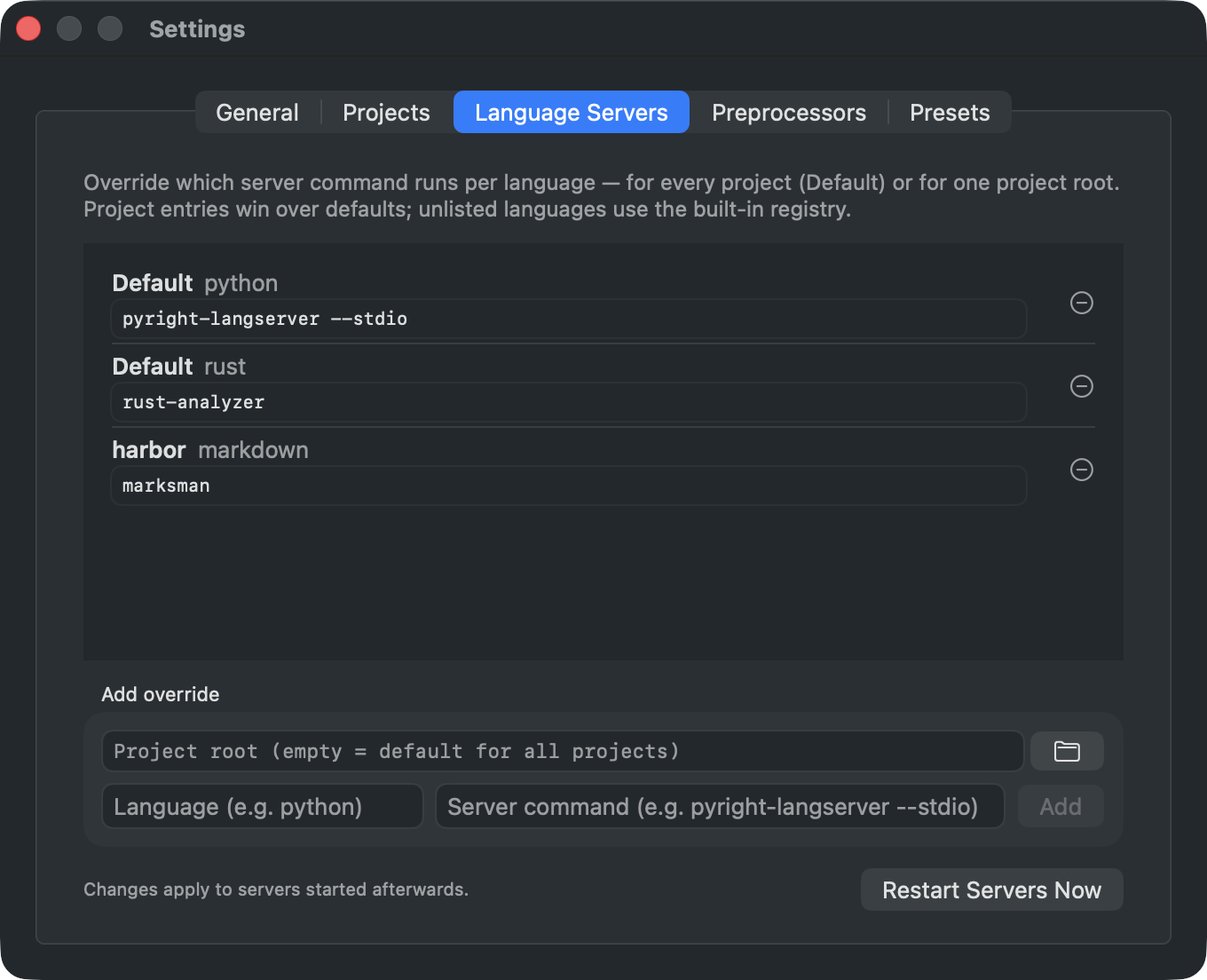
Language Servers overrides which command serves a language, for every project or for one root.
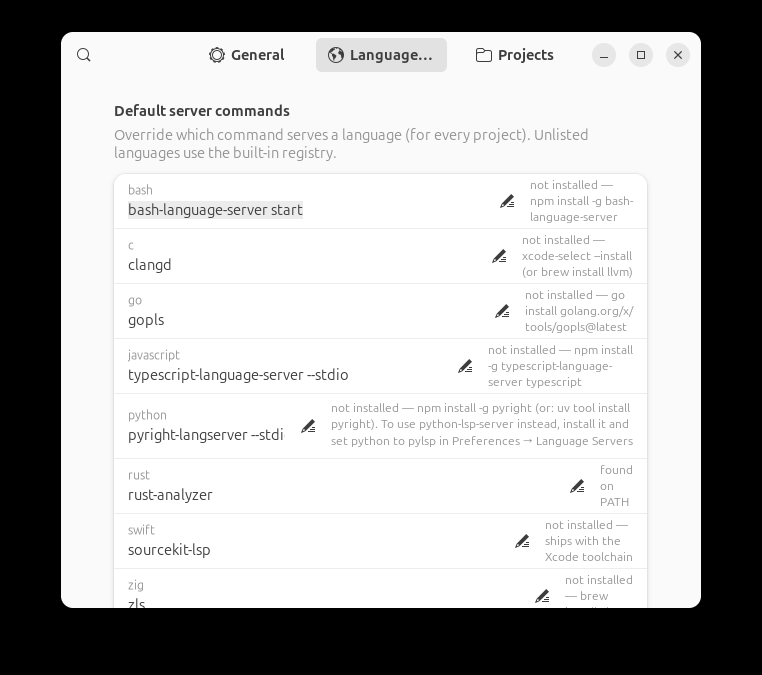
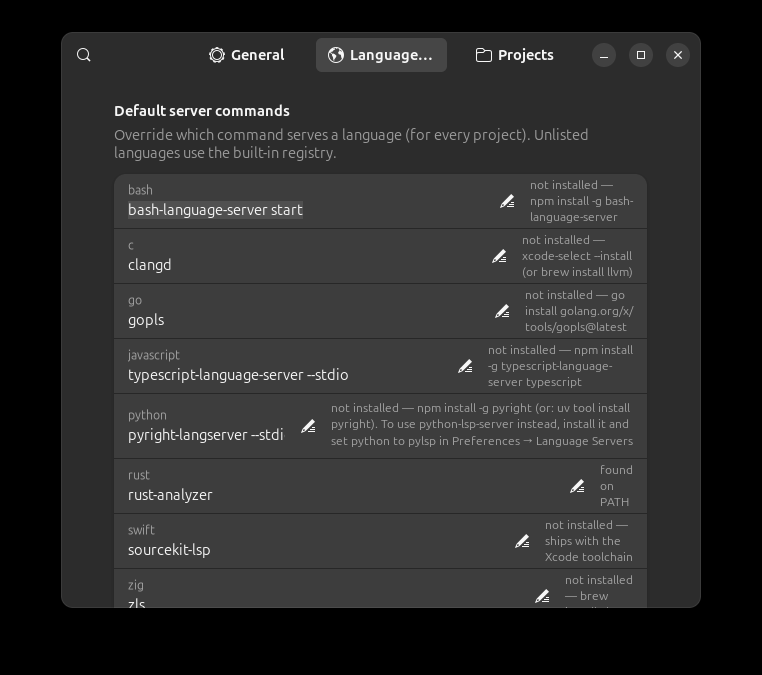
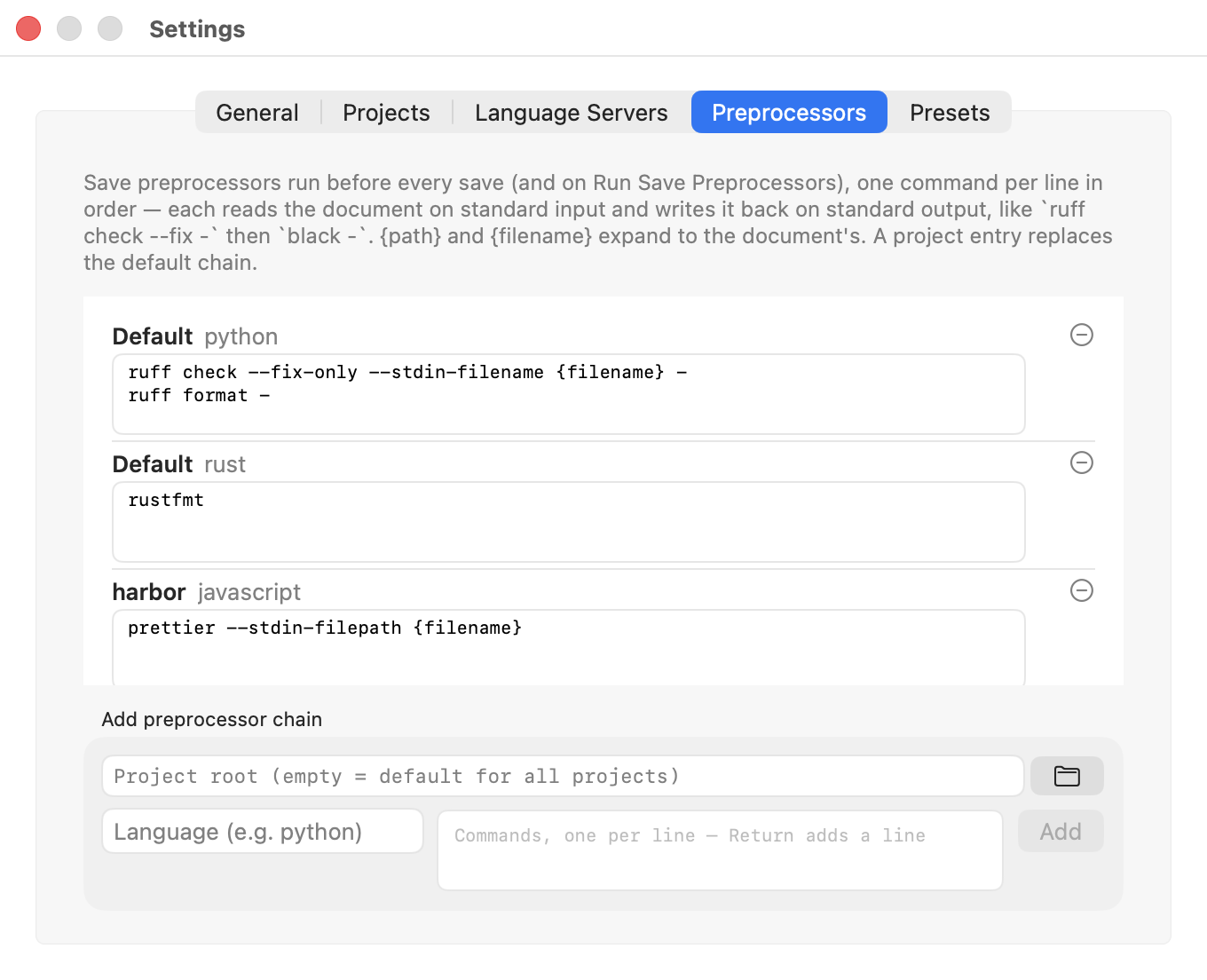
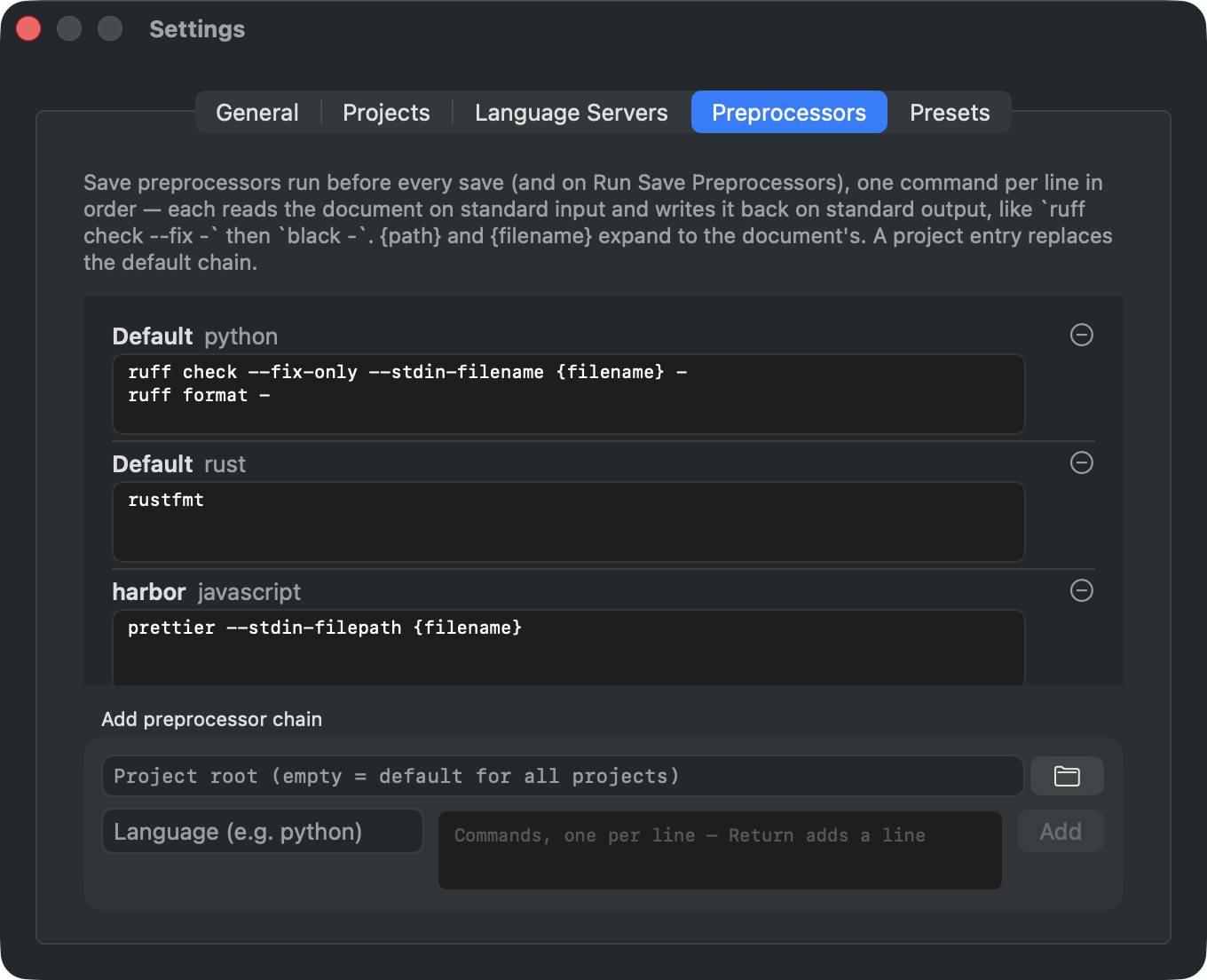
Preprocessors runs formatters before every save: one command per line, each reading the document on standard input and writing it back on standard output.
Small things
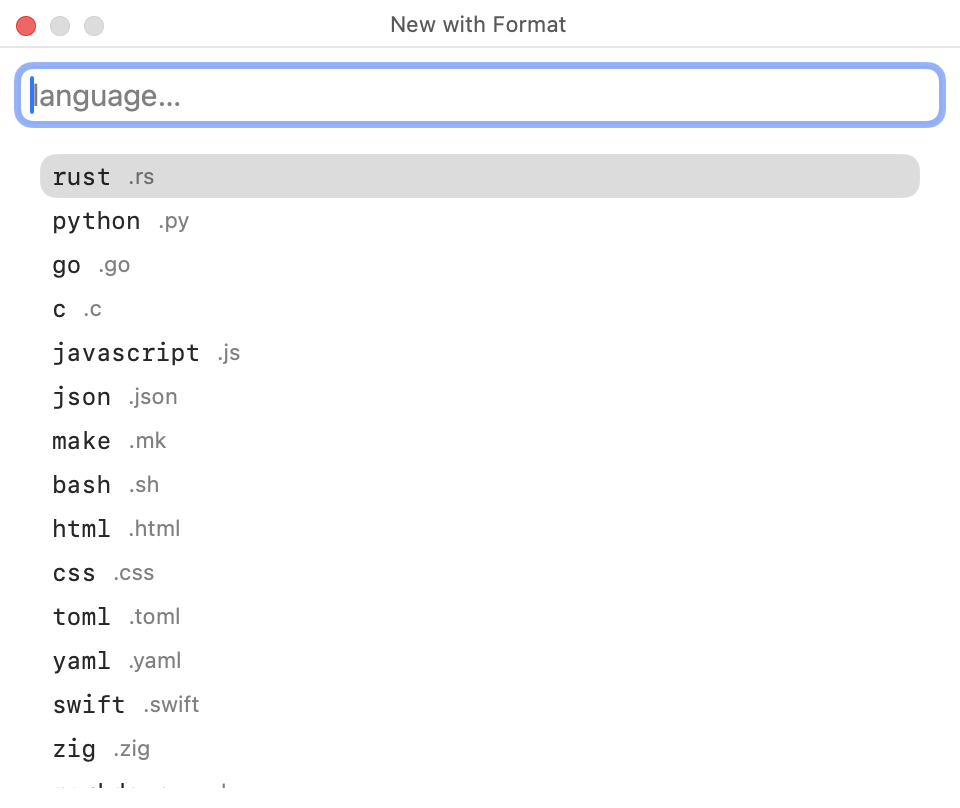
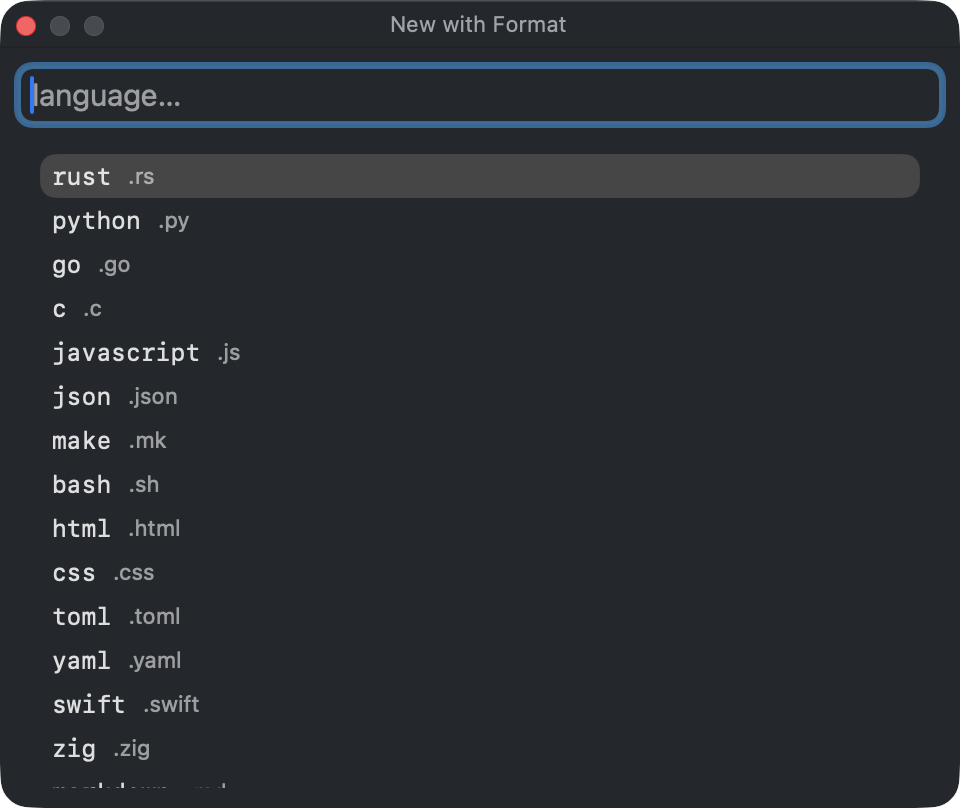
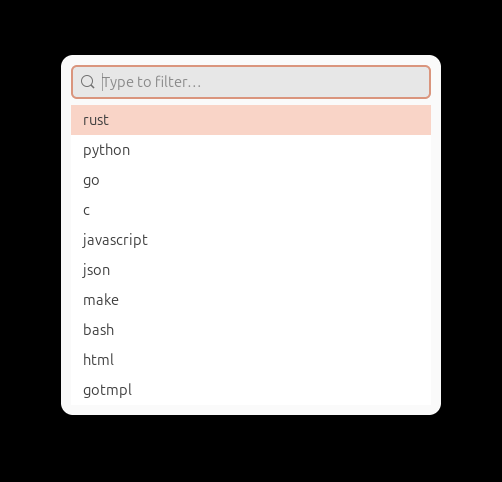
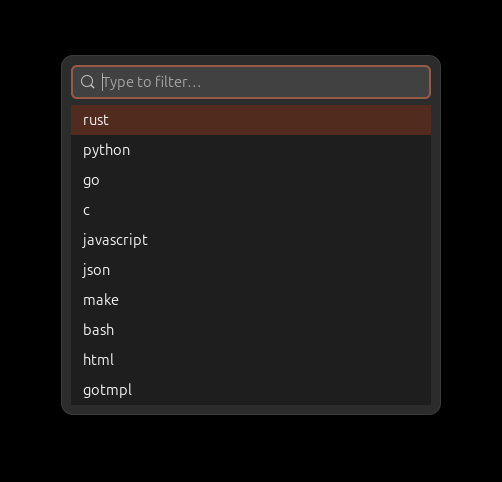
⇧⌘N starts a new document in a chosen language, filtered from the keyboard, so highlighting works before the first save.
And the About panel says which build you are running — a real version, even for a local build.