A guided tour
A walk through a review from start to finish, with the windows you will
actually see. The screenshots follow this page: light ones in light
mode, dark ones in dark. They use the default syntax theme, the
repository under review is a small chess move generator, and the
reviewer is ada.
The home screen
Prchum opens on the home screen: four ways in across the top, and underneath, the reviews you have opened before.
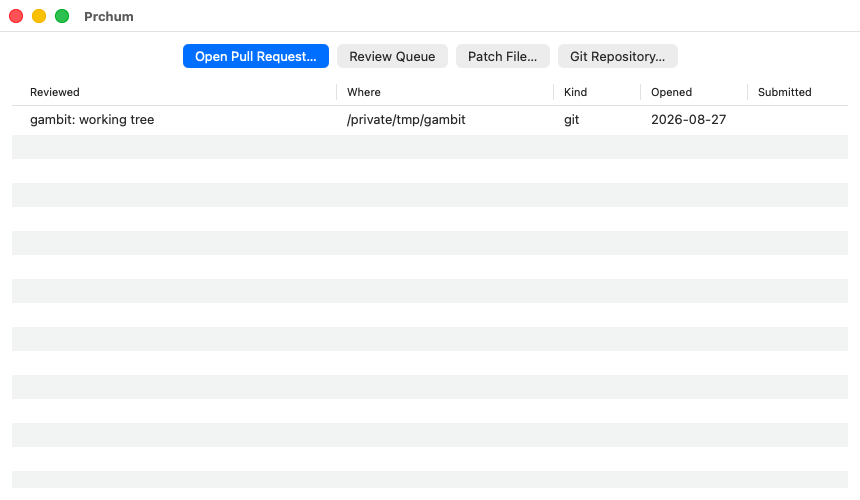
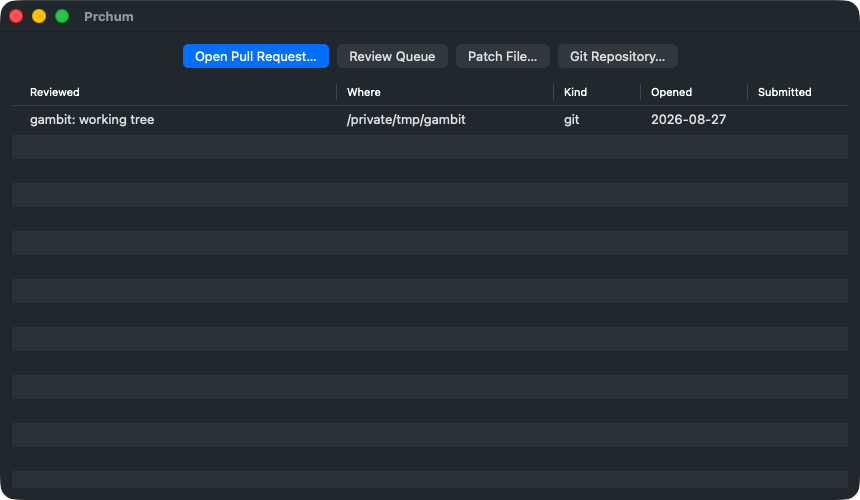
The history remembers where a review came from and whether you submitted it. Rows for requests that have since merged or closed are pruned, and so are the worktrees prchum made for them.
The review queue
⇧⌘L asks your forge which requests are waiting for you.
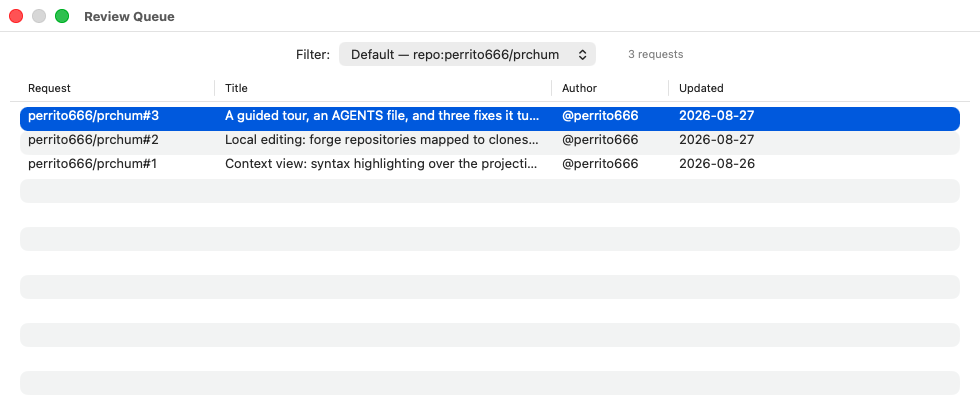
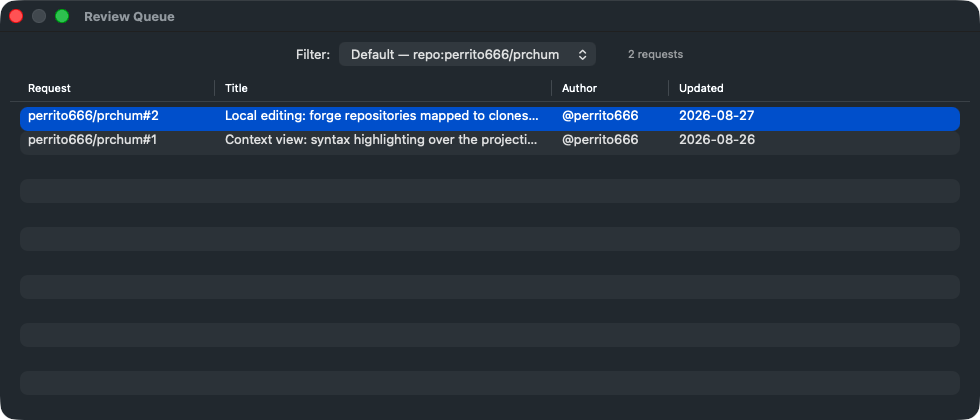
The picker at the top chooses the filter. Named filters come from the
list_filters map in your configuration, the default one runs when you
pick nothing, and Custom… takes a filter typed on the spot for the
rest of the session.
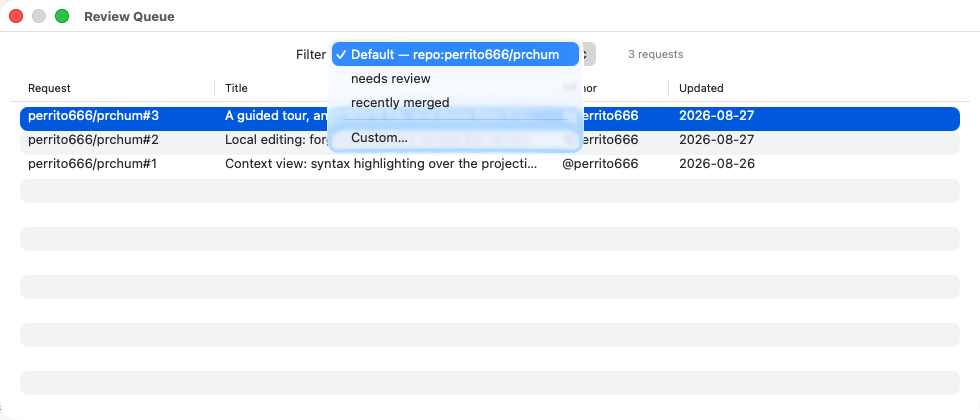
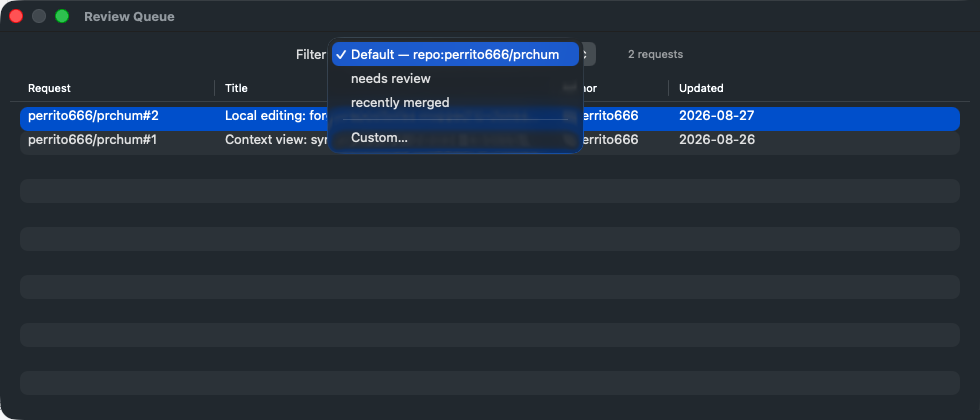
Return, or a double click, opens the highlighted request.
Reading a diff
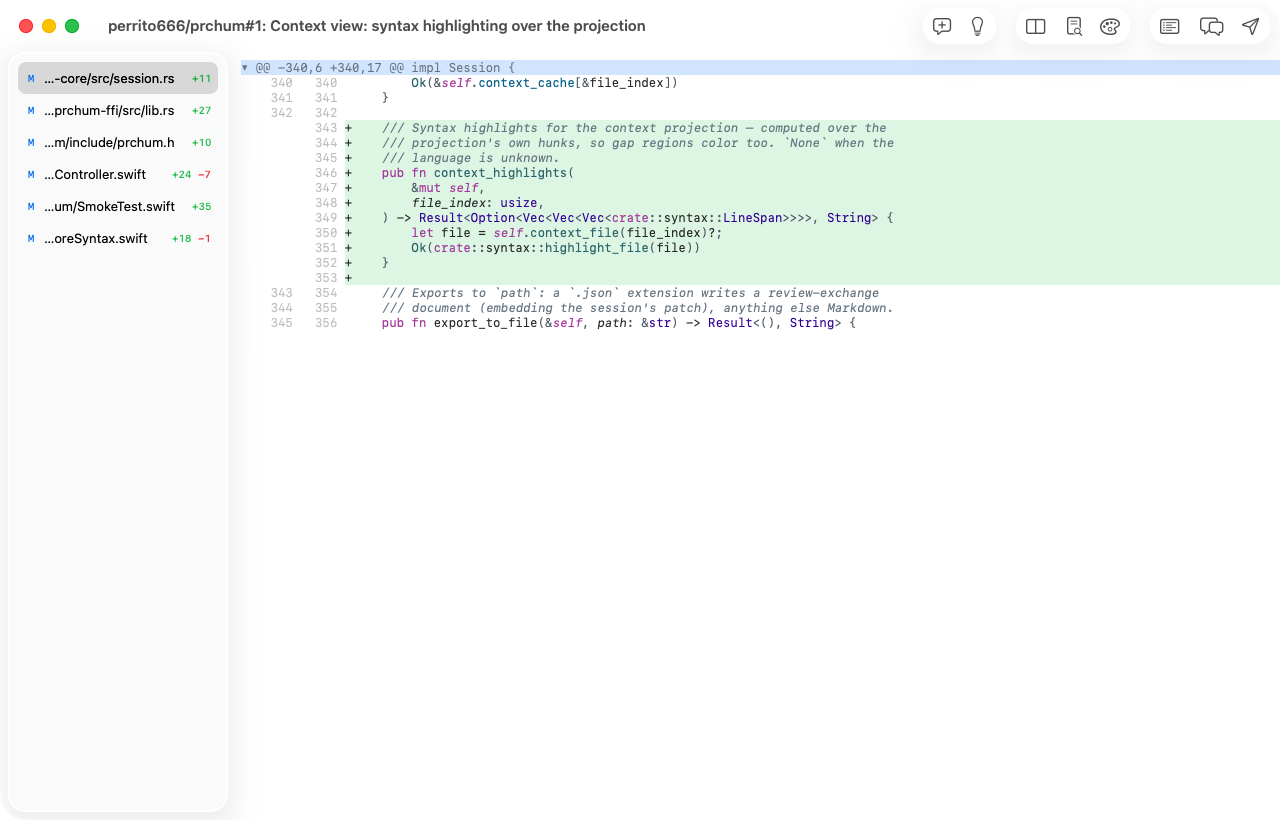
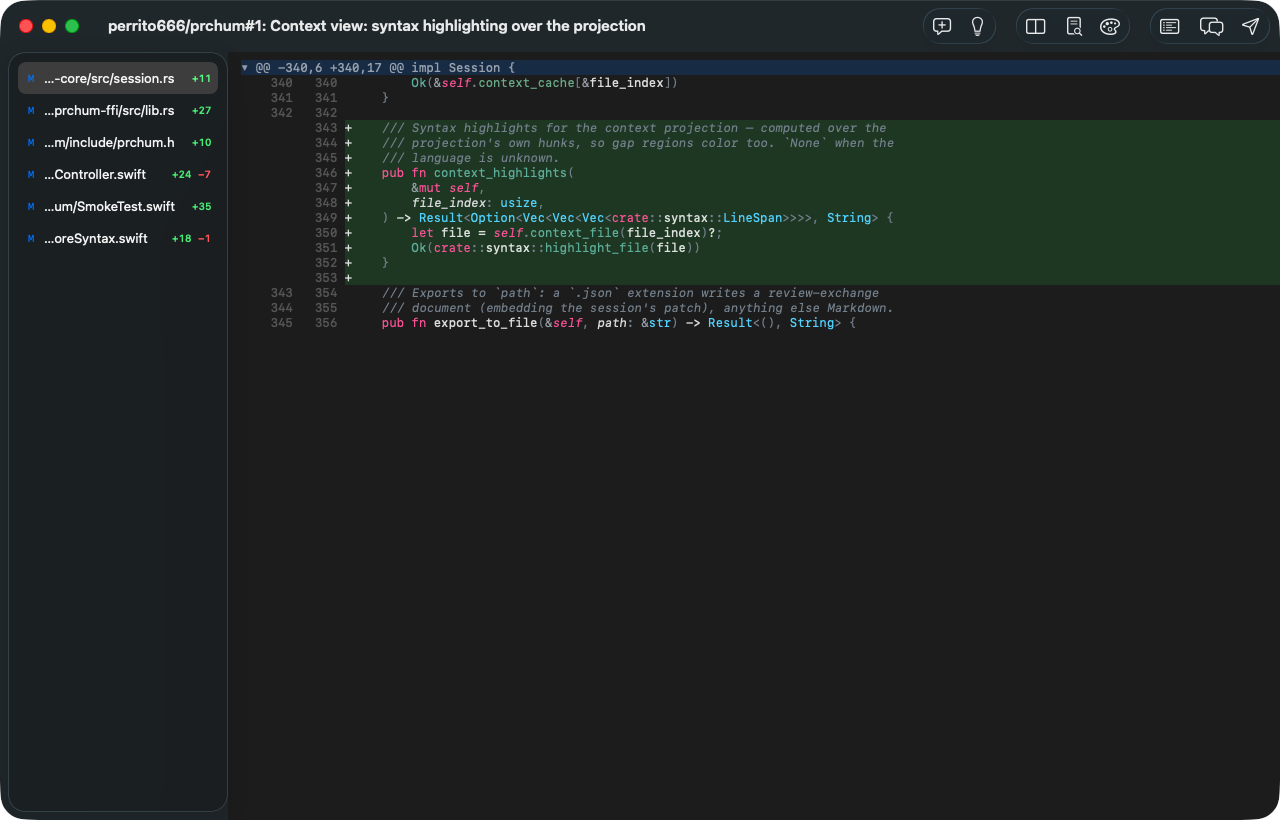
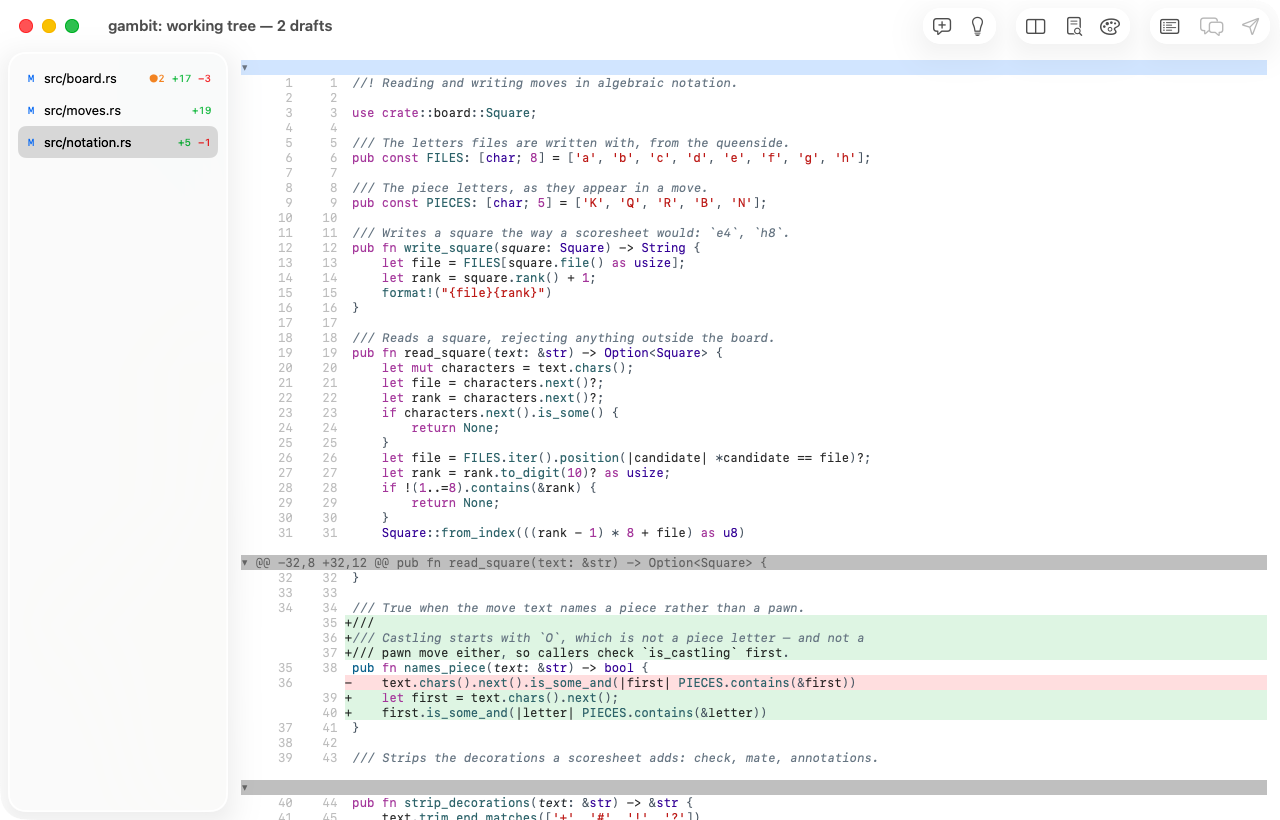
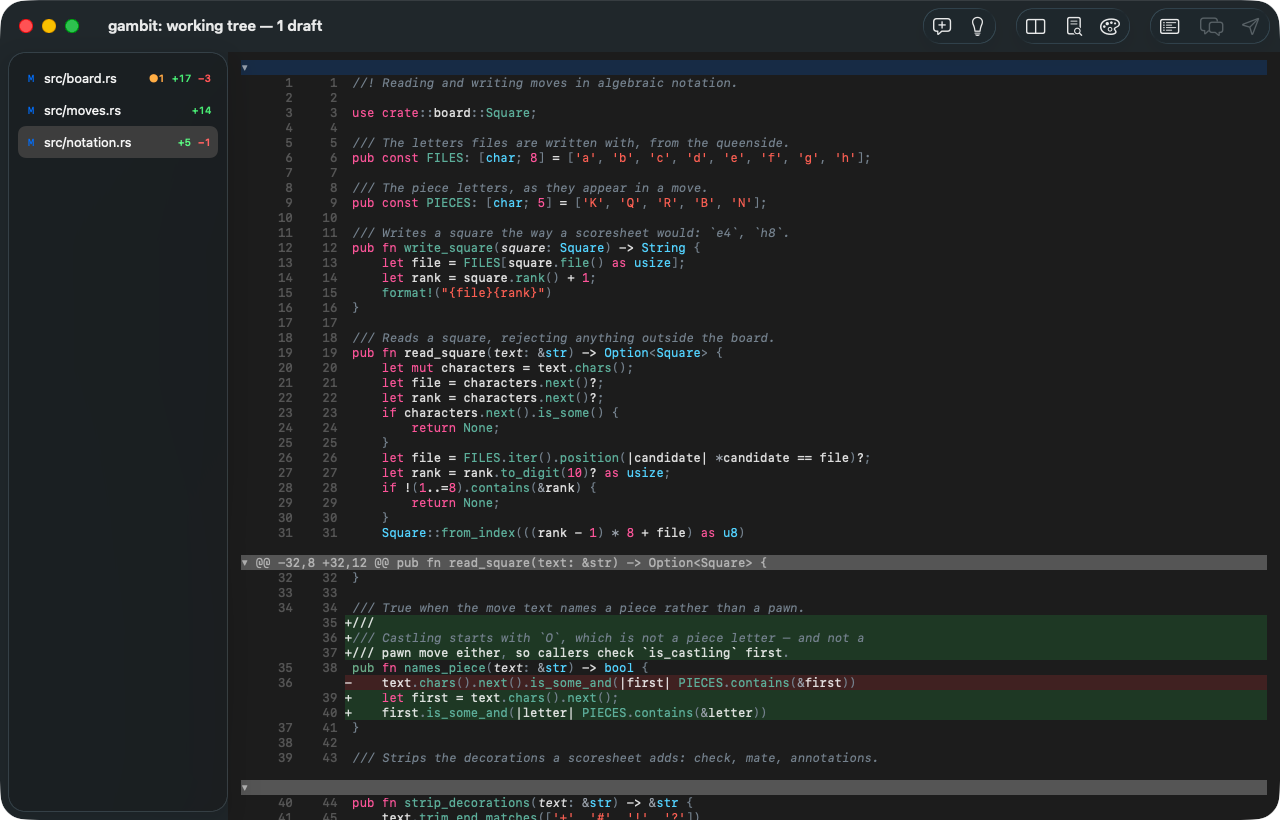
The review window is the sidebar of changed files, the toolbar, and the diff.
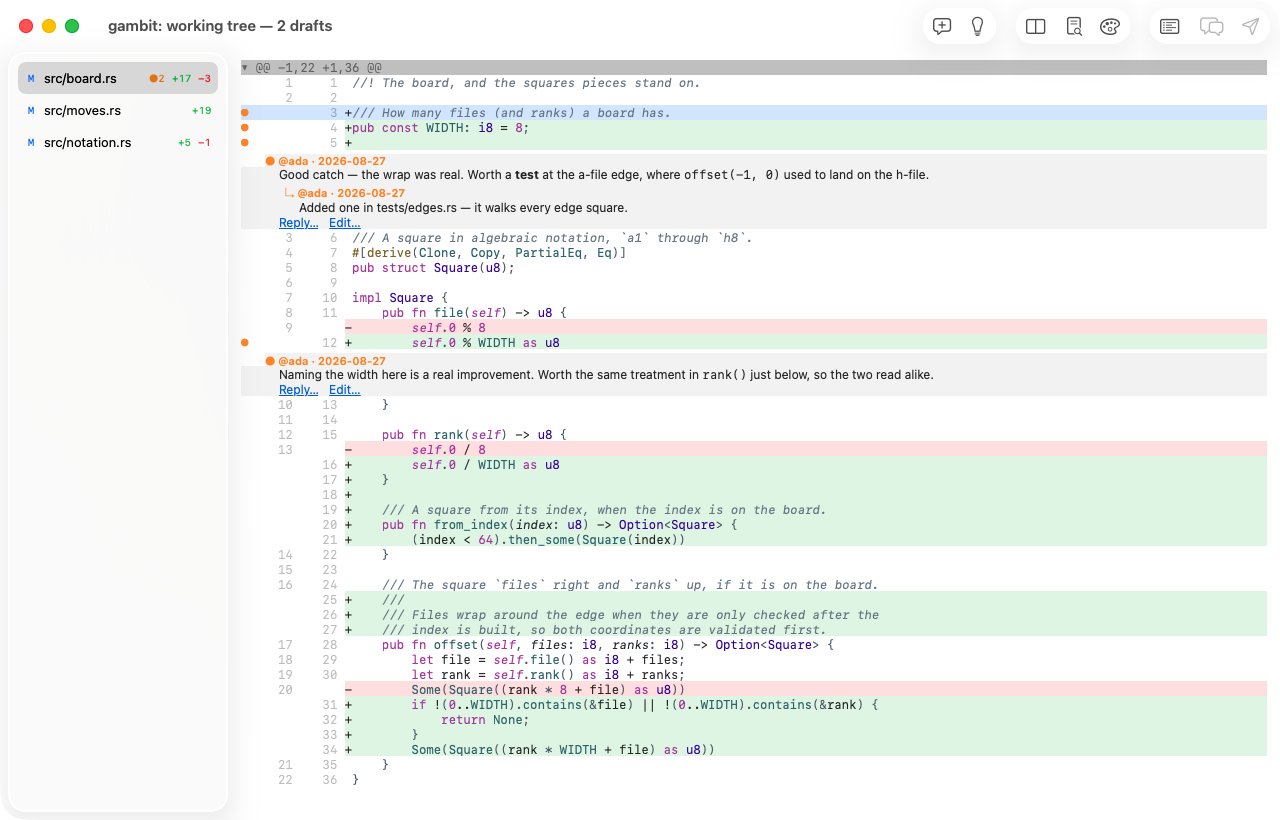
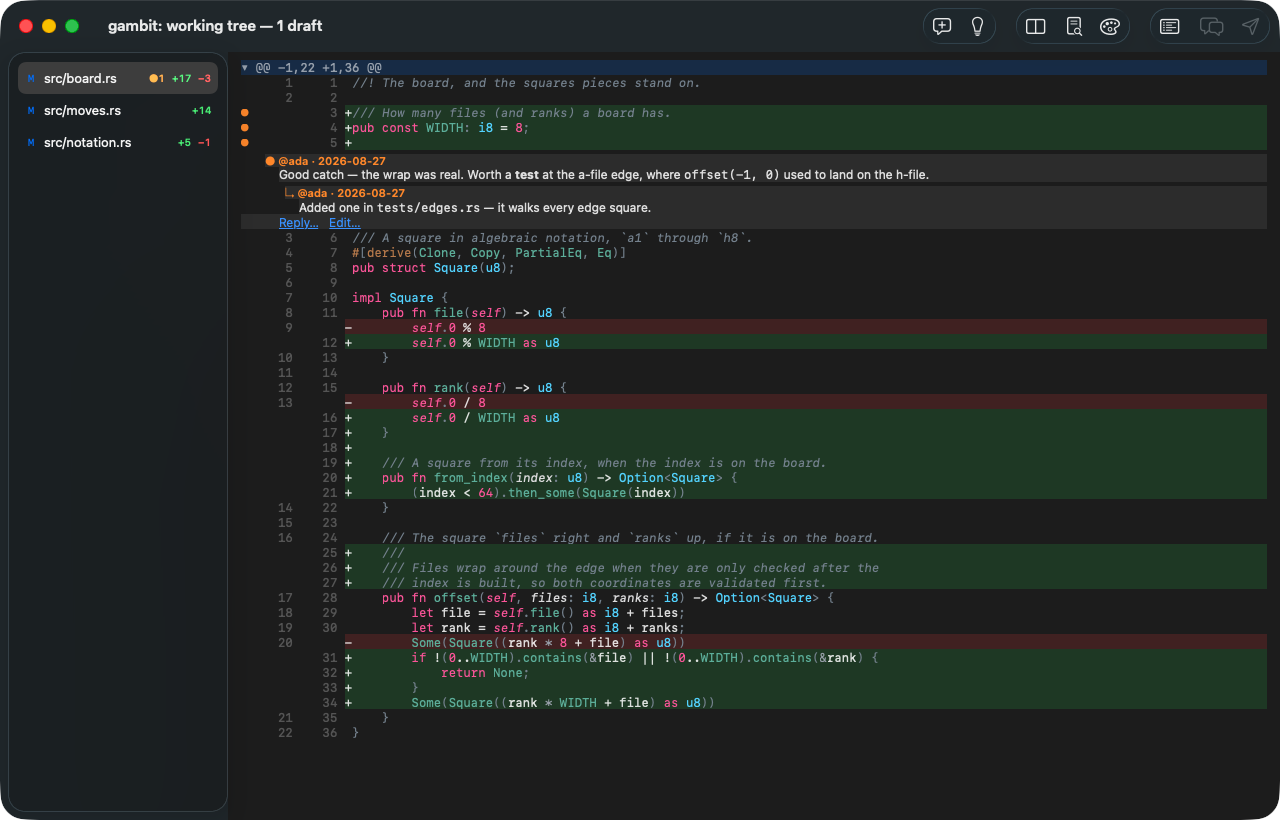
The sidebar counts additions and deletions per file, marks files that carry comments, and checks off the files you have marked as reviewed (⌥⌘V; ⇧⌥⌘↓ goes to the next one left — see Reviewing). ⌘↓ and ⌘↑ step through changes, ⌥⌘↓ and ⌥⌘↑ through hunks, ⇧⌘↓ and ⇧⌘↑ through files. Syntax coloring runs one tree-sitter pass per side of each hunk, so a construct that spans several lines colors correctly on both the old and the new text.
Opening a pull request looks the same — the title bar names the request instead of the comparison.
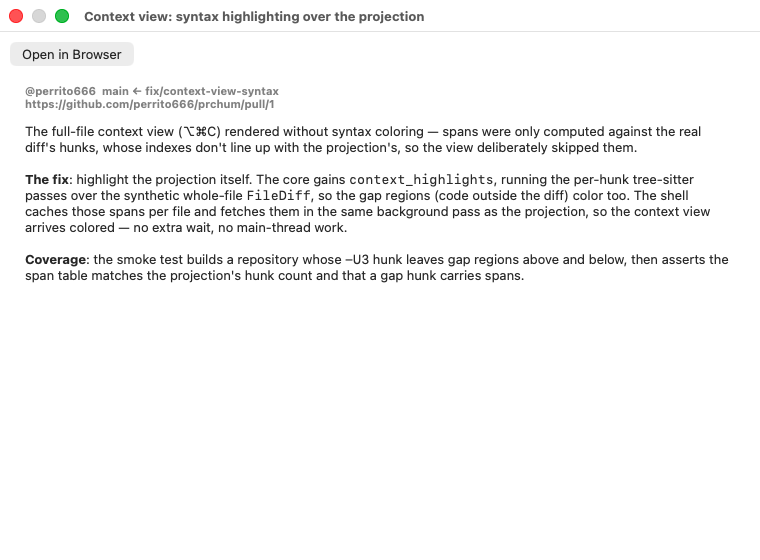
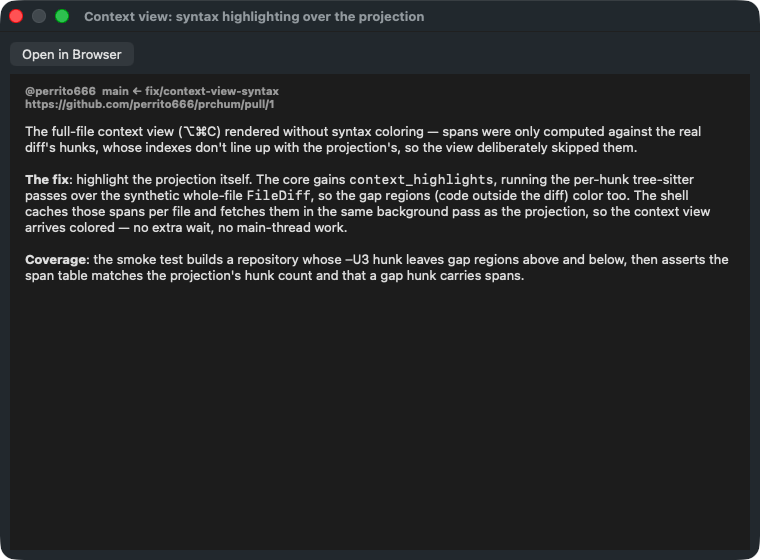
⌘I shows the request's description, rendered as Markdown, with the branch it merges into and a button to open it in a browser.
Split view
⌥⌘T puts the two sides in parallel panels. The panel your caret sits in decides which side a new comment targets.
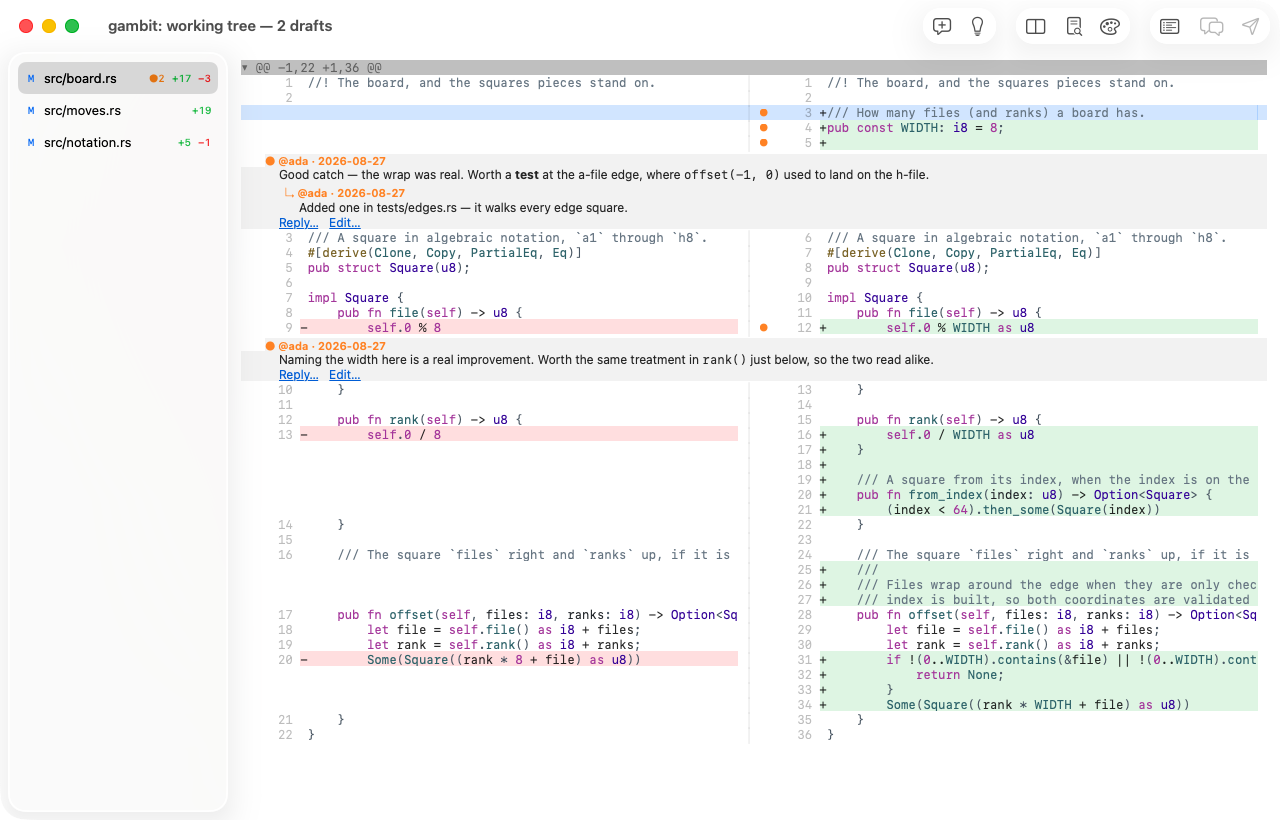
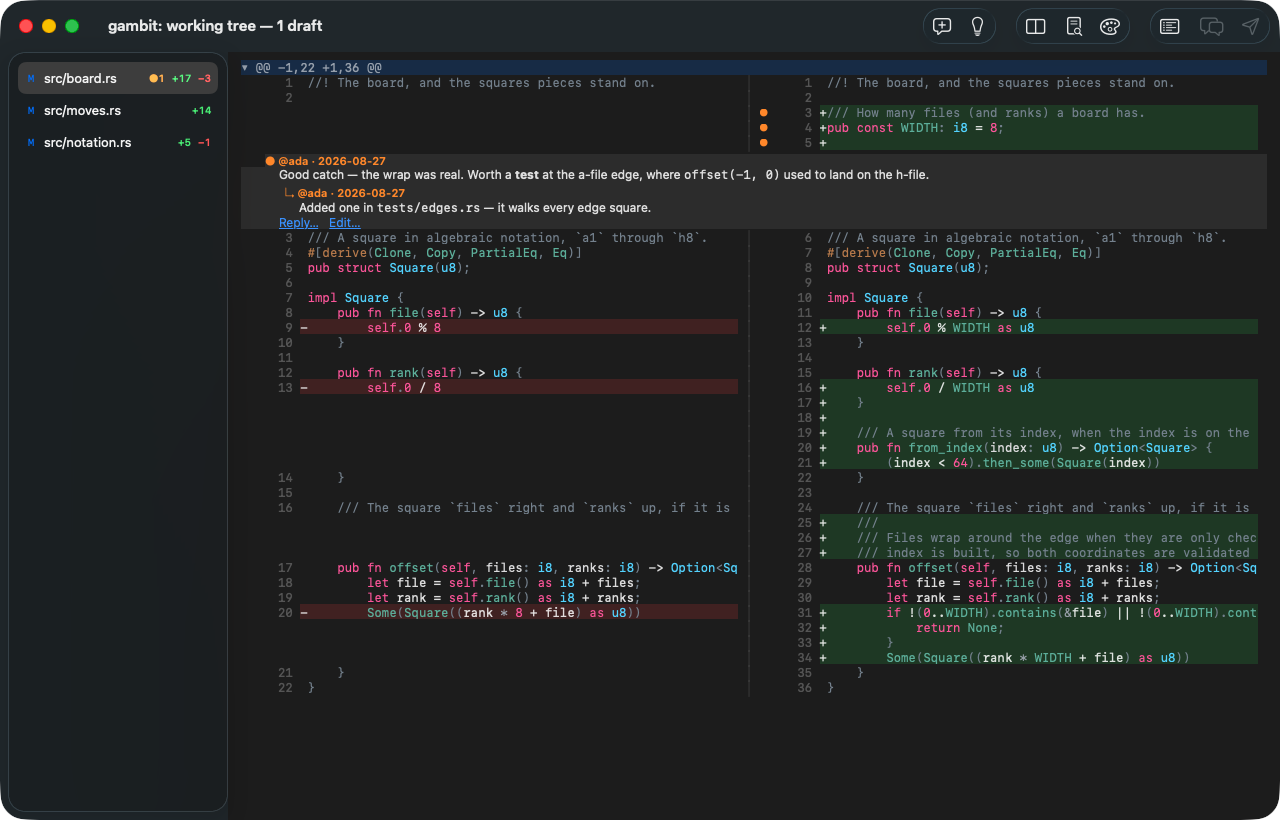
Full-file context
A diff shows three lines around each change, which is often three lines too few.
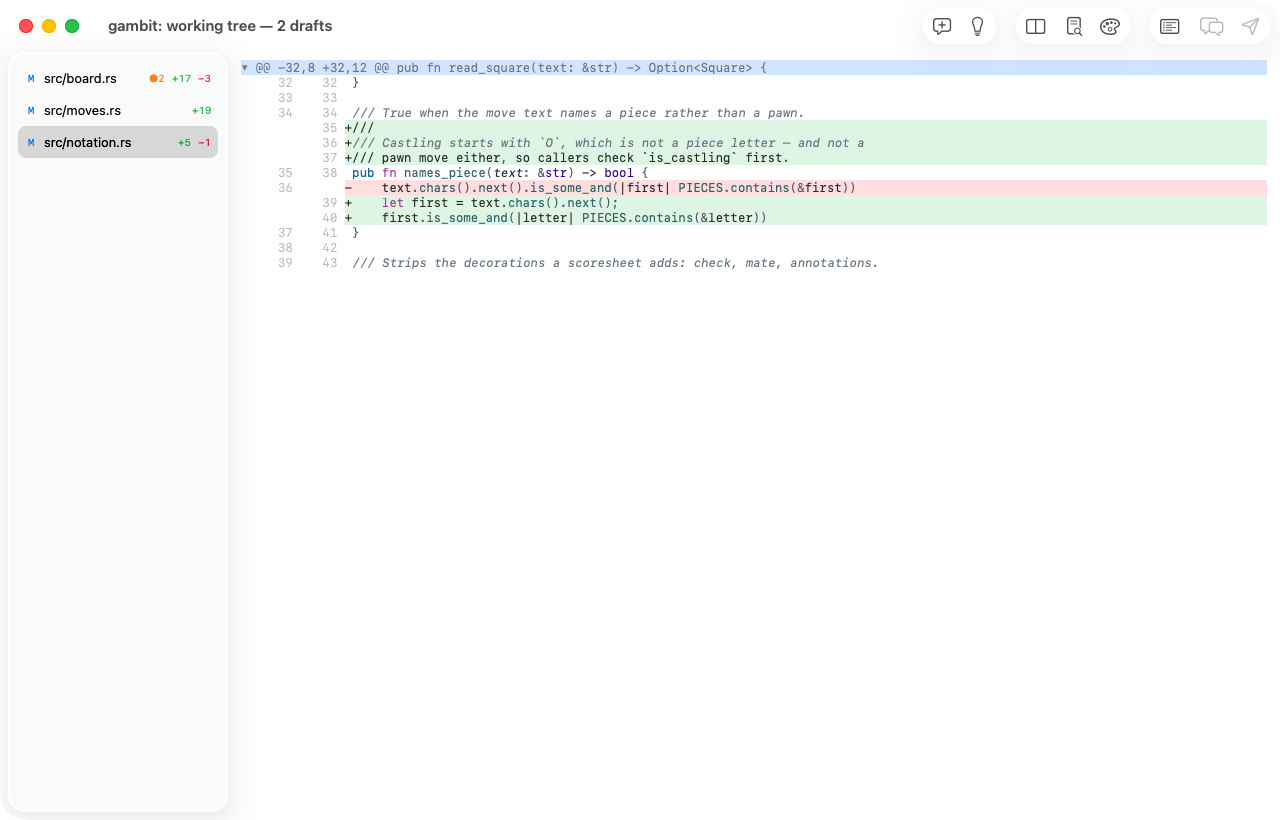
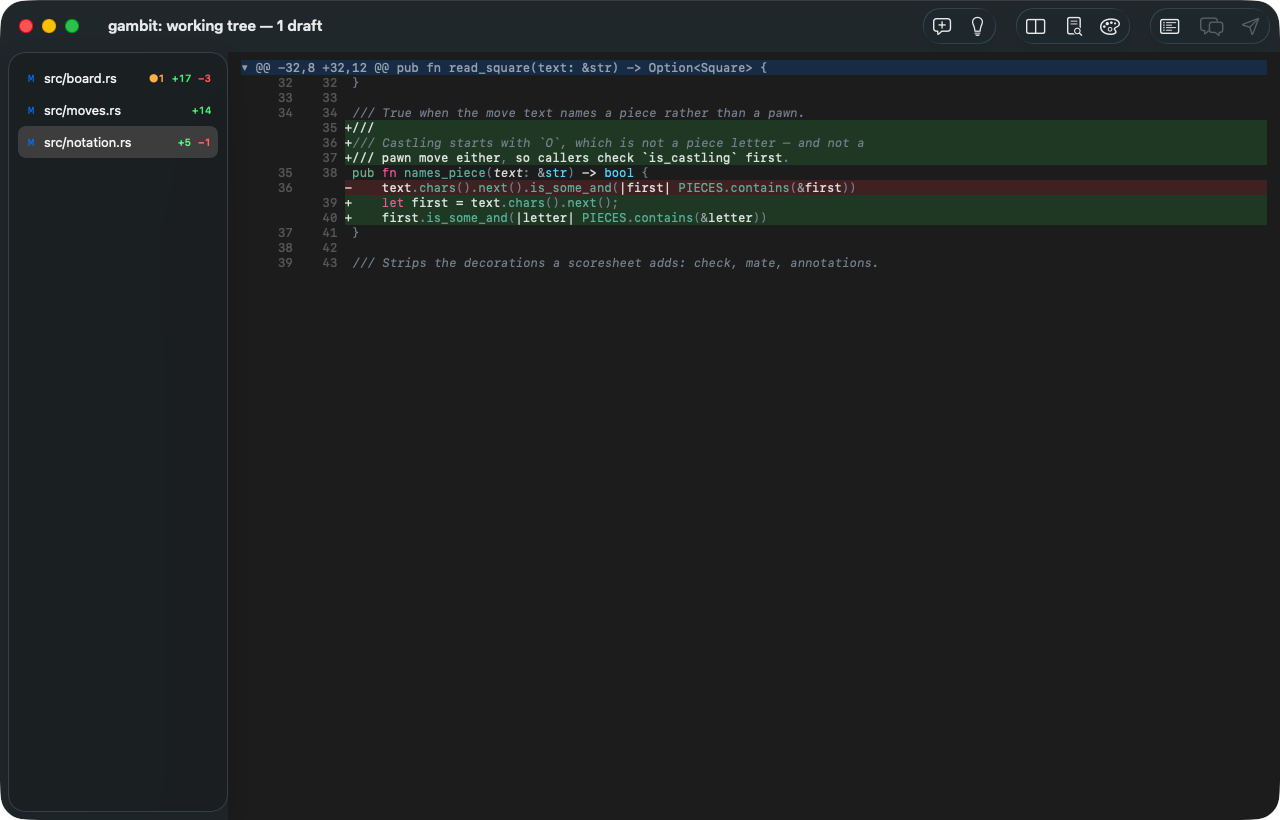
⌥⌘C fetches the whole file and lays the hunks back into it, so you read the change where it lives. The code outside the diff is colored too, and the fetch happens off the main thread — the window stays live while it arrives.
Commenting
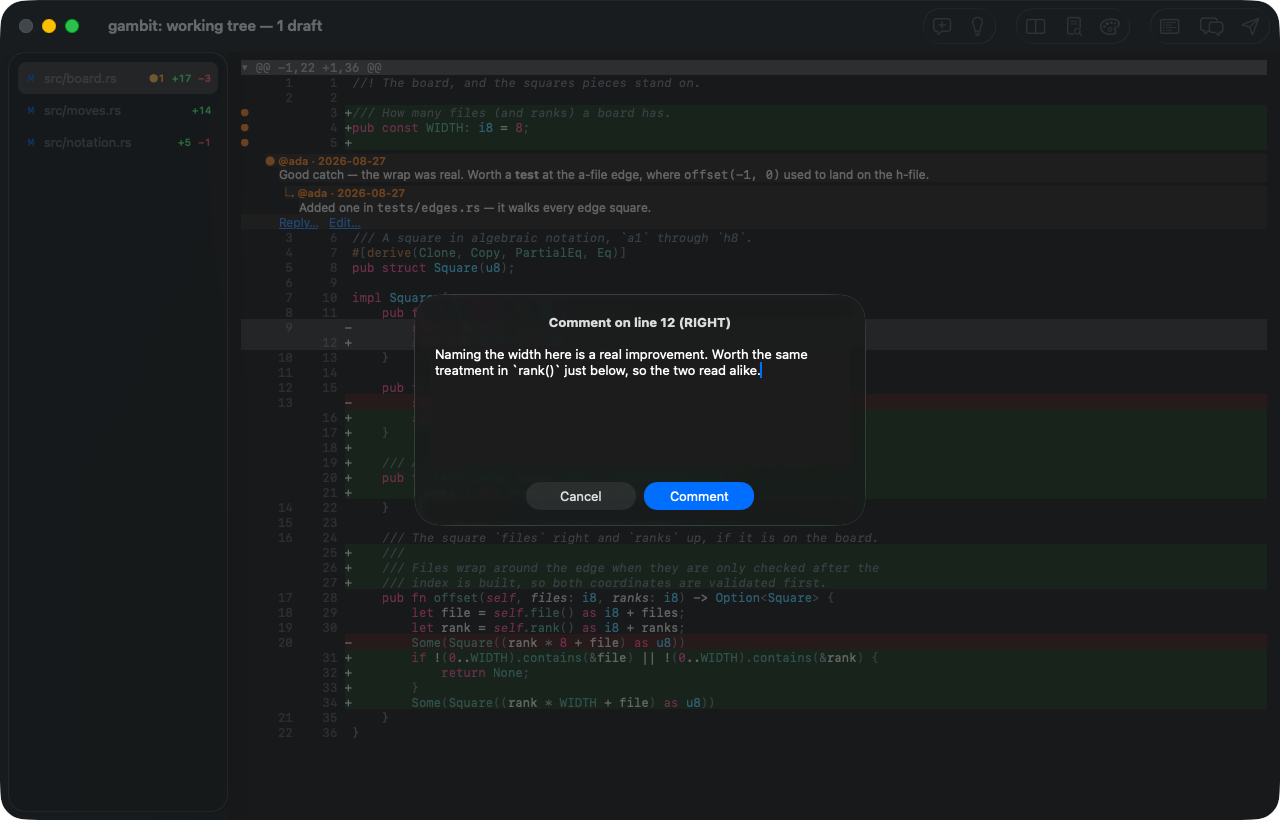
⌘↩ comments on the line under the caret, or on the selection.
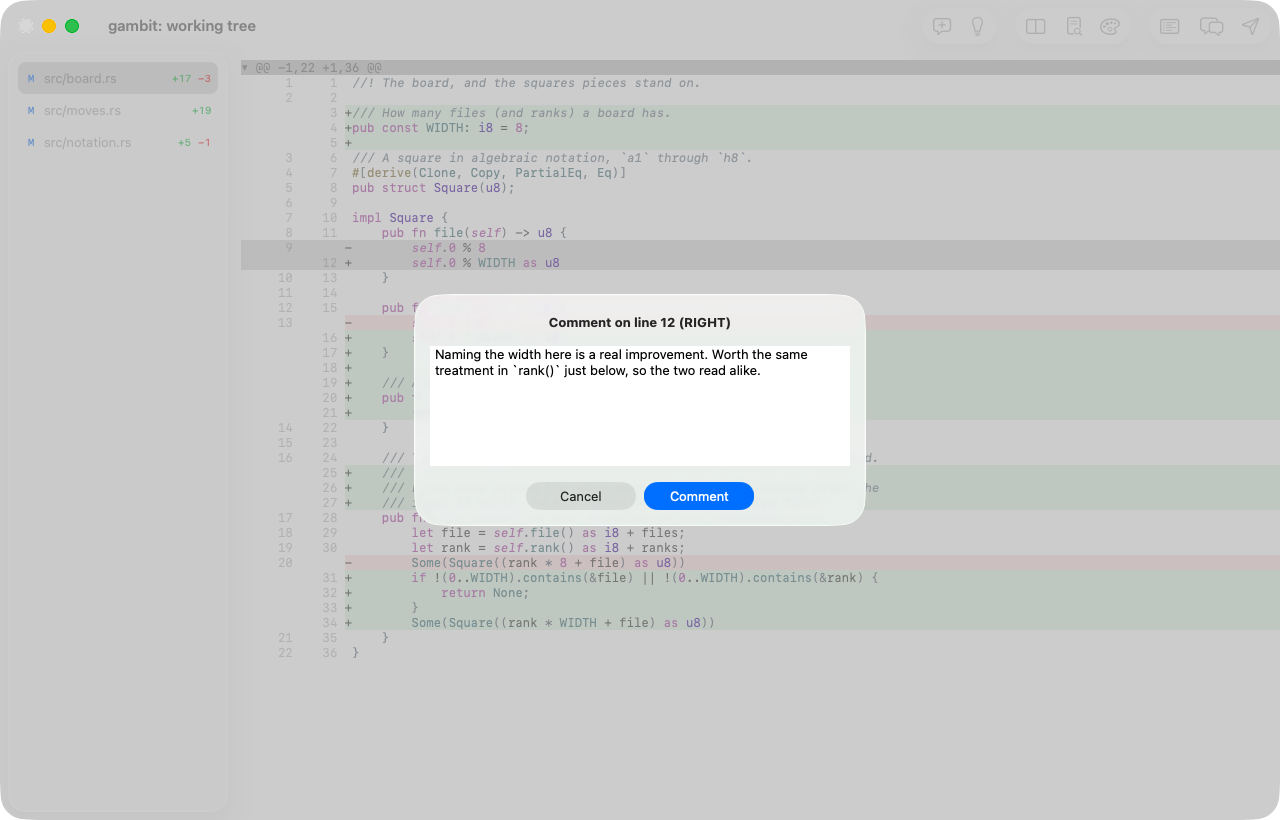
A selection spanning several lines becomes a range comment, the way the forge understands it.
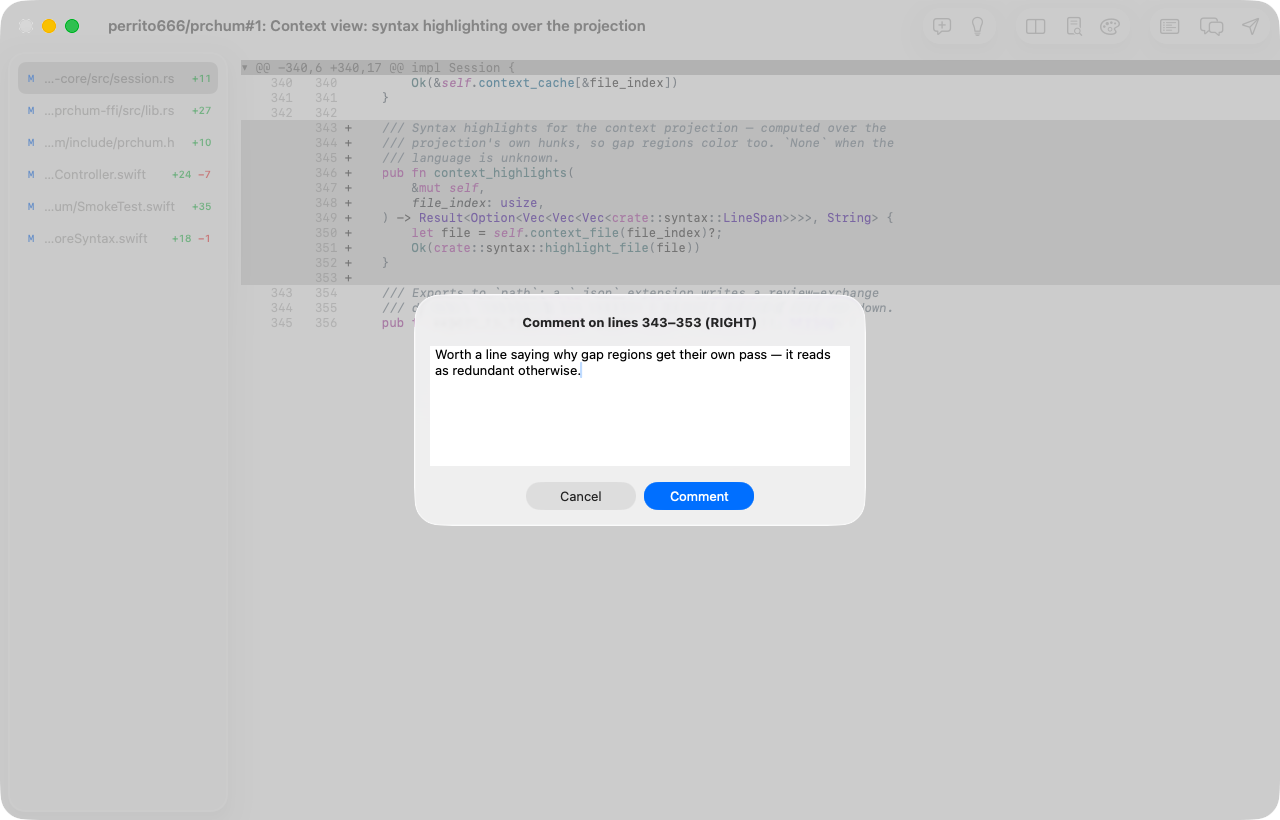
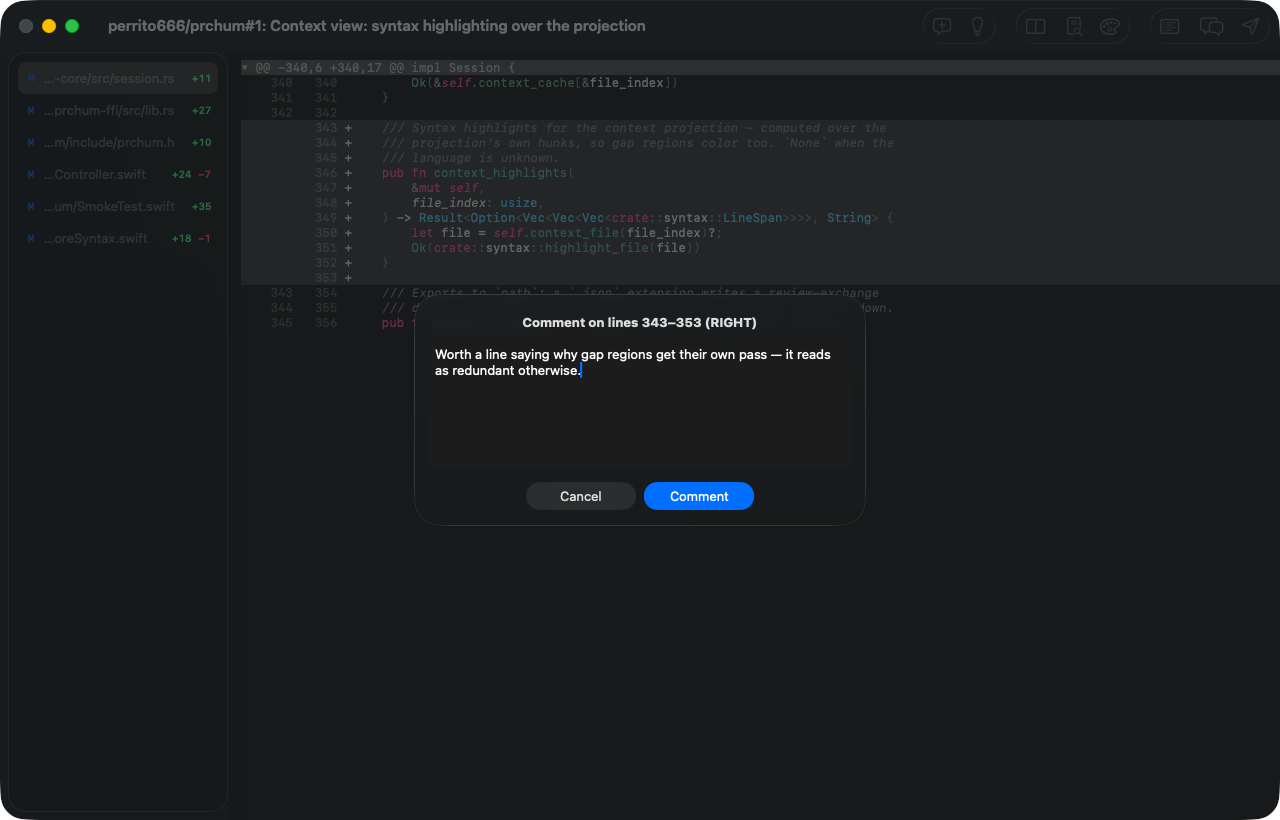
Comments are not attached to a row on screen. They anchor to a semantic location — file, side, line range, and a short context anchor with a hash of the line's content — which is why a draft survives the branch moving under it.
Drafts and the threads already on the request appear inline, framed, with their Markdown rendered.


⌘R replies into a thread, ⌘E edits the draft under the caret, ⇧⌘X dismisses one (kept locally, never submitted), and ⌘⌫ deletes it.
The review navigator
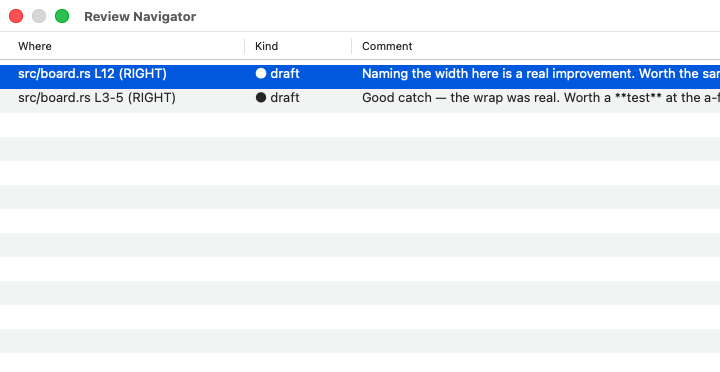
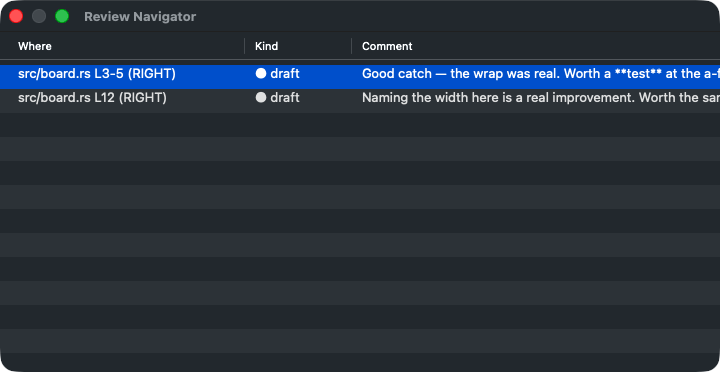
⌘L lists every draft and thread in the review; Return jumps to the one you pick.
Submitting
⇧⌘↩ opens the submit sheet: how many comments and replies are about to go out, a box for the review summary, and the event — comment, approve, or request changes. ⌥⌘A and ⌥⌘R open the same sheet with approve or request-changes already chosen.
Comments the forge accepts are dropped from your local drafts as they land, so a submission that fails halfway can be retried without posting anything twice. Orphaned drafts — the ones whose code is gone — are never submitted, and the sheet says so before you commit to it.
When it goes out cleanly you get a notification rather than a dialog: there is nothing to decide, so nothing stands between you and the next thing. A submission that only partly landed still asks, because that is something you have to see.
Settings
⌘, holds the things worth changing.
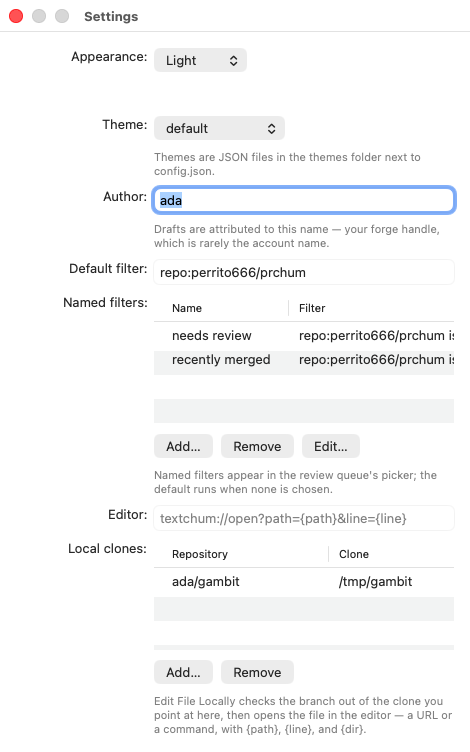
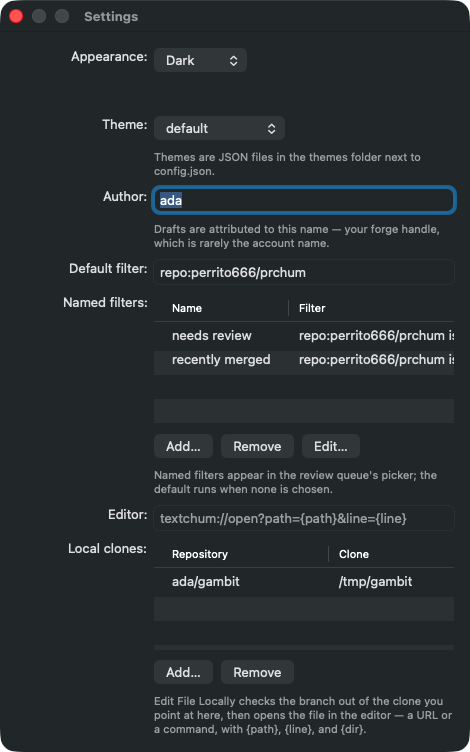
Appearance and theme; the name your drafts are attributed to; the default and named discovery filters; the editor template; and the map from forge repositories to local clones that Edit File Locally (⌃⌘E) uses to check the branch out and open the file where your caret is.
Everything here writes through to config.json, which stays
hand-editable: unknown keys survive every save, and a file prchum
cannot parse is never overwritten.
On Linux
The same review, in the GTK shell. Prchum's core is one portable library; what changes between platforms is the presentation, and it changes deliberately — this is a GNOME application, not a Mac one wearing a different theme.
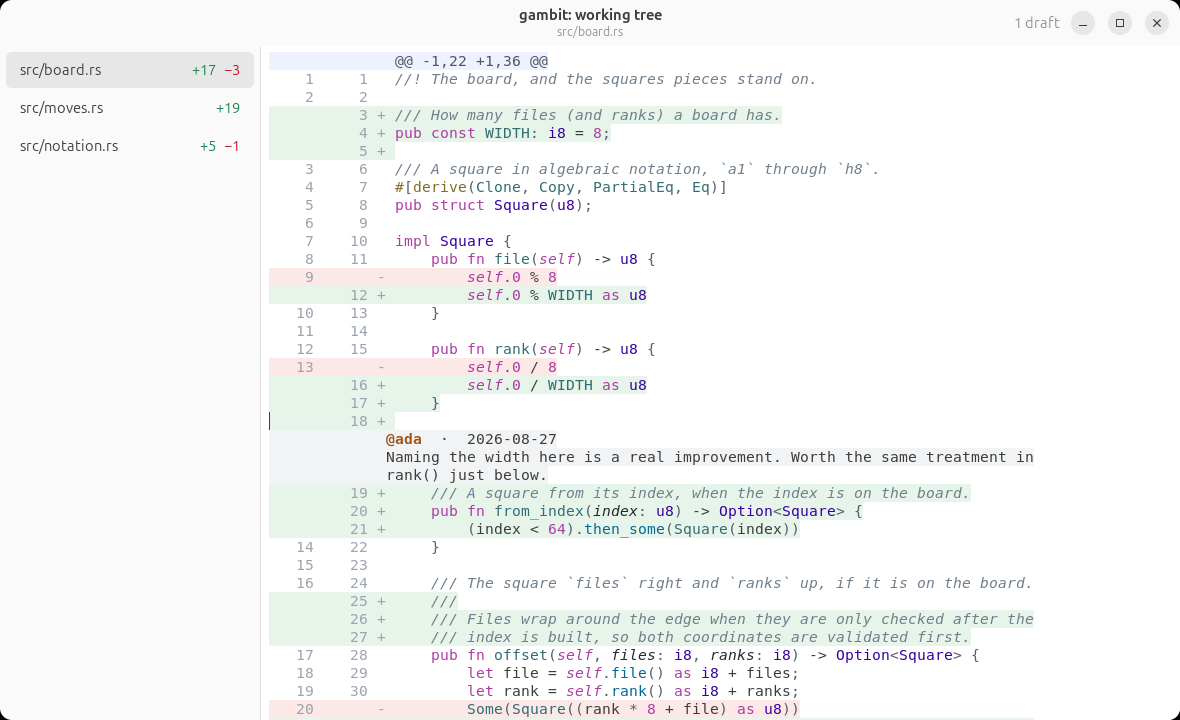
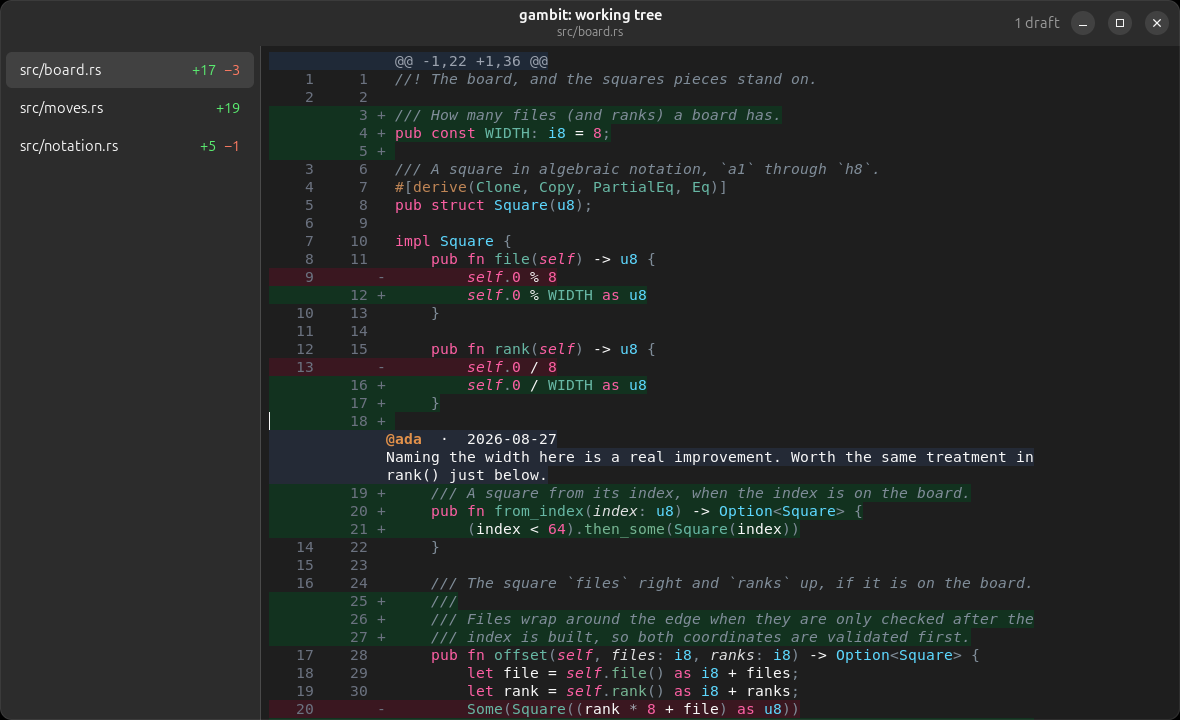
The rows are identical because the core decides them: the same files, the same markers and line numbers, the same tree-sitter colours from the same style table. What differs is everything around them — a libadwaita header bar carrying the title and the file, GNOME's own window controls, and its accent colours in the sidebar's counts. It follows the desktop's light and dark setting, as the picture above does.
Commenting works as it does on macOS, because it is the same core doing
it: Ctrl+Return opens the composer on the line under the cursor,
Ctrl+E edits a draft, Ctrl+Delete removes one, and
Ctrl+Shift+X dismisses it. Drafts appear inline under the line they
belong to and survive closing the window — they are written beside the
configuration, under ~/.local/share/prchum, following the XDG layout
rather than the macOS one.
The chords differ, and on purpose. Actions have the same names on both
platforms and the same entries in the keys map, but a GNOME user
presses Ctrl where a Mac user presses Command, so the defaults are
Ctrl-shaped: Ctrl+↑/↓ steps through changes, Ctrl+Shift+↑/↓
through files.
The rest is here too. Ctrl+Alt+C lays the hunks back into the whole
file; Ctrl+Shift+T puts the two sides in parallel panels that scroll
together; Ctrl+Shift+L asks the forge what is waiting and opens what
you pick; Ctrl+, holds the settings, written to the same
config.json the macOS app writes; and Ctrl+Shift+Return submits,
with the same retry-safety — whatever the forge accepted leaves your
drafts even if a later step fails.
Ctrl+R answers a thread the request already has, or a draft of your own, and Ctrl+Shift+P opens the conversation — comments belonging to the request rather than to any line of it.
Sharing a link
Two things are worth sending someone: where in the code you are looking, and which conversation you mean.
Ctrl+Shift+C (⇧⌘C on macOS) copies a permalink to the line under the cursor. It points at the file as it stands at the request's head commit, not at the pull request's Files tab — the anchors a forge puts on a diff are spelled differently per host and move when the request is updated, while a blob at an explicit commit resolves for whoever you send it to and keeps resolving.
Ctrl+Shift+K (⇧⌘K) copies the forge's own link to the thread under the cursor, for when you mean this conversation rather than this line.
Hold Alt (Option on macOS) and each of those opens the link instead of copying it: Ctrl+Alt+Shift+C and Ctrl+Alt+Shift+K. Alt means "open rather than copy" throughout, which is why the thread pair sits on K rather than sharing C.
All four are on the diff's right-click menu too, so none of it has to be remembered. On macOS the menu shows one of each pair and swaps copy for open while Option is held, the way alternate items work there; on Linux it lists all four. Either way the cursor moves to where you clicked first, so the action is about the line you pointed at.
Both need a pull request behind the review: a patch or a local comparison has nowhere to point at, and says so rather than copying something useless.